

Before you start
You only need three things:
- A free Google account
- A computer for setup (phone or tablet works afterwards)
- Your travel dates
- Any booking confirmations you already have
Throughout this guide, light cells are the ones you type in. Everything else is calculated automatically and protected so nothing breaks.
Tour of the tabs
Planly Getaway has 8 tabs. Here's what each one does and what (if anything) you fill in.
Setup
Your currency symbol, destination and vacation dates.
You fill: Currency, destination, and a year, month and day for the start and end of the trip.
Travel Overview
Your trip dashboard: countdown, trip details, travelers, what's still to pack, check and do, plus the budget.
You fill: The number of travelers.
Travel Research & Reservation
Compare destinations, then keep flights, accommodations, car rental, tours and travel insurance in one place.
You fill: Destination ideas, then every booking's details and costs.
Travel Budget
Budget by category, a transaction tracker, a budget calendar and a currency exchange calculator.
You fill: Categories and budgets, then every expense.
Distribution
Who spent what, and how to balance costs between travelers.
You fill: Spender names, then a spender for each expense.
Daily Itinerary
A plan for every day of the trip, from breakfast to evening.
You fill: Activities and notes for each part of the day.
Checklist
Tasks for when you book, one week before, one day before and departure day, plus a general to-do list.
You fill: Tasks and who's in charge; tick them off.
Packing List
A packing list for each traveler, by category.
You fill: Traveler names, items and quantities; tick as you pack.
Make your copy
Your template lives in your own Google Drive, so the first step is making your personal copy.
- Open the PDF from your Etsy purchase (Etsy → You → Purchases and reviews → Download files).
- Click the “Make my copy” button. If you're asked, sign in to your Google account.
- Google shows a “Copy document” screen. Click the blue “Make a copy” button.
- Your copy opens. Rename it if you like (click the title in the top-left), e.g. “Chicago Weekend”.
Tip: Bookmark your copy, or star it in Google Drive, so it's one click away while you plan and travel.
Set your trip details
SETUP tells every other tab where you're going and when. Your itinerary days, countdown and budget calendar are built from these dates.
- Under YOUR CURRENCY SYMBOL, enter the currency you'll budget in ($, €, £…).
- Under YOUR DESTINATION, type where you're going (e.g. “Chicago”).
- Under YOUR VACATION DATES, set the START DATE: enter the YEAR, choose the MONTH from the dropdown and enter the DAY.
- Do the same for the END DATE.
Tip: Light-colored cells are where you type. Everything else is calculated for you and protected, so nothing breaks by accident.
Heads up: Make sure the end date is after the start date. The Days, Nights and itinerary are all calculated from them.
Check your travel overview
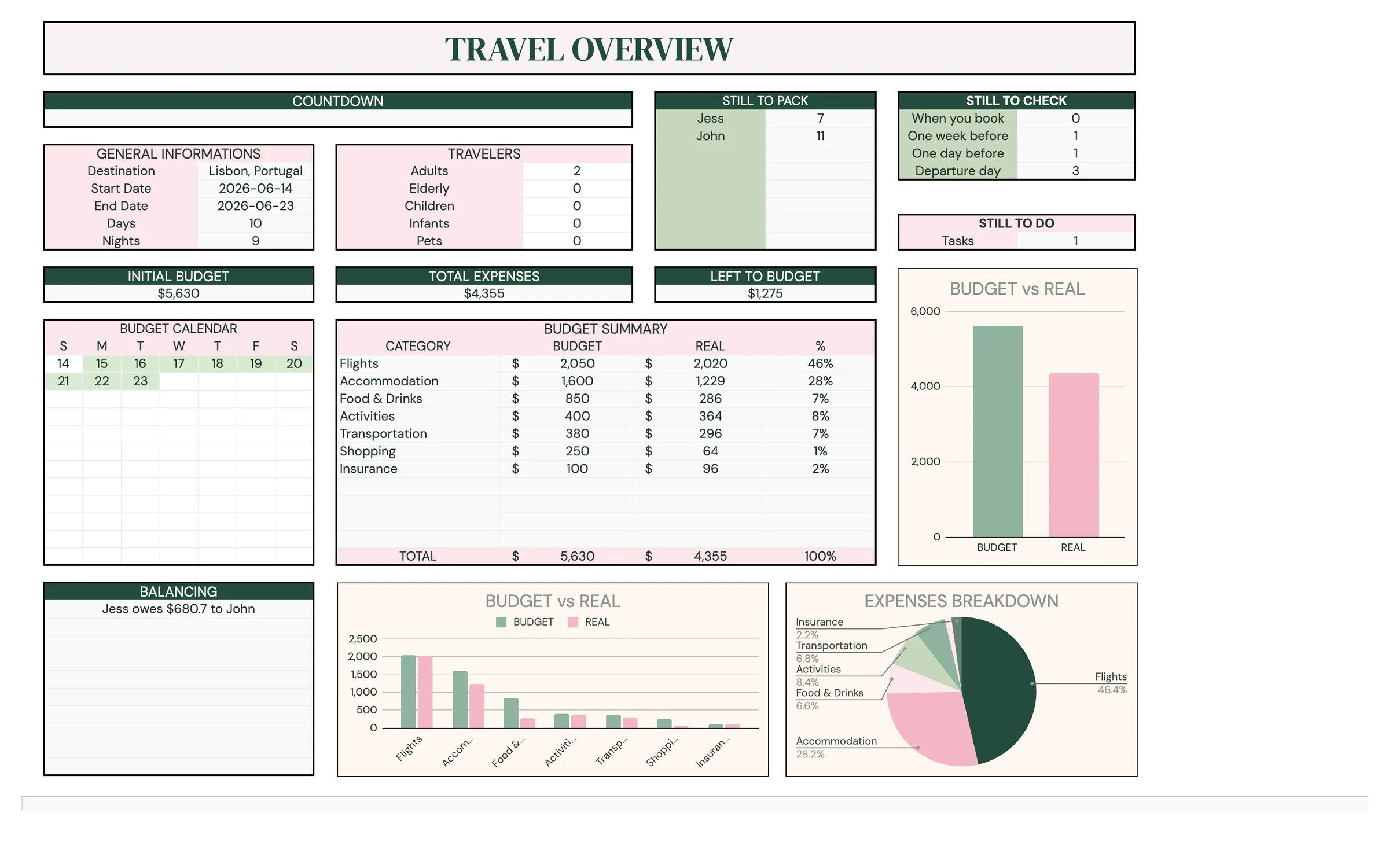
TRAVEL OVERVIEW is your trip at a glance. Almost everything here fills itself from the other tabs.
- COUNTDOWN shows how many days are left until you leave.
- GENERAL INFORMATIONS shows the Destination, Start Date, End Date, Days and Nights from SETUP.
- Under TRAVELERS, enter the number of Adults, Elderly, Children, Infants and Pets.
- STILL TO PACK, STILL TO CHECK and STILL TO DO show what's left on your packing list and checklist.
- BUDGET CALENDAR, BUDGET SUMMARY and BALANCING update as you log expenses.
Research and log your reservations
Compare destinations if you're still deciding, then keep every booking's details in one place.
- DESTINATIONS: compare options by BEST SEASON TO VISIT, AFFORDABILITY, CHILD FRIENDLY, TRANSPORTATION MODE, ACCOMODATION TYPE and AVERAGE ACCOMODATION RATE, then tick FINAL CHOICE beside the winner.
- FLIGHTS: DATE, FROM, TO, DEPARTURE TIME, ARRIVAL TIME, LUGGAGE, TICKET COST, QTY and COMPAGNY. TOTAL COST works itself out.
- ACCOMODATIONS: LOCATION, NAME, ADRESS, CHECK-IN and CHECK-OUT dates and COST/NIGHT.
- CAR RENTAL: PICK-UP INFORMATIONS, DROP-OFF INFORMATIONS, NO OF DAYS, COST/DAY and INSURANCE.
- TOURS AND SIGHTSEEING and TRAVEL INSURANCE: booking references, dates, costs and coverage.
- Tick BOOKED as each reservation is confirmed.
Tip: Log what you've paid for bookings in the TRAVEL BUDGET transaction tracker too, so your budget reflects them.
Set your travel budget
TRAVEL BUDGET compares what you plan to spend with what you really spend, category by category.
- In BUDGET SUMMARY, type your categories under CATEGORY, for example Transportation, Hotel, Food, Activities, Shopping.
- Enter a BUDGET amount for each one. INITIAL BUDGET shows the total.
- Log every expense in TRANSACTION TRACKER: DATE, AMOUNT, CATEGORY (from your list) and a DESCRIPTION.
- Watch REAL, TOTAL EXPENSES and LEFT TO BUDGET update, and check the BUDGET CALENDAR to see spending day by day.
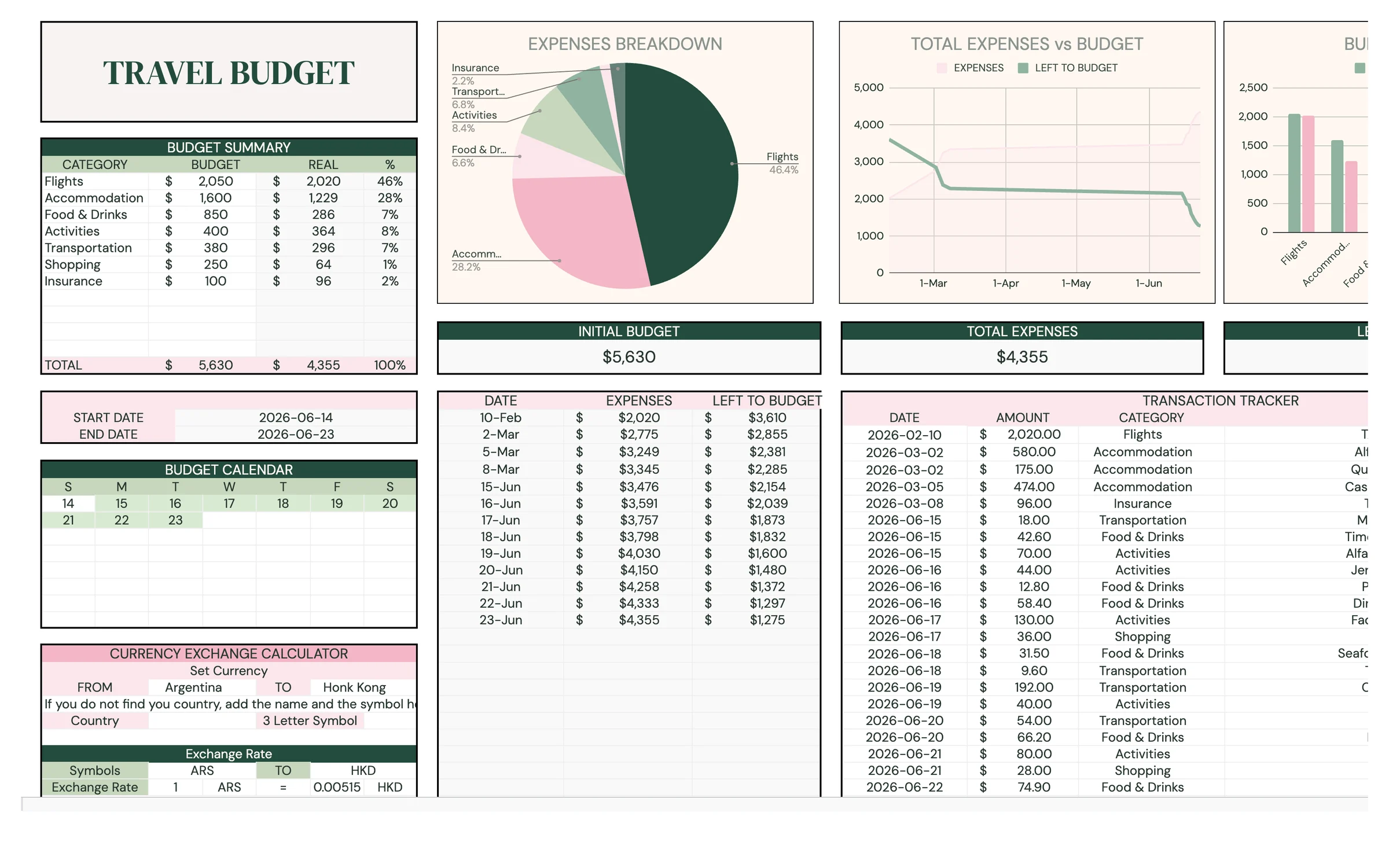
Tip: Category names you type in BUDGET SUMMARY become the choices in the transaction tracker's CATEGORY dropdown.
Convert currencies
Heading abroad? The CURRENCY EXCHANGE CALCULATOR helps you check prices on the spot.
- Under Set Currency, choose your home country in FROM and your destination in TO.
- The Exchange Rate fills in automatically, using Google's live currency data.
- Enter an Amount under Domestic to see what it's worth at your Destination.
- Can't find a country? Add its name and 3 Letter Symbol (e.g. CHF) in the space provided.
Split costs between travelers
Traveling with friends? DISTRIBUTION shows who paid for what and how to even things out.
- Under WHO ARE THE SPENDERS?, replace the example name and add each traveler (up to eight).
- TRANSACTION DISTRIBUTION lists every expense from TRAVEL BUDGET. Choose who paid under SPENDER.
- Check BALANCING to see how much each person is over or under their share.
- EXPENSES DISTRIBUTION and GLOBAL DISTRIBUTION show the split as charts.
Plan each day
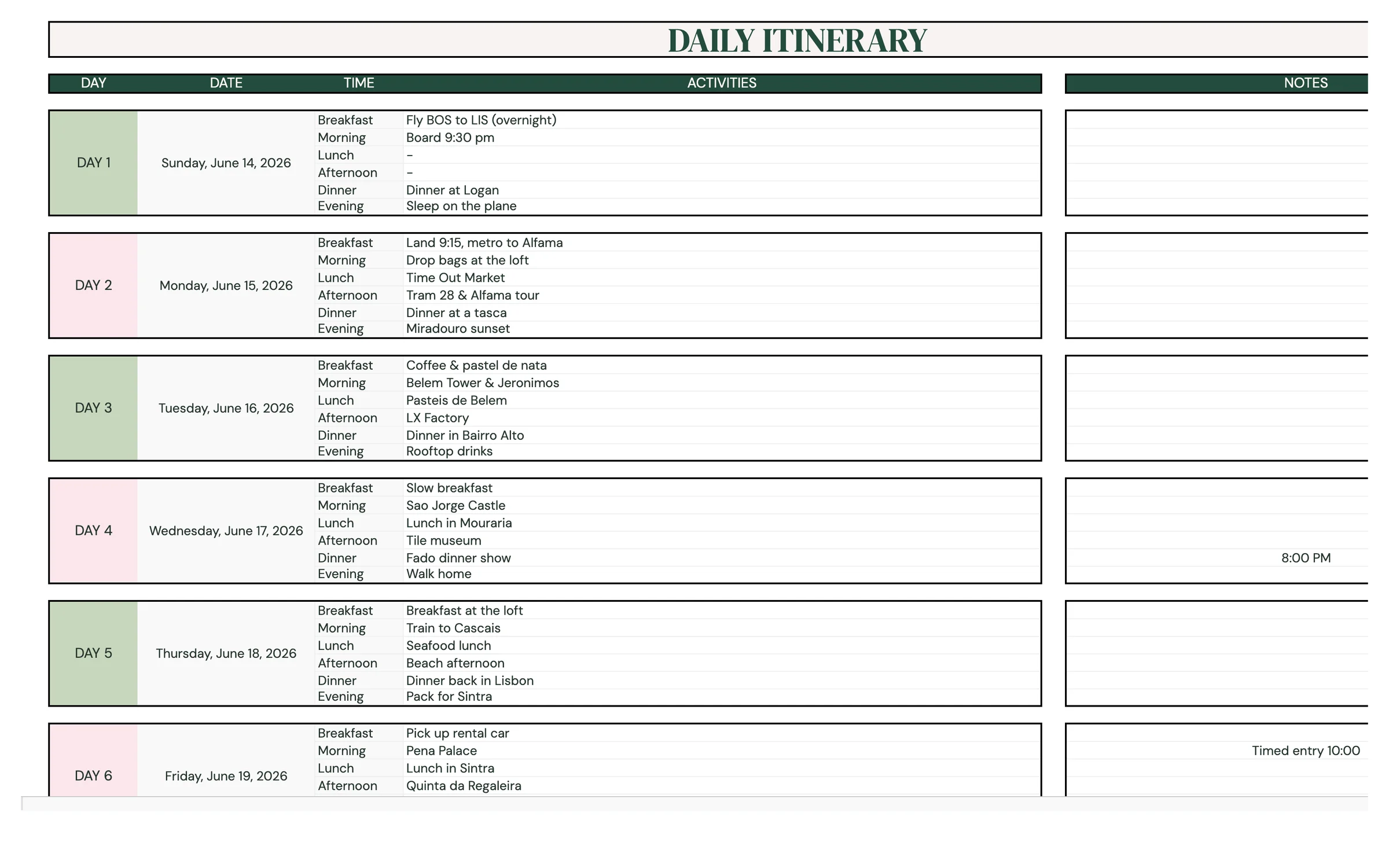
DAILY ITINERARY lists every day of your trip with its date, based on your SETUP dates.
- Each DAY has rows for Breakfast, Morning, Lunch, Afternoon, Dinner and Evening.
- Under ACTIVITIES, type what you're doing: a brunch spot, a gallery, a show.
- Add NOTES like addresses, booking times or confirmation numbers.
Tip: On a short trip, plan one “must-do” per day and keep the rest flexible.
Work through your checklist
CHECKLIST splits your to-dos by timing, so nothing gets left to the last minute.
- Add tasks under WHEN YOU BOOK, ONE WEEK BEFORE DEPARTURE, ONE DAY BEFORE DEPARTURE and DEPARTURE DAY.
- Use the TO DO section for anything else.
- Enter a PERSON IN CHARGE for each TASK.
- Tick CHECK as tasks are done. What's left shows on TRAVEL OVERVIEW.
Pack with the packing list
Each traveler gets their own packing list, organized by category.
- Replace the example names with your travelers' names.
- Under each person, add items to CLOTHING, ACCESSORIES, TECHNOLOGY, TOILETRIES and SPECIFIC EQUIPMENTS, with a QTY.
- Tick CHECK as each item goes in the bag.
- The summary at the top and STILL TO PACK on TRAVEL OVERVIEW show how much each traveler has left.
Tip: Keep a standard weekend list. Make a fresh copy of the template for your next trip and paste it in.
Your routine
A few minutes a week keeps everything accurate.
- Set dates and destination on SETUP
- Log bookings on TRAVEL RESEARCH & RESERVATION
- Set your budget and plan each day
- Work through the CHECKLIST and PACKING LIST
- Log expenses in the TRAVEL BUDGET transaction tracker
- Assign a spender on DISTRIBUTION
- Check the next day on DAILY ITINERARY
- Review Budget vs. Real
- Settle up using BALANCING
Tips & tricks
Use it on your phone
Install the free Google Sheets app and open your copy to log expenses and check your plans on the go.
Make it available offline
In the Google Sheets app, turn on offline access for your copy so you can check bookings without Wi-Fi or roaming.
Share with your travel buddies
Click Share in the top-right and add your fellow travelers as Editors, so everyone can log expenses and tick off tasks.
Reuse it for every getaway
Open your original download link and make a fresh copy for each new trip.
Prefer dark mode?
Your order includes a Dark Mode edition with the same tabs and formulas. Open the link in your PDF and tap “Make my dark copy”. You can keep both and use whichever you like.
Troubleshooting
I don't see “Make a copy”.
Make sure you're signed in to a Google account. On a phone, open the link in your browser (not the Etsy app) or in the Google Sheets app.
A cell says it's protected when I type.
That cell holds a formula. Type only in the light input cells. That's what keeps everything calculating correctly.
My itinerary shows the wrong days.
Check the START DATE and END DATE on SETUP (year, month and day). The itinerary rebuilds from them.
My category isn't in the CATEGORY dropdown.
Type it in the BUDGET SUMMARY on TRAVEL BUDGET first. It then appears in the transaction tracker.
The exchange rate shows an error or doesn't update.
It uses Google's live currency data, which needs an internet connection and both currencies selected. Try a moment later.
Dates look wrong (day and month swapped).
File → Settings → Locale controls the date format. Pick your country and the dates switch to your format.
Still stuck? Message us on Etsy or email help.planly@gmail.com and a real person will help.
Don't have Planly Getaway yet?
Everything for your next getaway, in one tab bar.