

Before you start
You only need three things:
- A free Google account
- A computer for setup (phone or tablet works afterwards)
- Your guest list, including plus-ones and kids
- The number of tables at your venue and how many seats each one holds
Throughout this guide, light cells are the ones you type in. Everything else is calculated automatically and protected so nothing breaks.
Tour of the tabs
Planly Table Talk has 6 tabs. Here's what each one does and what (if anything) you fill in.
Start Here
A quick welcome, the 3 steps to get going and a map of the template.
You fill: Nothing. Read it once.
Setup
Your names, wedding date and usual seats per table, plus the meal options, guest groups and table shapes the dropdowns use.
You fill: The light cells at the top, then meals and groups if you want to change them.
Dashboard
Six summary cards and 4 charts: seats by table, meal choices, guests by side and RSVPs.
You fill: Nothing. It fills itself.
Guest List
Room for 300 people, one per row, with household, side, group, RSVP, meal, table and notes.
You fill: Each guest, their RSVP and meal, then a table.
Tables
Up to 60 tables with seats, seated, open, who's sitting there and meal counts per table, plus a list of guests who still need a table.
You fill: Table names, shapes and seat counts. Guests are seated from GUEST LIST.
Seating Plan
Printable table cards, 4 per row, each with the table name, seats taken and up to 12 guests with their meal.
You fill: Nothing. It builds itself from TABLES and GUEST LIST.
Make your copy
Your seating chart lives privately in your own Google Drive, so the first step is making your personal copy.
- Open the PDF from your Etsy purchase (Etsy → You → Purchases and reviews → Download files).
- Click the “Make my copy” button. If you're asked, sign in to your Google account.
- Google shows a “Copy document” screen. Click the blue “Make a copy” button.
- Your copy opens. Rename it if you like (click the title in the top-left), e.g. “Our Seating Chart”.
Tip: Bookmark your copy, or star it in Google Drive, so it's one click away while the RSVPs come in.
Add your wedding details
The light cells at the top of SETUP feed the dashboard title, the Guest of dropdown and the starting size of your tables.
- Open the SETUP tab.
- In the light cells C6 to C8, enter Partner 1, Partner 2 and the Wedding date.
- In C9, enter Seats per table: the number of seats at most of your tables (8 to start). Table 1 to Table 15 on TABLES use this number.
- Check the DASHBOARD title: it now reads “Seating for” followed by your names, with the wedding date underneath.
- Read the short tip in B11 before moving on.
Tip: Light-colored cells are where you type. Everything else is calculated for you, so nothing breaks by accident.
Adjust your lists
The lists to the right on SETUP fill the dropdowns on the other tabs. The defaults work well, so change only what you need.
- Meal options (E6 to E11): Beef, Chicken, Fish, Vegetarian, Vegan and Kids meal. Change them to match your caterer's menu. These six names also become the meal count columns on TABLES.
- Guest of (G6 to G8): this list builds itself from your two names plus “Both”.
- Guest groups (I6 to I13): Family, Friends, Work, Neighbors, Plus-one and Other, with room for two more.
- Table shapes (K6 to K11): Round, Long, Square, Head table, Sweetheart and Kids table.
Tip: Only six meal options fit, because each one gets its own count column on TABLES. If your caterer offers fewer, clear the extras and the empty columns stay blank.
Add your guests
GUEST LIST holds 300 people. The most important rule: one row per person. Plus-ones and kids get their own row, so every seat and every meal is counted.
- Type each Guest name, one person per row. For a plus-one whose name you don't know yet, a placeholder like “Guest of Sam Lee” works.
- Give everyone on one invitation the same Party / household (e.g. “The Hayes family”) so families are easy to keep together.
- Pick Guest of (whose side) and a Group.
- Set RSVP to Attending, Declined or Awaiting as replies come in. Attending turns green and declined guests are greyed out.
- Choose each guest's Meal and add any Dietary notes.
- Use Seating notes for anything that matters when you seat people, like “near the exit”, “needs a high chair” or “keep away from the speakers”.
- Check the cards at the top: Guests, Attending, Seated, Need a seat and Declined.
Tip: Sort or filter by Party / household (Data → Create a filter) to see each family together while you seat them.
Set up your tables
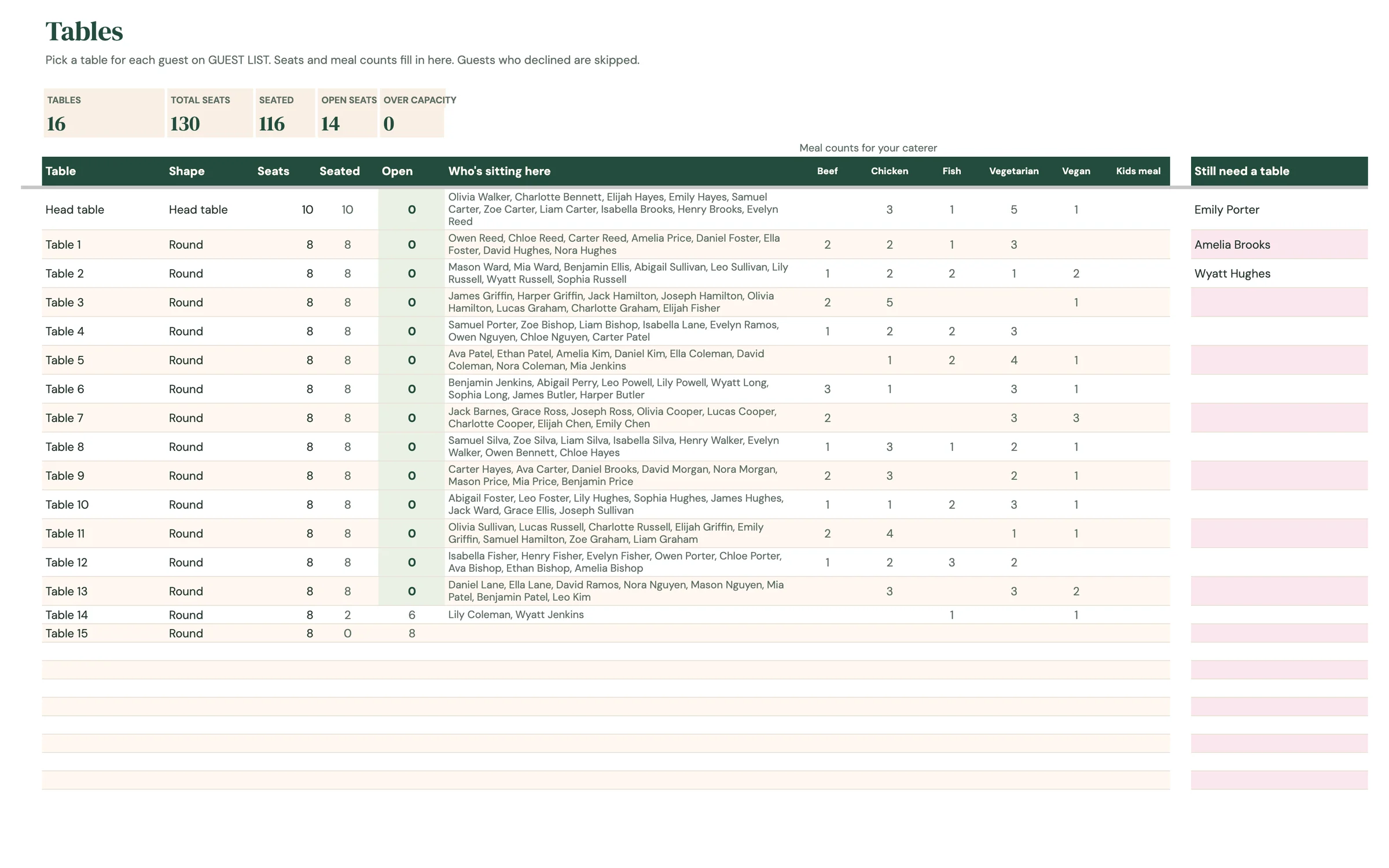
TABLES comes with a Head table (10 seats) and Table 1 to Table 15, each using the seats per table from SETUP. Change them to match your venue's floor plan.
- Rename tables in the Table column if you like (e.g. “Table 1: College friends” or “Sweetheart”). These names fill the Table dropdown on GUEST LIST.
- Pick a Shape for each table from the dropdown.
- Check Seats. Table 1 to Table 15 follow Seats per table on SETUP, so changing C9 there resizes them all at once. Type a different number to change just one table.
- Need more tables? Add a name, shape and seat count in the empty rows below. Up to 60 tables fit.
- Delete the names of any tables you won't use, so they don't count toward your total seats.
Tip: New tables you add underneath don't pick up the default seat count on their own. Type the number of seats, or type =SEATS_DEFAULT in the Seats cell to follow SETUP.
Seat your guests
You pick a table for each guest on GUEST LIST, and TABLES does all the counting.
- On GUEST LIST, pick a table in each guest's Table column. The dropdown lists every table on TABLES.
- Guests without a table are highlighted in pink, unless they declined.
- Go to TABLES. Seated counts each table's guests, and Open shows the seats still free. Open turns green when a table is exactly full and pink if it's over.
- Who's sitting here lists the names at each table, so you can check who's next to whom.
- Check the Still need a table list on the right of TABLES. It lists every guest who hasn't declined and has no table yet. When it says “Everyone has a seat”, you're done.
- Watch the cards at the top of TABLES: Tables, Total seats, Seated, Open seats and Over capacity.
Tip: Guests still Awaiting a reply are counted as seated and need a seat, so you plan for them. Declined guests are skipped everywhere.
Send meal counts to your caterer
Most caterers want to know how many of each meal goes to each table. TABLES has that ready for you.
- On TABLES, look at the columns under “Meal counts for your caterer”, to the right of Who's sitting here.
- Each column is one of your meal options, and each row shows how many guests at that table chose it.
- Guests with no Meal picked aren't counted, so filter GUEST LIST for blank meals and follow up before sending the numbers.
- The Meal choices chart on DASHBOARD shows the total for each meal across the whole wedding.
Tip: Your caterer will also want Dietary notes. Filter GUEST LIST on that column and send the names along with their table.
Print the seating plan
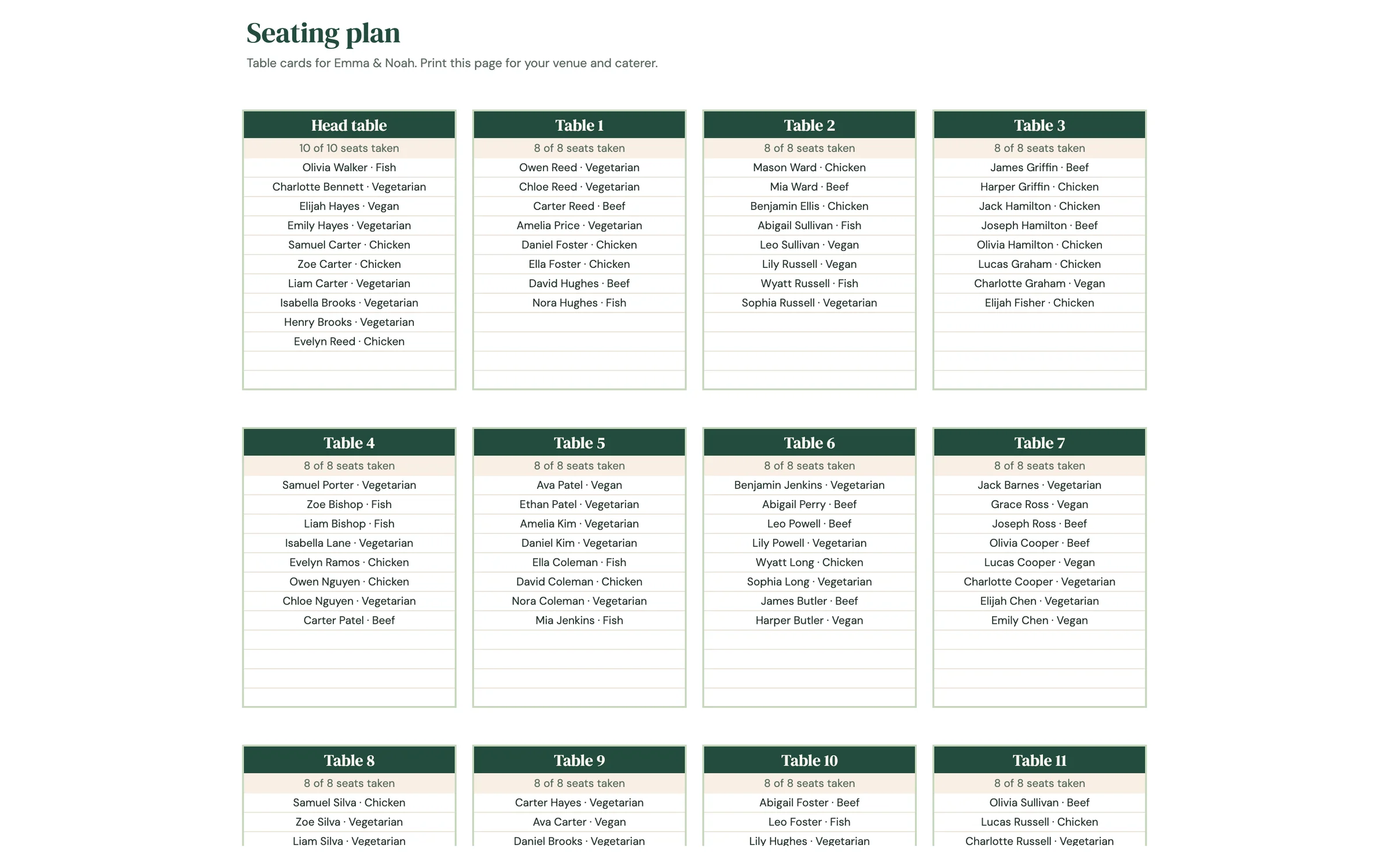
SEATING PLAN builds a card for every table, 4 cards per row. There's nothing to type here.
- Each card shows the table name, “6 of 8 seats taken” and the guests at that table, written as “Name · Meal” so servers know who gets what.
- Declined guests are left off, and so are tables with no name.
- Each card lists up to 12 guests.
- To print, go to File → Print. Choose Current sheet, set Scale to Fit to width, then print or save as PDF for your venue and caterer.
Tip: Print a copy for the venue coordinator and one for the caterer, and keep a PDF on your phone for the day.
Read your dashboard
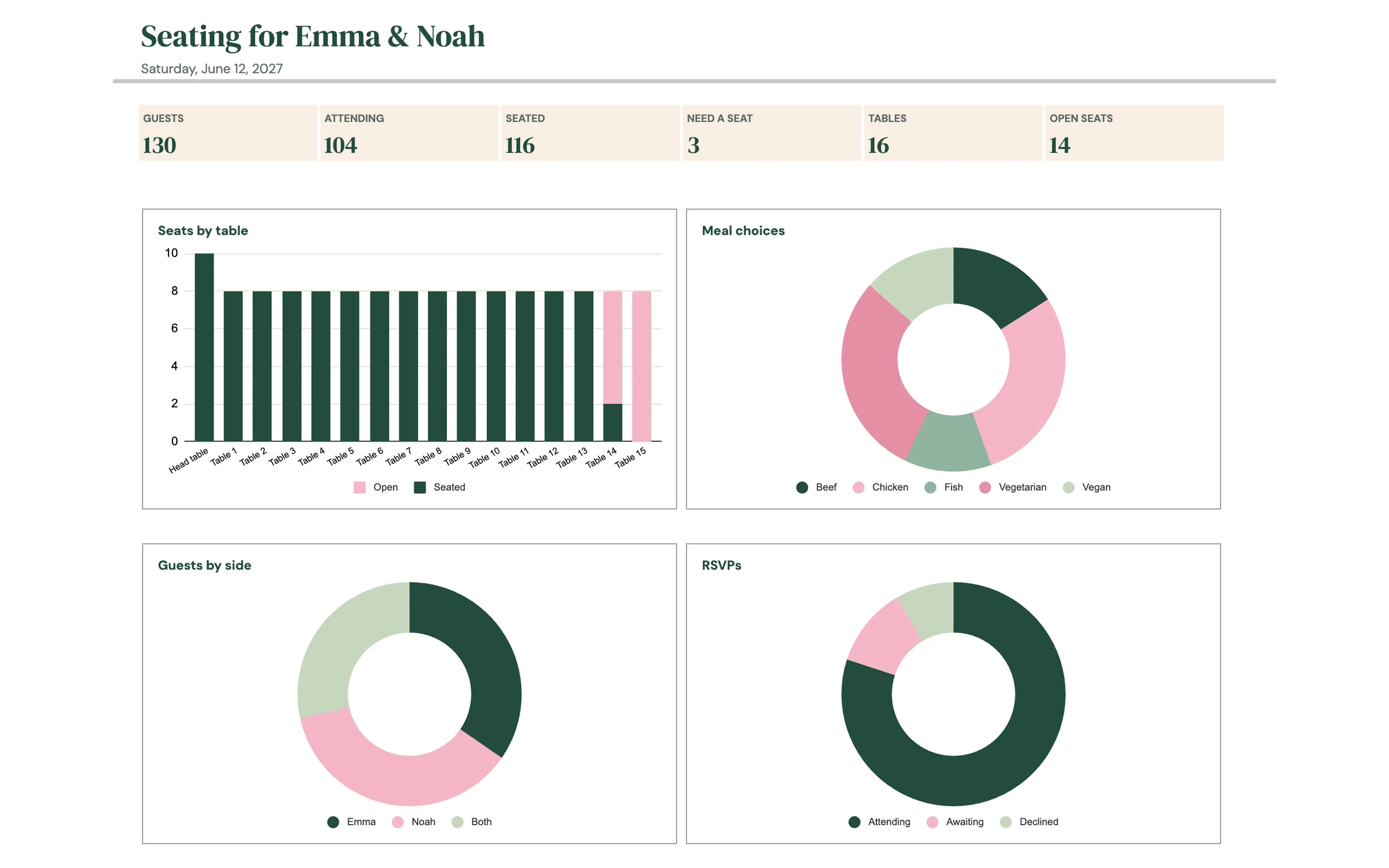
The dashboard pulls everything together. There's nothing to type here.
- The cards show Guests, Attending, Seated, Need a seat, Tables and Open seats.
- Seats by table shows seated and open seats for each table, stacked so you can spot gaps. It shows your first 20 tables.
- Meal choices shows how many guests picked each meal.
- Guests by side shows how many guests are each partner's or Both.
- RSVPs shows Attending, Awaiting and Declined.
Your routine
A few minutes a week keeps everything accurate.
- Update RSVP and Meal for each reply
- Add plus-ones on their own rows
- Follow up with guests still Awaiting
- Pick a table for every guest
- Check Open and Over capacity on TABLES
- Clear the Still need a table list
- Send meal counts per table to your caterer
- Print SEATING PLAN for the venue
- Make last-minute swaps and reprint
Tips & tricks
What the colors mean
GUEST LIST: green Attending, grey for guests who declined, and a pink Table cell means that guest still needs a seat. TABLES: a green Open of 0 means the table is exactly full, and a pink negative number means too many guests are seated there. Guests who declined are never counted in seats or meals.
Seat together
Click Share in the top-right and add your partner's email as an Editor, so you can both move guests around in the same chart.
Start with the tricky tables
Seat the head table, family and anyone with Seating notes first. Everyone else fits around them more easily.
Sort and filter guests
Data → Create a filter lets you show only one side, one group or only guests without a table.
Keep a backup
File → Make a copy any time to save a snapshot. It's handy before a big reshuffle.
Prefer dark mode?
Your order includes a Dark Mode edition with the same tabs and formulas. Open the link in your PDF and tap “Make my dark copy”. You can keep both and use whichever you like.
Troubleshooting
Why is a guest's Table cell pink?
They haven't declined and don't have a table yet. Pick a table from the dropdown and the pink clears. They also appear in the Still need a table list on TABLES until then.
Why is a number in Open negative or pink?
More guests are assigned to that table than it has seats. Move someone to another table, or raise Seats for that table on TABLES.
I don't see “Make a copy”.
Make sure you're signed in to a Google account. On a phone, open the link in your browser (not the Etsy app) or in the Google Sheets app.
A cell says it's protected when I type.
That cell holds a formula. Type only in the light input cells. That's what keeps everything calculating correctly.
A guest isn't showing at their table.
Check their Table on GUEST LIST matches a table name on TABLES exactly, and that their RSVP isn't Declined.
A couple only counts as one seat.
Give each person their own row on GUEST LIST, plus-ones and kids too. Each row is one seat and one meal.
A table isn't in the Table dropdown.
Add or rename the table on TABLES first. The dropdown on GUEST LIST reads that list.
A card on SEATING PLAN is missing names.
Each card lists up to 12 guests. For a bigger table, check Who's sitting here on TABLES for the full list.
My meal counts look low.
Only guests with a Meal picked are counted. Filter GUEST LIST for blank meals and fill them in.
Dates look wrong (day and month swapped).
File → Settings → Locale controls the date format. Pick your country and the dates switch to your format.
Still stuck? Message us on Etsy or email help.planly@gmail.com and a real person will help.
Don't have Planly Table Talk yet?
Who sits where, with meal counts for your caterer.