

Before you start
You only need three things:
- A free Google account
- A computer for setup (phone or tablet works afterwards)
- Your wedding date (a best guess is fine, you can change it later)
- A rough total budget and a first draft of your guest list
Throughout this guide, light cells are the ones you type in. Everything else is calculated automatically and protected so nothing breaks.
Tour of the tabs
Planly Say Yes Lite has 6 tabs. Here's what each one does and what (if anything) you fill in.
Start Here
A quick welcome and a map of the template.
You fill: Nothing. Read it once.
Setup
Your names, date, venues, total budget, guest goal and currency, plus the lists the dropdowns use.
You fill: The light cells at the top (including your currency), then budget categories, meal options and guest groups.
Dashboard
Your countdown, summary cards, a budget donut and an RSVP progress bar.
You fill: Nothing. It fills itself.
Budget
Every wedding cost with estimated, actual, paid and left to pay, plus a plan by category.
You fill: Items, estimates, then actual costs and payments as they happen.
Guest List
Room for 150 guests with invites, RSVPs, plus-ones, meals and dietary notes, save the dates and a by-household reply summary.
You fill: Each guest, then RSVPs and meal choices as replies come in.
Checklist
About 55 pre-written tasks from 12+ months out to after the wedding, with automatic due dates.
You fill: Tick tasks off, add who's doing what, and add your own tasks.
Make your copy
Your planner lives privately in your own Google Drive, so the first step is making your personal copy.
- Open the PDF from your Etsy purchase (Etsy → You → Purchases and reviews → Download files).
- Click the “Make my copy” button. If you're asked, sign in to your Google account.
- Google shows a “Copy document” screen. Click the blue “Make a copy” button.
- Your copy opens. Rename it if you like (click the title in the top-left), e.g. “Our Wedding Plan”.
Tip: Bookmark your copy, or star it in Google Drive, so it's one click away until the big day.
Add your wedding details
The light cells at the top of SETUP feed every other tab: the countdown, the checklist due dates and the budget plan.
- Open the SETUP tab.
- In the light cells C6 to C13, enter Partner 1, Partner 2, Wedding date, Ceremony venue, Reception venue, City, Total budget and Guest count goal.
- Pick your Currency in C14 ($, £, €, CA$, A$, NZ$, R, ₹, ¥, kr, CHF or zł). Every money heading in the planner then shows your symbol, e.g. “Total budget (£)”.
- Check the DASHBOARD title: it now reads “The wedding of” followed by your names.
- Read the short tip in B16 before moving on.
Tip: Light-colored cells are where you type. Everything else is calculated for you, so nothing breaks by accident.
Adjust your lists
The lists further down SETUP fill the dropdowns on the other tabs. The defaults work well, so change only what you need.
- Budget categories: 13 categories are filled in with a % of budget for each. Change the names or percentages to suit your wedding, and keep the total at 100%.
- Meal options: list the meals your caterer offers (for example Chicken, Fish, Vegetarian, Kids).
- Guest groups: list the groups you'll sort guests into, such as Family, Friends or Work.
- Guest of: this list builds itself from your two names plus “Both”.
Tip: Each category's plan is your total budget times its %. Raise one category and lower another to keep the total at 100%.
Plan your budget
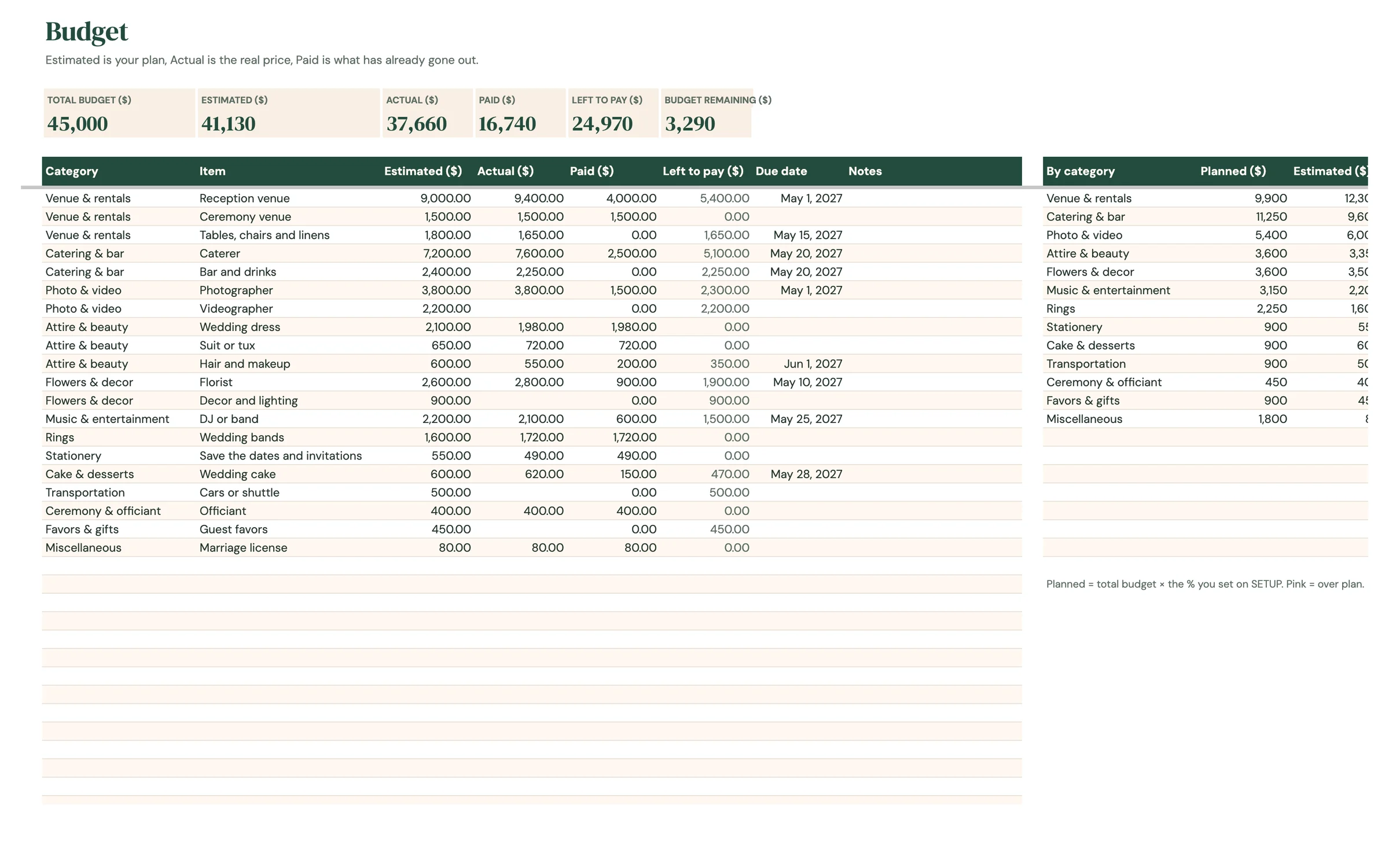
BUDGET starts with 20 common wedding items already listed. Add estimates now and fill in real numbers as you book.
- For each row, pick a Category from the dropdown and check the Item name. Delete or rename items you don't need.
- Enter an Estimated cost for each item.
- As you book, type the Actual cost. When you pay something, add it to Paid. Left to pay works itself out.
- Add a Due date for any balance still owed and use Notes for details.
- Check the summary cards at the top and the By category table: Planned, Estimated, Actual and Difference. A category over its plan turns pink.
Build your guest list
The guest list holds 150 guests and keeps invites, RSVPs and meals in one place.
- Enter each Guest name and their Party / household so you can keep families together.
- Pick Guest of (whose side) and a Group, and add a Phone or email.
- Tick Invite sent when the invitation goes out.
- When replies come in, set RSVP to Attending, Declined or Awaiting.
- If a guest brings someone, tick Plus-one and add the Plus-one name.
- Choose a Meal and Plus-one meal, and add any Dietary notes.
- Use the last three checkboxes to track Save the date sent, Address collected and Returned mail.
- To the right of the table, the By household summary shows each household's Guests (plus-ones counted), Attending and Replied (e.g. “2 of 3”). A household turns green once everyone has replied.
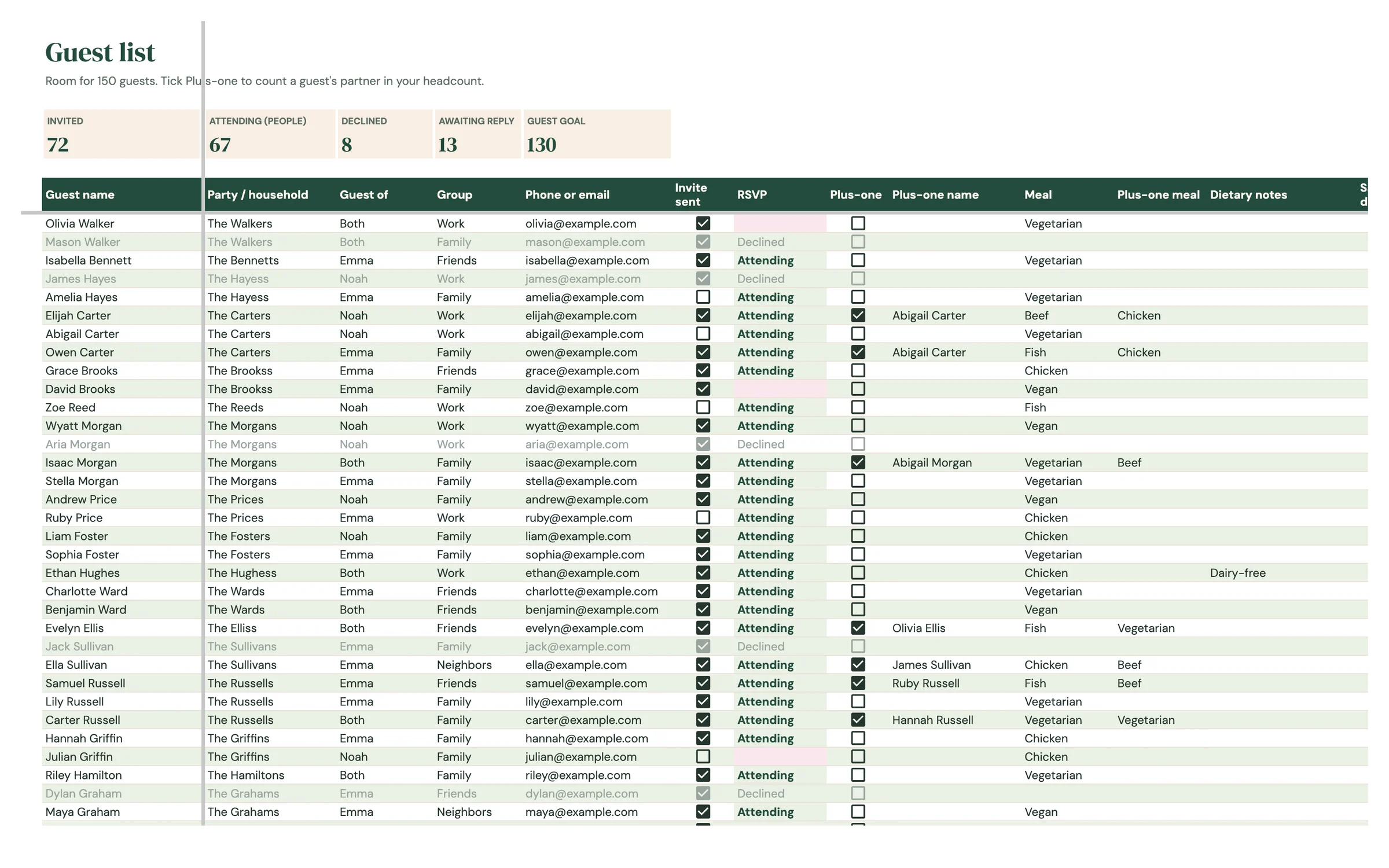
Tip: Give everyone on one invitation the same Party / household name, so the By household summary groups them together. Declined rows turn grey and guests still awaiting a reply turn pink.
Work through the checklist
About 55 tasks are already written for you, grouped by phase from 12+ months out to after the wedding.
- Look at the Phase column and the phase table on the right: each phase has a number of days before the wedding.
- Due date fills in by itself from your wedding date minus the days for that phase. Type over a date if you want a different one.
- Add a name in Who so everyone knows their jobs.
- Tick Done when a task is finished and use Notes for details.
- Add your own tasks in the empty rows at the bottom.
- Watch the cards at the top: Tasks, Done, Progress and Overdue.
Tip: Overdue tasks are highlighted. If your date moves, change it on SETUP and every due date shifts with it.
Read your dashboard
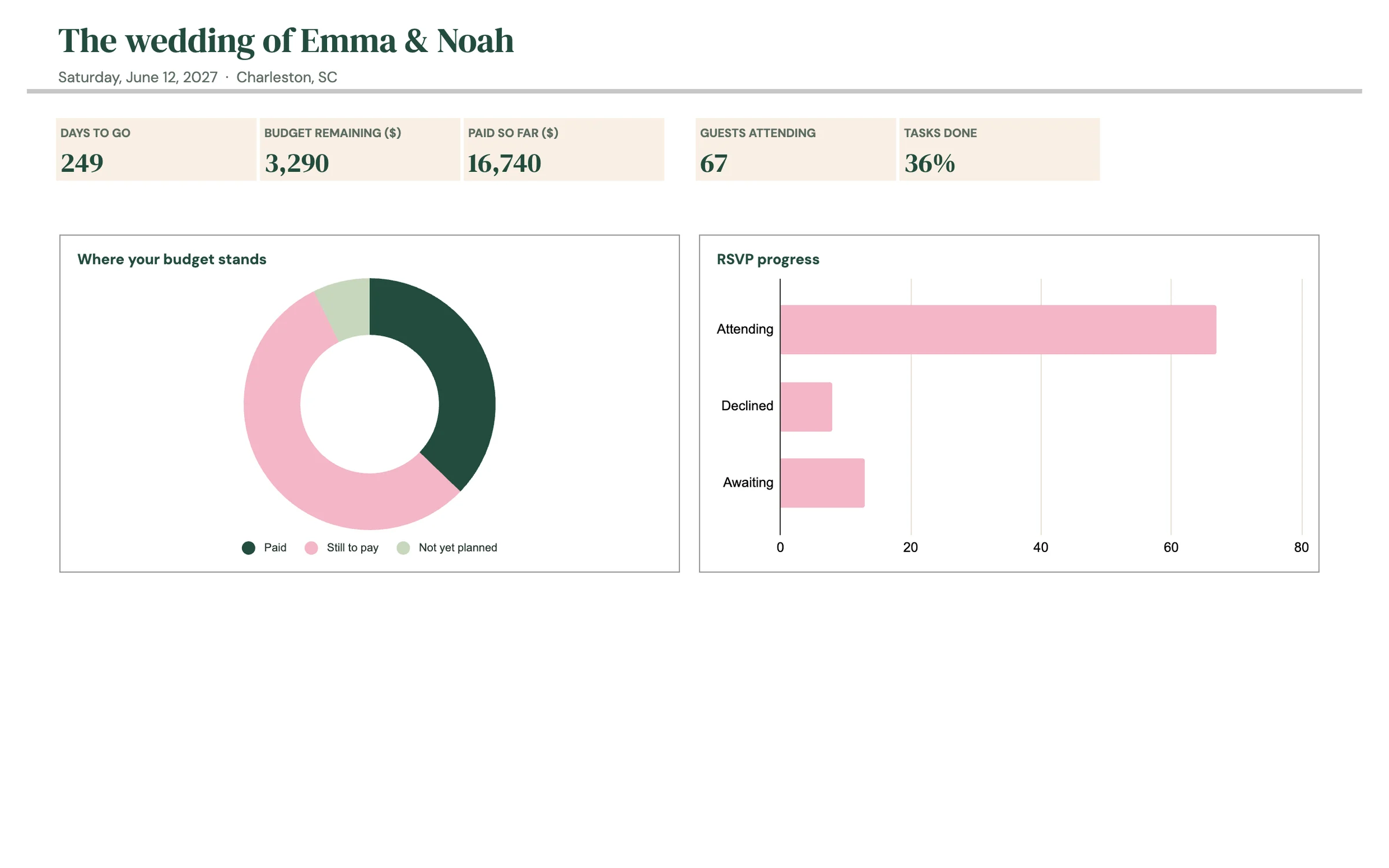
The dashboard pulls everything together. There's nothing to type here.
- The cards show Days to go, Budget remaining, Paid so far, Guests attending and Tasks done.
- The budget donut splits your total budget into paid, still to pay and not yet planned.
- The RSVP progress bar shows how many replies are in.
Your routine
A few minutes a week keeps everything accurate.
- Update RSVPs and meal choices
- Tick off finished tasks
- Log anything you paid on BUDGET
- Check the Overdue card on CHECKLIST
- Compare Actual to Planned in the By category table
- Follow up with guests still awaiting a reply
- Send final numbers and meals to your caterer
- Check Left to pay for any balances still due
- Finish the last checklist phase
Tips & tricks
What the colors mean
SETUP: the budget % total turns pink when it doesn't add up to 100%. BUDGET: a pink Difference in the By category table means that category is over plan. GUEST LIST: green Attending, pink for guests who haven't replied, grey for guests who declined, and a green Replied count in By household once everyone in that invitation has answered. CHECKLIST: crossed out is done, a pink due date is overdue.
Plan together
Click Share in the top-right and add your partner's email as an Editor, so you both update the same planner.
Use it on your phone
Install the free Google Sheets app and open your copy. Updating an RSVP on the go takes seconds.
Sort and filter guests
Data → Create a filter lets you show only one group or only guests awaiting a reply.
Keep a backup
File → Make a copy any time to save a snapshot. It's handy before big changes.
Prefer dark mode?
Your order includes a Dark Mode edition with the same tabs and formulas. Open the link in your PDF and tap “Make my dark copy”. You can keep both and use whichever you like.
Troubleshooting
Why is a cell pink?
Pink is the planner's way of saying something needs a look: a guest who hasn't replied, an overdue task or payment, a category over plan or a table with too many guests. Fix the cause and the pink clears by itself. The tip "What the colors mean" lists every one.
I don't see “Make a copy”.
Make sure you're signed in to a Google account. On a phone, open the link in your browser (not the Etsy app) or in the Google Sheets app.
A cell says it's protected when I type.
That cell holds a formula. Type only in the light input cells. That's what keeps everything calculating correctly.
The countdown or due dates look wrong.
Check the Wedding date on SETUP. Every countdown and checklist due date is worked out from it.
My budget plan doesn't add up.
Check that the % of budget for all categories on SETUP totals 100% and that a Total budget is entered.
A meal or group isn't in the dropdown.
Add it to the Meal options or Guest groups list on SETUP and it appears in the dropdown right away.
Amounts show the wrong currency symbol.
Pick your currency in C14 on SETUP. Amounts are plain numbers, and every money heading switches to the symbol you choose.
Dates look wrong (day and month swapped).
File → Settings → Locale controls the date format. Pick your country and the dates switch to your format.
Still stuck? Message us on Etsy or email help.planly@gmail.com and a real person will help.
Don't have Planly Say Yes Lite yet?
Budget, guests and checklist for the big day, in one sheet.