

Before you start
You only need three things:
- A free Google account
- A computer for setup (phone or tablet works afterwards)
- A brain dump of the tasks on your plate
Throughout this guide, light cells are the ones you type in. Everything else is calculated automatically and protected so nothing breaks.
Tour of the tabs
Planly Done List has 4 tabs. Here's what each one does and what (if anything) you fill in.
Setup
The lists behind every dropdown: priorities, statuses, categories and people.
You fill: Your own categories, statuses, people in charge and emoji.
Dashboard
Monthly progress, overdue tasks, tasks due today and completed vs. to-do charts.
You fill: Choose a year and month; optional filters.
Task Tracker
Your master task list with status, due date, days left, priority, category and owner.
You fill: Every task. Then tick DONE when it's finished.
Calendar
A monthly calendar of your tasks plus one-off deadlines.
You fill: Month and start day; any punctual deadlines and notes.
Make your copy
Your template lives in your own Google Drive, so the first step is making your personal copy.
- Open the PDF from your Etsy purchase (Etsy → You → Purchases and reviews → Download files).
- Click the “Make my copy” button. If you're asked, sign in to your Google account.
- Google shows a “Copy document” screen. Click the blue “Make a copy” button.
- Your copy opens. Rename it if you like (click the title in the top-left), e.g. “My To-Do List”.
Tip: Bookmark your copy, or star it in Google Drive, so it's one click away every day.
Set up your lists
Everything you type on SETUP becomes a dropdown choice on the other tabs. It comes pre-filled, so you only need to tweak it.
- Open SETUP. Review TASK PRIORITY (Very High to Very Low) and rename levels if you like.
- In TASK STATUS, keep or edit the statuses (To do, In progress, Hold, To review, Completed, Overdue, Canceled). Pick an emoji for each from the dropdown. The choices come from EMOJI POOL.
- In CATEGORY, replace the examples (House, Personal, Business) with the areas of your life you plan for.
- In PERSON IN CHARGE, add the names of anyone who shares tasks with you, or just your own name.
- Add or swap emoji in EMOJI POOL if you want different icons for your statuses.
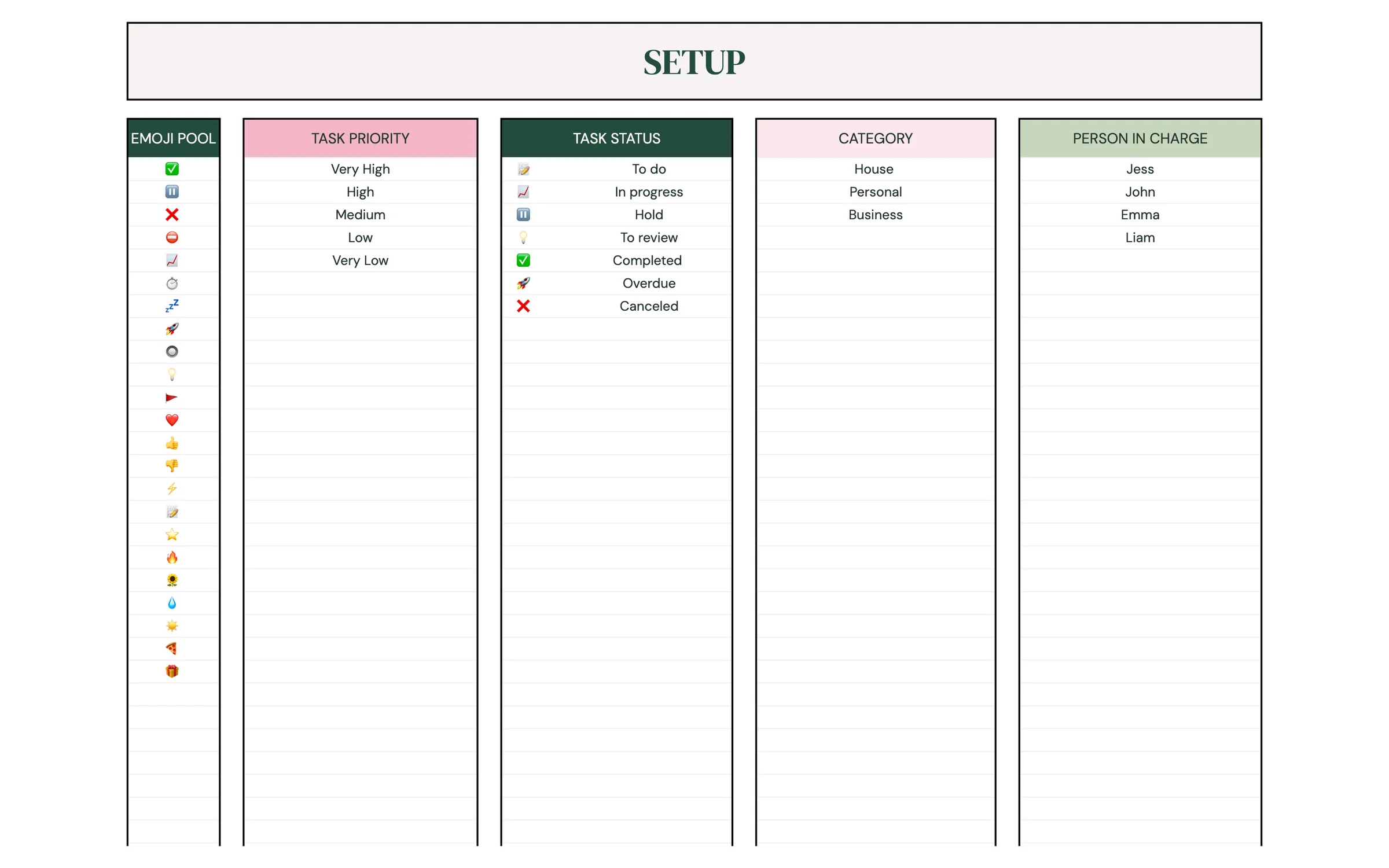
Tip: Light-colored cells are where you type. Everything else is calculated for you and protected, so nothing breaks by accident.
Add your tasks
TASK TRACKER is your master list. Add tasks as they come up. There's room for 100.
- Open TASK TRACKER and type a task in TASK NAME.
- Choose its STATUS from the dropdown (for example To do or In progress).
- Enter a DUE DATE. DAYS LEFT counts down automatically.
- Pick a PRIORITY, a CATEGORY and who's IN CHARGE.
- Use NOTE for details, links or the next step.
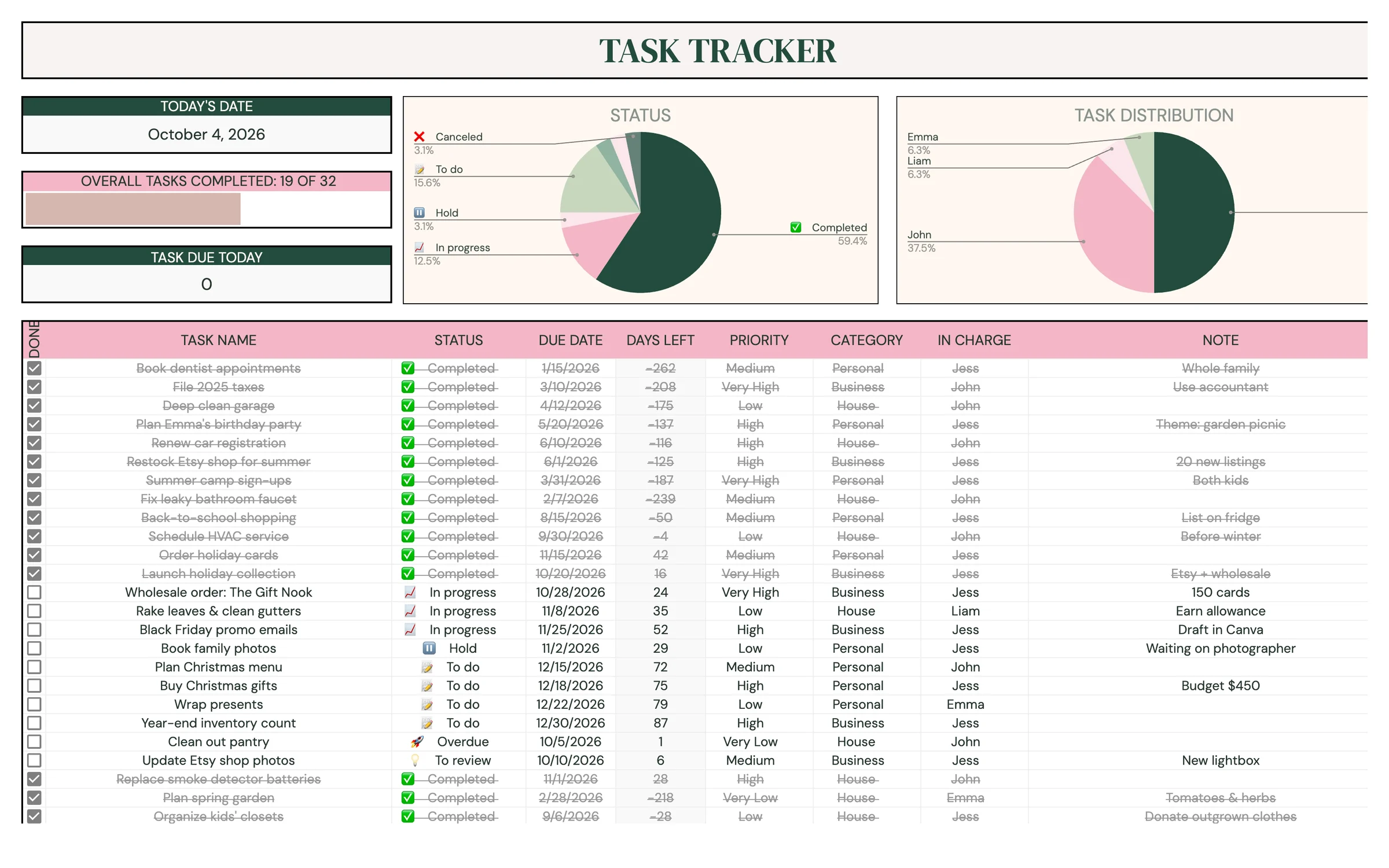
Tip: Check TASK DUE TODAY at the top of the tab. It counts the unfinished tasks due today.
Tick off finished tasks
Finishing a task is one click, and it's the satisfying part.
- When you finish a task, tick its DONE checkbox.
- Update STATUS to Completed if you want the status to match.
- Watch OVERALL TASKS COMPLETED and its progress bar rise at the top of the tab.
- Use DAYS LEFT to spot what's due soonest and pick your next task.
Heads up: A task counts as overdue on the dashboard when its due date has passed and DONE isn't ticked, so tick DONE, not just the status.
Read your dashboard
The dashboard shows how your month is going. You only choose the month. Everything else fills itself.
- Open DASHBOARD and choose the year and month in the top-left.
- MONTHLY PROGRESS and OVERALL TASKS COMPLETED show how much of the month's list is done.
- MONTHLY OVERDUE TASK lists tasks past their due date that aren't done yet.
- Use the Filter by: dropdowns under PRIORITY, STATUS, CATEGORY and PERSON IN CHARGE to narrow the view.
- Check TASK DUE TODAY for the unfinished tasks due today, and the completed vs. to-do charts for the bigger picture.
Use the calendar
The calendar places your tasks on their due dates, alongside one-off deadlines you add here.
- Open CALENDAR. Choose the month and pick a START DAY (Sunday or Monday).
- Under ADD PUNCTUAL DEADLINES, add one-off items that aren't in your task list: DEADLINE NAME, STATUS and DUE DATE.
- Use DO NOT SHOW THE FOLLOWING: to hide statuses you don't want on the calendar, such as Completed or Canceled.
- Jot reminders in the NOTES area.
Tip: Tasks from TASK TRACKER appear on the calendar automatically. You never retype them here.
Roll into the next month
There's no reset needed. Just keep adding tasks and switch the month.
- Review last month on DASHBOARD: what got done and what's overdue.
- Move unfinished tasks to new due dates on TASK TRACKER.
- Clear rows for old, finished tasks when the list gets long (select the cells and press Delete).
- Switch the month on DASHBOARD and CALENDAR.
Your routine
A few minutes a week keeps everything accurate.
- Check TASK DUE TODAY
- Tick DONE on finished tasks
- Add new tasks as they come up
- Review DAYS LEFT and reschedule what slipped
- Look at MONTHLY OVERDUE TASK
- Add the week's punctual deadlines to the calendar
- Review MONTHLY PROGRESS
- Clear out old finished tasks
- Switch the month on DASHBOARD and CALENDAR
Tips & tricks
Use it on your phone
Install the free Google Sheets app and open your copy. Adding a task or ticking DONE on the go takes seconds.
Share with your household or team
Click Share in the top-right and add people as Editors. Add their names to PERSON IN CHARGE so you can assign tasks.
Make your own categories
Type new categories in the CATEGORY list on SETUP. They appear in the TASK TRACKER dropdown right away.
Keep priorities honest
If everything is Very High, nothing is. Save the top level for a handful of tasks each week.
Change the colors
Format → Theme lets you change fonts and accent colors across the whole template in one go.
Prefer dark mode?
Your order includes a Dark Mode edition with the same tabs and formulas. Open the link in your PDF and tap “Make my dark copy”. You can keep both and use whichever you like.
Troubleshooting
I don't see “Make a copy”.
Make sure you're signed in to a Google account. On a phone, open the link in your browser (not the Etsy app) or in the Google Sheets app.
A cell says it's protected when I type.
That cell holds a formula, like DAYS LEFT. Type only in the light input cells.
My new category or person isn't in the dropdown.
Add it to the matching list on SETUP first (CATEGORY or PERSON IN CHARGE). Then it appears in TASK TRACKER.
A task doesn't show on the dashboard or calendar.
Check that it has a DUE DATE in the month you selected, and that its status isn't hidden under DO NOT SHOW THE FOLLOWING: on CALENDAR.
The due date won't save.
DUE DATE only accepts real dates. Type it as a date (or double-click the cell to use the date picker).
Dates look wrong (day and month swapped).
File → Settings → Locale controls the date format. Pick your country and the dates switch to your format.
Still stuck? Message us on Etsy or email help.planly@gmail.com and a real person will help.
Don't have Planly Done List yet?
A calmer way to get things done.