

Before you start
You only need three things:
- A free Google account
- A computer for setup (phone or tablet works afterwards)
- Your class timetable, syllabus deadlines and a rough monthly budget
Throughout this guide, light cells are the ones you type in. Everything else is calculated automatically and protected so nothing breaks.
Tour of the tabs
Planly Class Act has 11 tabs. Here's what each one does and what (if anything) you fill in.
Setup
The lists behind the dropdowns: classes, professors, grades, priorities and statuses.
You fill: Your classes and professors; tweak grades, priorities and statuses if you like.
Dashboard
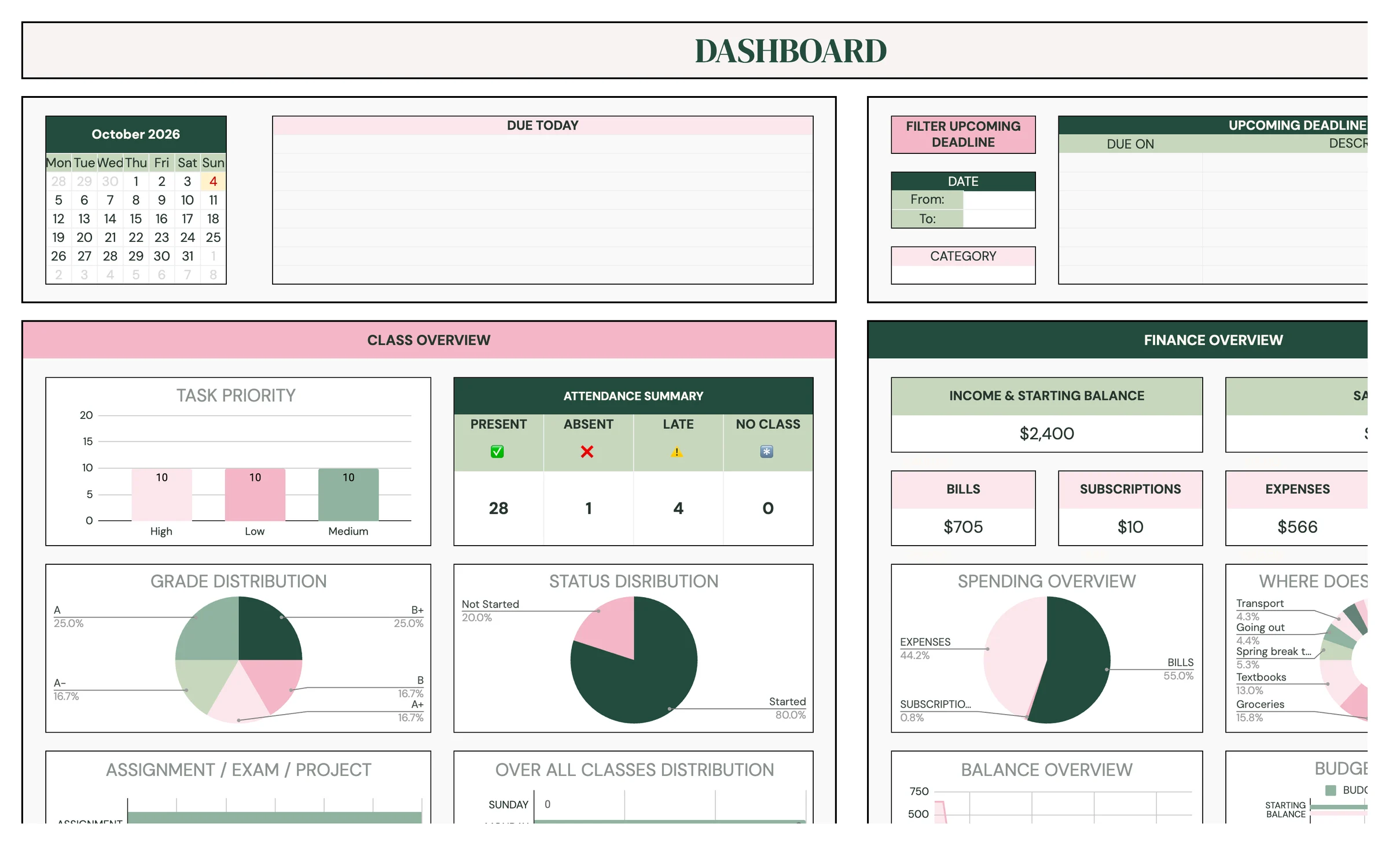
Due today, upcoming deadlines, class overview, finance overview and attendance summary.
You fill: Optional date range and category filter for upcoming deadlines.
Finance Tracker
A student budget: income, bills, subscriptions, expenses, debts, savings and a transaction tracker.
You fill: Budget period, currency, your plan, then every transaction.
Class Schedule
The list of every class with time, place, start date and how often it repeats.
You fill: One row per class.
Schedule
A weekly timetable built from your class list, with overlap warnings and color coding.
You fill: Year, month, week, start day and start hour; a color for each class.
Calendar
A monthly calendar of to-dos, projects, exams, assignments and one-off deadlines.
You fill: Month and start day; any punctual deadlines.
Project / Assignment / Exam
Every graded piece of work with dates, priority, status, grade and weight.
You fill: Each project, assignment and exam; tick DONE and add the grade.
To-Do List
Everyday tasks with status, due date, days left and priority.
You fill: Your tasks; tick DONE when finished.
Reading List
Required books and articles for each class.
You fill: Class, title, author, due date and notes.
Attendance
A month-by-month attendance grid for every class.
You fill: Year, month, your classes, then a mark for each day.
Contacts
Professors, classmates and advisors in one searchable list.
You fill: Name, role/position, email and phone number.
Make your copy
Your template lives in your own Google Drive, so the first step is making your personal copy.
- Open the PDF from your Etsy purchase (Etsy → You → Purchases and reviews → Download files).
- Click the “Make my copy” button. If you're asked, sign in to your Google account.
- Google shows a “Copy document” screen. Click the blue “Make a copy” button.
- Your copy opens. Rename it if you like (click the title in the top-left), e.g. “Fall 2027 Planner”.
Tip: Bookmark your copy, or star it in Google Drive, so it's one click away all semester.
Add your classes
Classes and professors you type here appear in the dropdowns on almost every other tab, so start here.
- Open SETUP. Under CLASSES, type each class name (e.g. “BIO 101”, “Calculus II”).
- Under PROFESSOR/INSTRUCTOR, type the name of each instructor.
- Check the GRADE list (A+ to F). Change it if your school uses a different scale.
- Review PRIORITY (High, Medium, Low) and STATUS (Started, Not Started, In Progress, Cancelled, Skipped, Hold).
Tip: Light-colored cells are where you type. Everything else is calculated for you and protected, so nothing breaks by accident.
Build your class schedule
Enter each class once (with its time and how often it meets) and the timetable builds itself.
- Open CLASS SCHEDULE. Choose a CLASS NAME and PROFESSOR from the dropdowns.
- Type the LOCATION (building and room).
- Pick a START TIME and END TIME from the dropdowns (they go in 15-minute steps).
- Enter the START DATE, the first day this class meets. DAY fills in automatically.
- Choose CLASS REPEAT: Once, Weekly or Bi Weekly.
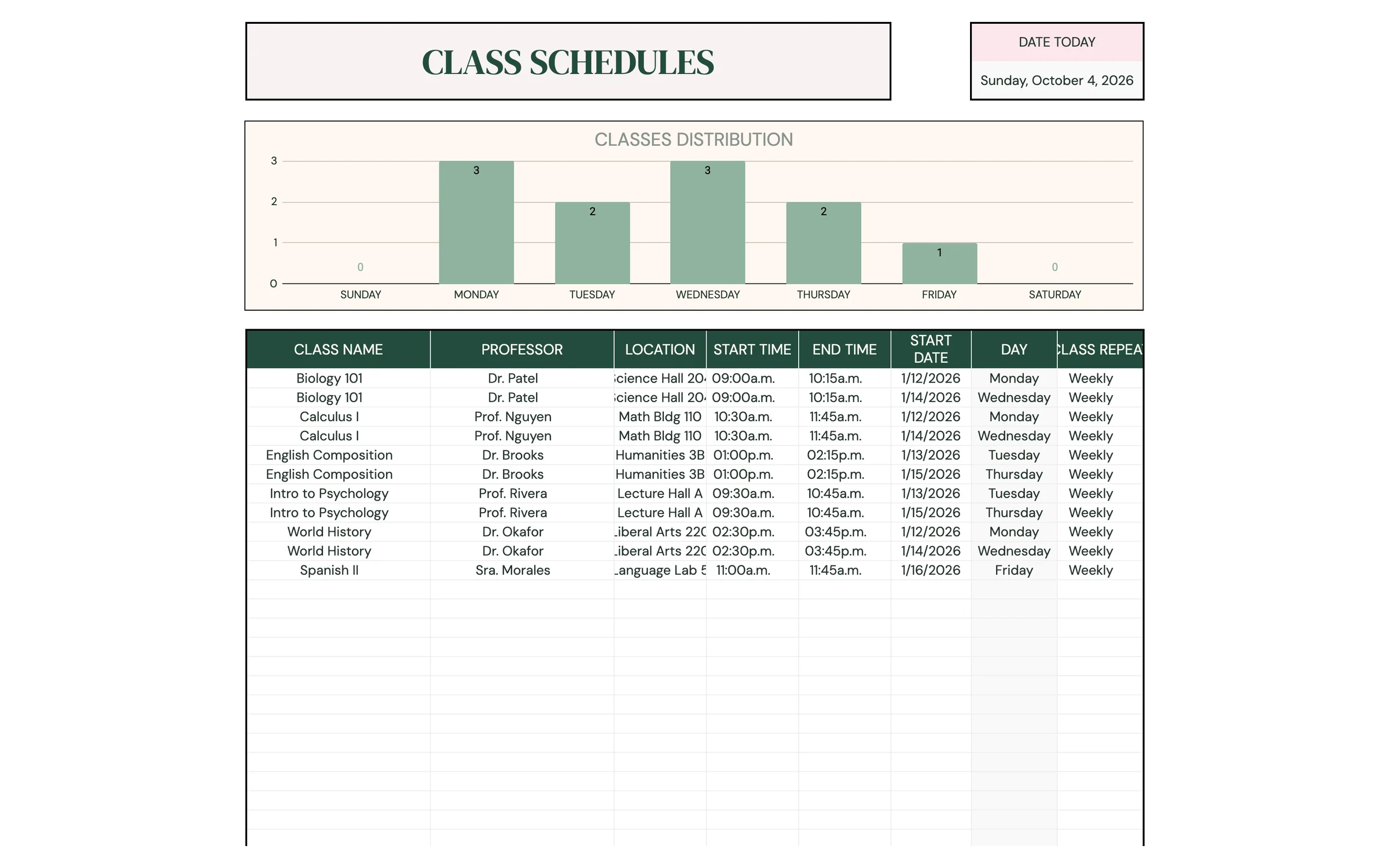
Tip: A class that meets on two days (say Monday and Wednesday) gets two rows, one for each first meeting date, both set to Weekly.
View your weekly timetable
SCHEDULE turns your class list into a week-by-week timetable and warns you if anything clashes.
- Open SCHEDULE. Set YEAR, MONTH and START DAY in the SCHEDULE PLANNER settings.
- Choose a START HOUR so the grid begins when your day does (e.g. 7:00 or 8:00).
- Pick the week you want to see (Week 1 to Week 6) from the dropdown.
- In CLASS COLOR CODING, choose a class next to each color to color-code your timetable.
- Watch for the OL marker: it flags a start date and hour overlap or a class overlap, so you can fix the times on CLASS SCHEDULE.
Log projects, assignments and exams
Go through each syllabus once and enter every graded deadline. This feeds your calendar and dashboard.
- Open PROJECT / ASSIGNMENT / EXAM. Choose the CLASS NAME and the type in ASSIGNMENT / EXAM / PROJECT.
- Add a DESCRIPTION, then choose a PRIORITY and STATUS.
- Enter the DATE and TIME it's due. DAYS LEFT counts down automatically.
- Use NOTES for topics, chapters or submission details, and add the WEIGHT (how much it counts toward your grade).
- When it's done, tick DONE. Once you get it back, choose the GRADE.
- Use the FILTER DATA panel to show only certain items by COMPLETED TASK, CLASS NAME, CATEGORY, PRIORITY, STATUS, DATES BETWEEN, DAYS LEFT, GRADE or WEIGHT. OVERALL PROGRESS shows how much is done.
Keep a to-do list
For everything that isn't graded: buy a lab coat, email your advisor, renew a library book.
- Open TO-DO LIST and type a TASK NAME.
- Choose a STATUS and PRIORITY, and enter a DUE DATE. DAYS LEFT updates on its own.
- Add a NOTE if you need one.
- Tick DONE when it's finished. TASK DUE TODAY shows what needs doing today.
- Use the TO-DO LIST FILTER to view by COMPLETED TASK, STATUS, DAYS LEFT, PRIORITY or a START DATE range (FROM: / TO:).
Check the calendar
The calendar pulls in your to-dos, projects, exams and assignments, and lets you add one-off deadlines.
- Open CALENDAR. Choose the month and a START DAY (Sunday or Monday).
- Under ADD PUNCTUAL DEADLINES, add one-off dates like registration or a scholarship deadline: DEADLINE NAME, CLASS NAME and DUE DATE.
- Use the LEGEND to tell items apart: To-do, Project, Exam, Assignment and Punctual each have their own icon.
- Use DO NOT SHOW THE FOLLOWING: to hide categories you don't need right now.
Set up your student budget
The finance tracker is a full budget for the period you choose: a month, a semester or the school year.
- Open FINANCE TRACKER. Set the BUDGET PERIOD (start date to end date) and type your CURRENCY SYMBOL.
- Enter your STARTING BALANCE in the BUDGET SUMMARY.
- List your INCOME sources (job, allowance, financial aid) with the EXPECTED amount.
- Fill in BILLS and SUBSCRIPTIONS (category, due date and budget), EXPENSES (groceries, books, transport…), DEBTS and SAVINGS.
- Check the BUDGET SUMMARY: AMOUNT LEFT shows what's unassigned after income, expenses & bills, debt payments and savings.
Tip: Category names you type in these sections become the choices in the transaction tracker's BUDGET NAME dropdown.
Log your transactions
Each transaction updates the REAL column next to your plan, so you always know where you stand.
- Scroll to TRANSACTION TRACKER on FINANCE TRACKER.
- Enter the DATE and AMOUNT of each purchase, payment or paycheck.
- Choose the BUDGET NAME it belongs to and CATEGORY fills in automatically.
- Add a short DESCRIPTION if it helps.
- Review WHERE DOES MY MONEY GO? and WHEN DO I SPEND MY MONEY? to see your spending patterns.
Heads up: Only transactions with a BUDGET NAME count toward the REAL totals.
Track attendance, reading and contacts
Three simple tabs round out your semester.
- ATTENDANCE: set the YEAR and MONTH, choose each CLASS NAME, then pick a mark for each day: ✅ present, ❌ absent, ⚠️ late or *️⃣ no classes. The PRESENT, ABSENT, LATE and NO CLASSES totals count themselves.
- READING LIST: choose the CLASS NAME, then add the BOOK TITLE/ARTICLE, AUTHOR, DUE DATE and PERSONAL NOTES.
- CONTACTS: add each NAME, ROLE/POSITION, EMAIL and PHONE NUMBER. Use the FILTER at the top to show only one role, like professors or classmates.
Run your week from the dashboard
Once your tabs are filled in, the dashboard is your home screen. You don't type here except for the deadline filters.
- DUE TODAY lists everything due today across your calendar.
- UPCOMING DEADLINE shows what's coming next with DUE ON and DESCRIPTION. Use FILTER UPCOMING DEADLINE to set a From:/To: date range and a CATEGORY.
- CLASS OVERVIEW summarizes your classes.
- FINANCE OVERVIEW shows income & starting balance, savings, bills, subscriptions, expenses and debts.
- ATTENDANCE SUMMARY totals your present, absent, late and no-class days.
Keep it going all semester
A few minutes each week keeps the whole planner accurate.
- Add new assignments and exams as soon as they're announced.
- Tick DONE and enter grades as work comes back.
- Switch the month on ATTENDANCE and CALENDAR at the start of each month.
- When a new budget period starts, update BUDGET PERIOD and STARTING BALANCE on FINANCE TRACKER.
Your routine
A few minutes a week keeps everything accurate.
- Check DUE TODAY on the dashboard
- Mark attendance for today's classes
- Tick off finished to-dos
- Log the week's transactions
- Add new assignments and exams
- Review UPCOMING DEADLINE for the next two weeks
- Check SCHEDULE for overlap warnings
- Update classes and professors on SETUP
- Rebuild CLASS SCHEDULE for the new term
- Start a new budget period
- Make a fresh copy for the new school year
Tips & tricks
Use it on your phone
Install the free Google Sheets app and open your copy. Checking what's due or logging a coffee takes seconds between classes.
Enter the whole syllabus on day one
Ten minutes per class at the start of term means no surprise deadlines later, and a calendar that's useful from week one.
Use WEIGHT to prioritize
An exam worth 30% deserves more prep than a 2% quiz. Sort your attention by WEIGHT and DAYS LEFT.
Share with a study group or parent
Click Share in the top-right. Add people as Viewers if they only need to see your schedule, or Editors if they help you plan.
Change the colors
Format → Theme lets you change fonts and accent colors across the whole template in one go.
Keep a backup
File → Make a copy any time to save a snapshot. It's handy at the end of each semester.
Prefer dark mode?
Your order includes a Dark Mode edition with the same tabs and formulas. Open the link in your PDF and tap “Make my dark copy”. You can keep both and use whichever you like.
Troubleshooting
I don't see “Make a copy”.
Make sure you're signed in to a Google account. On a phone, open the link in your browser (not the Etsy app) or in the Google Sheets app.
A cell says it's protected when I type.
That cell holds a formula, like DAY or DAYS LEFT. Type only in the light input cells.
My class isn't in the dropdown.
Add it under CLASSES on SETUP first. It then appears in CLASS SCHEDULE, PROJECT / ASSIGNMENT / EXAM, CALENDAR, READING LIST and ATTENDANCE.
A class doesn't show on SCHEDULE.
Check that it has a START DATE, START TIME, END TIME and CLASS REPEAT on CLASS SCHEDULE, and that SCHEDULE is set to the right year, month and week.
A transaction isn't counted.
Make sure a BUDGET NAME is selected and an AMOUNT is entered. The REAL column only counts transactions linked to a budget name.
Dates look wrong (day and month swapped).
File → Settings → Locale controls the date format. Pick your country and the dates switch to your format.
Still stuck? Message us on Etsy or email help.planly@gmail.com and a real person will help.
Don't have Planly Class Act yet?
Classes, deadlines and budget, sorted.