

Before you start
You only need three things:
- A free Google account
- A computer for setup (phone or tablet works afterwards)
- A list of the things you're saving for, with a rough cost for each
Throughout this guide, light cells are the ones you type in. Everything else is calculated automatically and protected so nothing breaks.
Tour of the tabs
Planly Savings Jars has 1 tabs. Here's what each one does and what (if anything) you fill in.
Sinking Funds
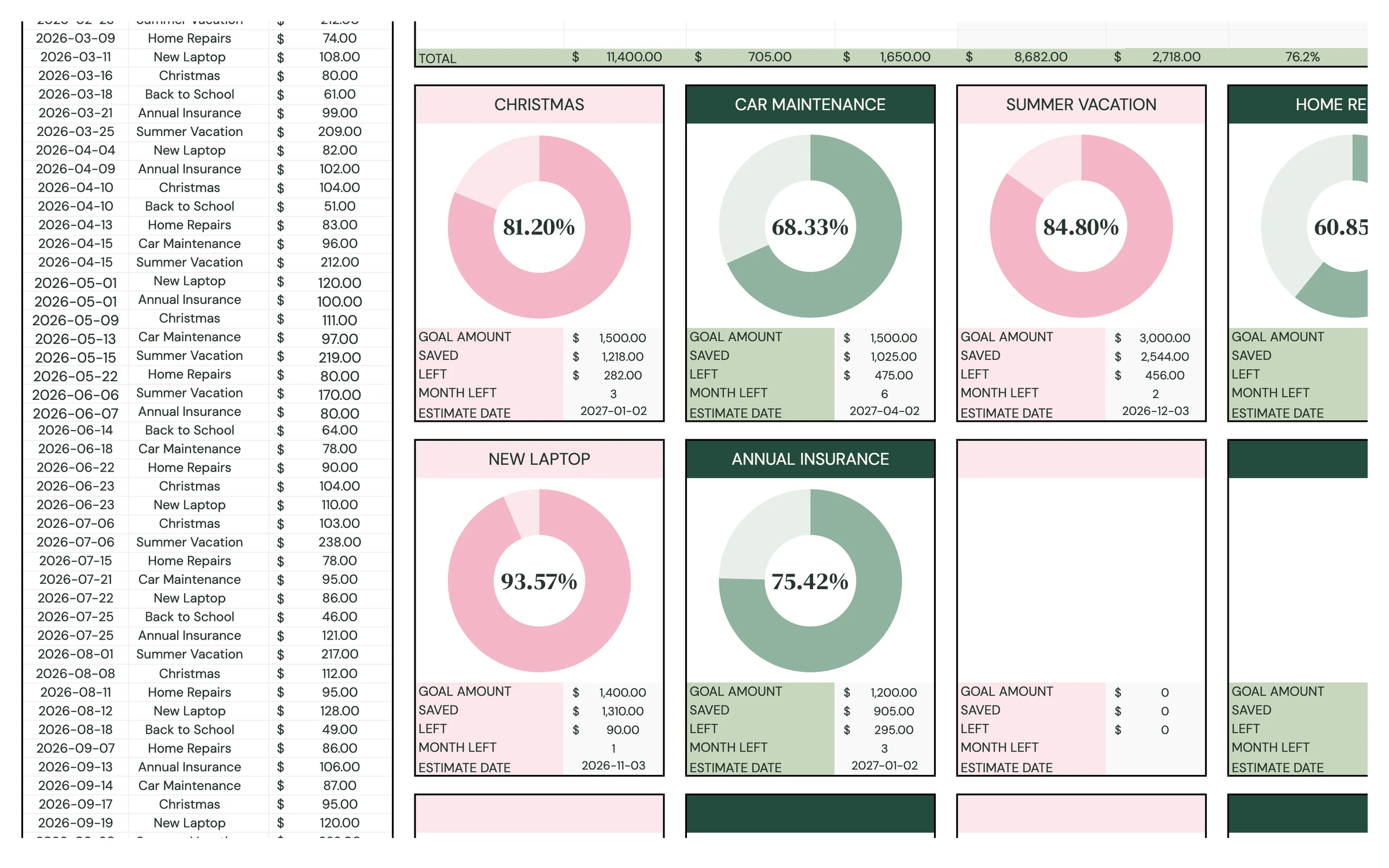
Global totals at the top, a CONTRIBUTION TRACKER, a FUNDS OVERVIEW table and a progress card for every fund.
You fill: Your currency, each fund's goal, then every contribution.
Make your copy
Your template lives in your own Google Drive, so the first step is making your personal copy.
- Open the PDF from your Etsy purchase (Etsy → You → Purchases and reviews → Download files).
- Click the “Make my copy” button. If you're asked, sign in to your Google account.
- Google shows a “Copy document” screen. Click the blue “Make a copy” button.
- Your copy opens. Rename it if you like (click the title in the top-left), e.g. “Our Savings Jars”.
Tip: Bookmark your copy, or star it in Google Drive, so it's one click away every time you save.
Set your currency
Every amount on the tab uses the symbol you choose here.
- Open the SINKING FUNDS tab.
- Find CURRENCY SYMBOL on the left, under the title.
- Type your symbol in the light cell next to it (for example $, €, or £).
Tip: Light-colored cells are where you type. Everything else is calculated for you and protected, so nothing breaks by accident.
Create your funds
FUNDS OVERVIEW is where each jar gets a name, a target and a monthly plan. There's room for 15 funds.
- In FUNDS OVERVIEW, type a GOAL NAME for each fund, e.g. “Christmas”, “Car repairs”, “Summer vacation”.
- Enter the GOAL AMOUNT: the total you want to have saved.
- Enter a MONTHLY GOAL: how much you plan to put in each month.
- Under START, enter anything you've already saved toward that fund (or leave it at 0).
- Check the TOTAL row at the bottom of the table for your combined goals.
Tip: Not sure what monthly goal to use? Divide the goal amount by the number of months until you need the money.
Log your contributions
The CONTRIBUTION TRACKER on the left is your savings log. Every time you put money aside, add a row.
- In CONTRIBUTION TRACKER, enter the DATE of the deposit.
- Pick the GOAL NAME from the dropdown. It lists the funds you created in FUNDS OVERVIEW.
- Enter the AMOUNT you saved.
- Watch that fund's SAVED, LEFT and PROG (progress) update instantly in FUNDS OVERVIEW.
Heads up: Create the fund in FUNDS OVERVIEW first. A fund only appears in the GOAL NAME dropdown once it has a name.
Track your progress
Everything above and below the tables fills itself in as you log contributions.
- Top of the tab: GLOBAL GOAL AMOUNT, TOTAL SAVED, TOTAL LEFT TO SAVE, GLOBAL PROGRESSION and GLOBAL MONTHLY GOAL across all your funds.
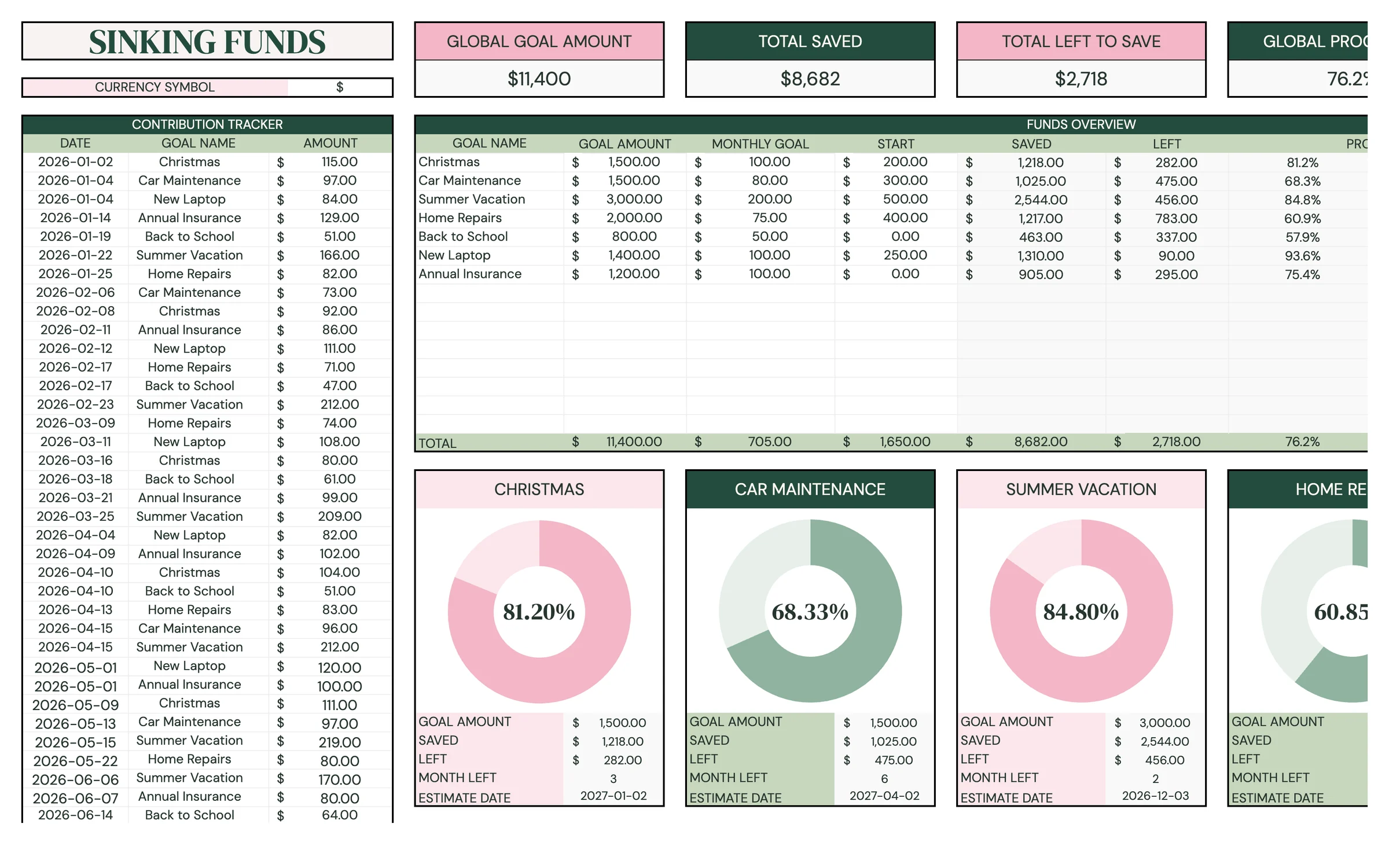
- FUNDS OVERVIEW: MONTHS LEFT (what's left divided by your monthly goal) and an ESTIMATE DATE for when each fund should be full.
- Fund cards: scroll down below the tables to see a card for each fund with its progress chart, GOAL AMOUNT, SAVED, LEFT, MONTH LEFT and ESTIMATE DATE.
Tip: The ESTIMATE DATE is counted from today, so it moves closer every time you save more than your monthly goal.
Keep the jars filling
A few minutes a month keeps every fund on track.
- Make your monthly contributions and log each one in CONTRIBUTION TRACKER.
- Review PROG and ESTIMATE DATE for each fund. Is anything falling behind?
- Adjust a fund's MONTHLY GOAL if its estimate date lands after you need the money.
- When a fund is full and you've spent it, rename it or reuse its row for your next goal.
Your routine
A few minutes a week keeps everything accurate.
- Move money into your savings
- Log each contribution in CONTRIBUTION TRACKER
- Check TOTAL SAVED and GLOBAL PROGRESSION
- Review each fund's ESTIMATE DATE
- Adjust monthly goals if needed
- Plan next year's funds (holidays, renewals, birthdays)
- Reset finished funds with new goals
Tips & tricks
Pair it with a savings account
Many people keep one high-yield savings account for all sinking funds and let this sheet show what each dollar is for.
Use it on your phone
Install the free Google Sheets app and open your copy. Logging a contribution takes seconds.
Share with a partner
Click Share in the top-right and add your partner's email as an Editor so you both log savings in one place.
Change the colors
Format → Theme lets you change fonts and accent colors across the whole template in one go.
Keep a backup
File → Make a copy any time to save a snapshot. It's handy before reusing fund rows.
Prefer dark mode?
Your order includes a Dark Mode edition with the same tabs and formulas. Open the link in your PDF and tap “Make my dark copy”. You can keep both and use whichever you like.
Troubleshooting
I don't see “Make a copy”.
Make sure you're signed in to a Google account. On a phone, open the link in your browser (not the Etsy app) or in the Google Sheets app.
A cell says it's protected when I type.
That cell holds a formula. Type only in the light input cells. That's what keeps everything calculating correctly.
My fund isn't in the GOAL NAME dropdown.
Type the fund's name in FUNDS OVERVIEW first. It then appears in the CONTRIBUTION TRACKER dropdown.
A contribution isn't counted.
Check that the DATE is a real date and that the GOAL NAME matches one of your funds exactly.
MONTHS LEFT or ESTIMATE DATE is blank or odd.
Make sure the fund has both a GOAL AMOUNT and a MONTHLY GOAL. The estimate divides what's left by your monthly goal.
Dates look wrong (day and month swapped).
File → Settings → Locale controls the date format. Pick your country and the dates switch to your format.
Still stuck? Message us on Etsy or email help.planly@gmail.com and a real person will help.
Don't have Planly Savings Jars yet?
Save for the big stuff, a little at a time.