

Before you start
You only need three things:
- A free Google account
- A computer for setup (phone or tablet works afterwards)
- A list of your income sources and expense types, plus recent sales and receipts to log
Throughout this guide, light cells are the ones you type in. Everything else is calculated automatically and protected so nothing breaks.
Tour of the tabs
Planly Biz Books Lite has 5 tabs. Here's what each one does and what (if anything) you fill in.
Bookkeeping Setup
Four steps: currency, start date, your income and expense categories, and monthly profit goals.
You fill: Everything here, once. Then add categories or goals any time.
Transactions
The TRANSACTION TRACKER: one row per sale or expense, with sales taxes and other fees.
You fill: Every transaction.
Month
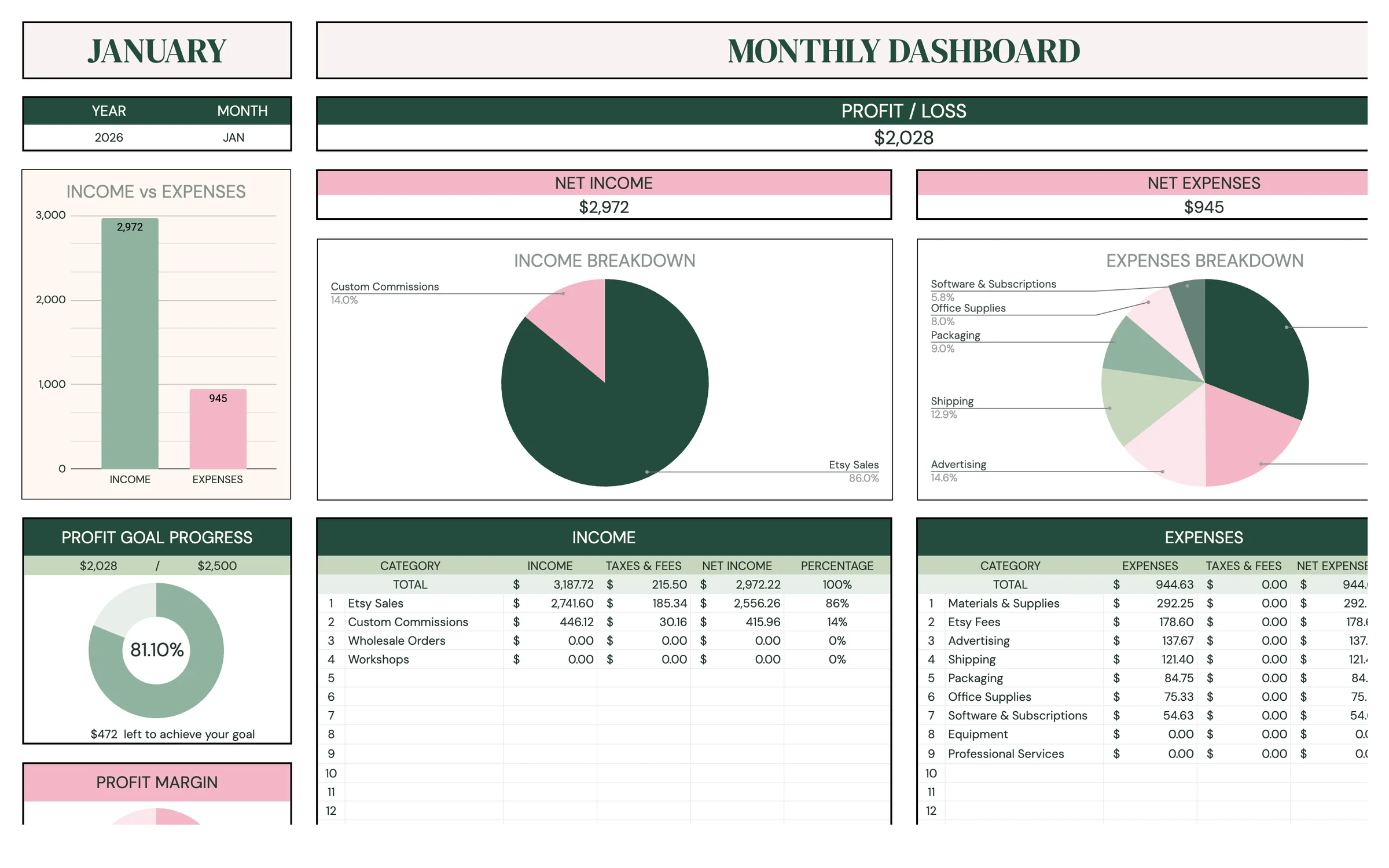
MONTHLY DASHBOARD: profit or loss, income and expense breakdowns and profit goal progress for one month.
You fill: Pick the year and month.
Annual
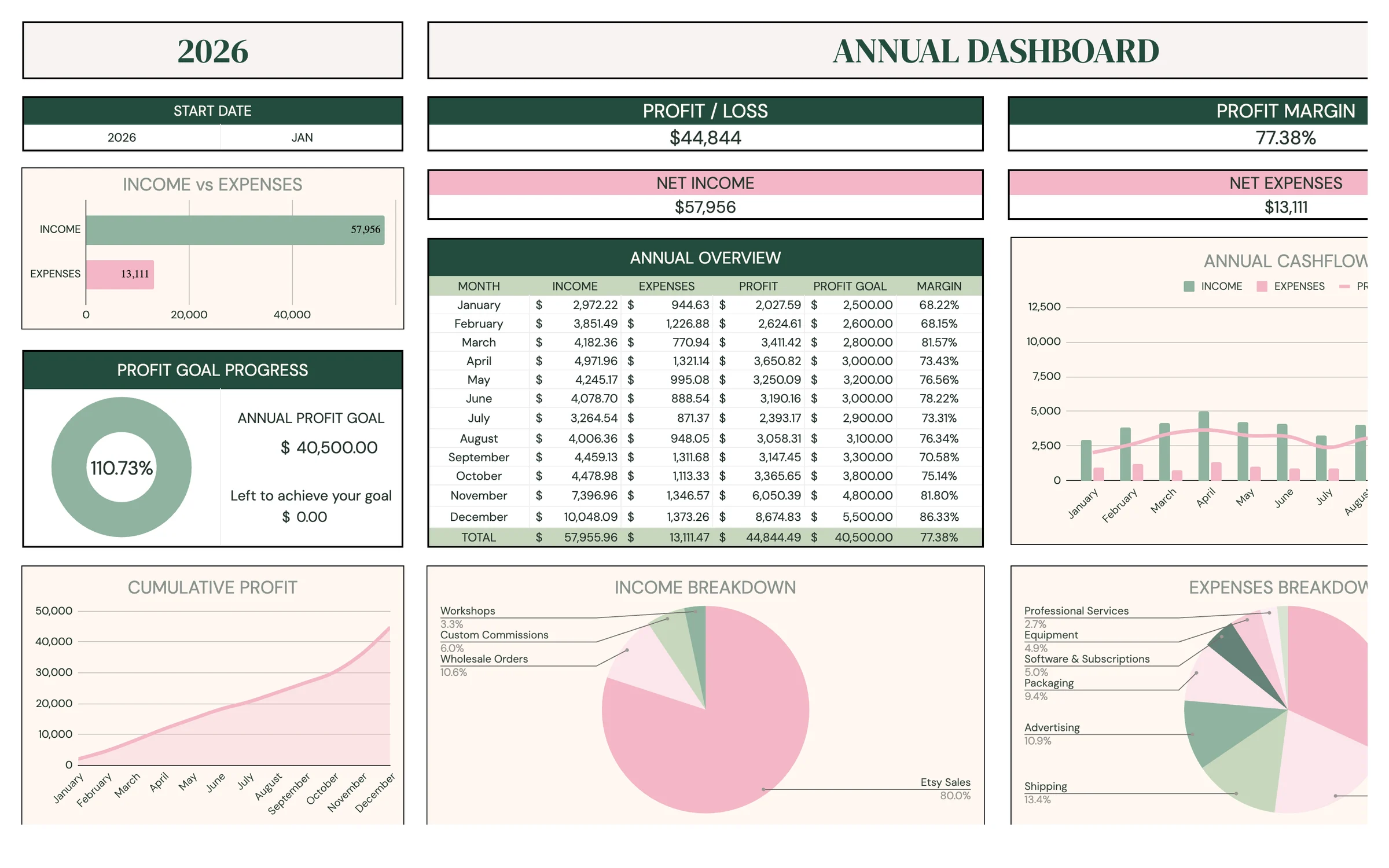
ANNUAL DASHBOARD: a 12-month overview with profit goals, margin and cumulative profit.
You fill: Pick the start year and month.
Taxes
TAXES TRACKER: sales tax collected vs. paid and other fees, month by month.
You fill: Pick the start year and month.
Make your copy
Your template lives in your own Google Drive, so the first step is making your personal copy.
- Open the PDF from your Etsy purchase (Etsy → You → Purchases and reviews → Download files).
- Click the “Make my copy” button. If you're asked, sign in to your Google account.
- Google shows a “Copy document” screen. Click the blue “Make a copy” button.
- Your copy opens. Rename it if you like (click the title in the top-left), e.g. “Side Hustle Books 2027”.
Tip: Bookmark your copy, or star it in Google Drive, so it's one click away whenever you log a sale.
Set your currency and start date
STEP 1 and STEP 2 on BOOKKEEPING SETUP set the basics every other tab relies on.
- Open the BOOKKEEPING SETUP tab.
- Under STEP 1 – CURRENCY, type your currency symbol (for example $, €, or £).
- Under STEP 2 – START DATE, enter the date your books begin, usually January 1 or the day you started selling.
- The monthly profit goal list in STEP 4 starts from this month, so pick it carefully.
Tip: Light-colored cells are where you type. Everything else is calculated for you and protected, so nothing breaks by accident.
Create your categories
STEP 3 – INCOME/EXPENSES CATEGORY decides how your money is grouped on the dashboards. There's room for 50 income and 50 expense categories, and most side hustles need far fewer.
- In the INCOME column, list each way you earn money, e.g. “Etsy sales”, “Market sales”, “Commissions”.
- In the EXPENSES column, list what you spend on, e.g. “Supplies”, “Shipping”, “Platform fees”, “Advertising”.
- Keep names short and clear. They appear in dropdowns and on charts.
- Add more any time; new categories show up in the TRANSACTIONS dropdown right away.
Tip: Five to ten categories on each side is plenty for most small shops, and it makes the charts easy to read.
Set your monthly profit goals
STEP 4 – MONTHLY PROFIT GOALS lists the months starting from your start date. These goals drive the goal progress on MONTH and ANNUAL.
- Scroll down to STEP 4 – MONTHLY PROFIT GOALS.
- Next to each month, enter the profit you're aiming for.
- Fill at least the next 12 months. The list covers 10 years from your start date, so you can keep adding later.
Tip: First year? Pick a small, realistic goal. You can raise it once you see a few months of real numbers.
Log your transactions
The TRANSACTION TRACKER is the only place you log money in and out. Every dashboard reads from it.
- Open TRANSACTIONS and start on the first empty row.
- Enter the DATE and, if you have one, the INVOICE # (or order number).
- Choose INCOME OR EXPENSE from the dropdown, then pick the CATEGORY. The list matches the type you chose.
- Enter the NET AMOUNT (before tax and fees), then any SALES TAXES and OTHER FEES. TOTAL AMOUNT adds them up for you.
- Add a short DESCRIPTION (e.g. “Craft fair – 6 prints”) and an optional NOTE.
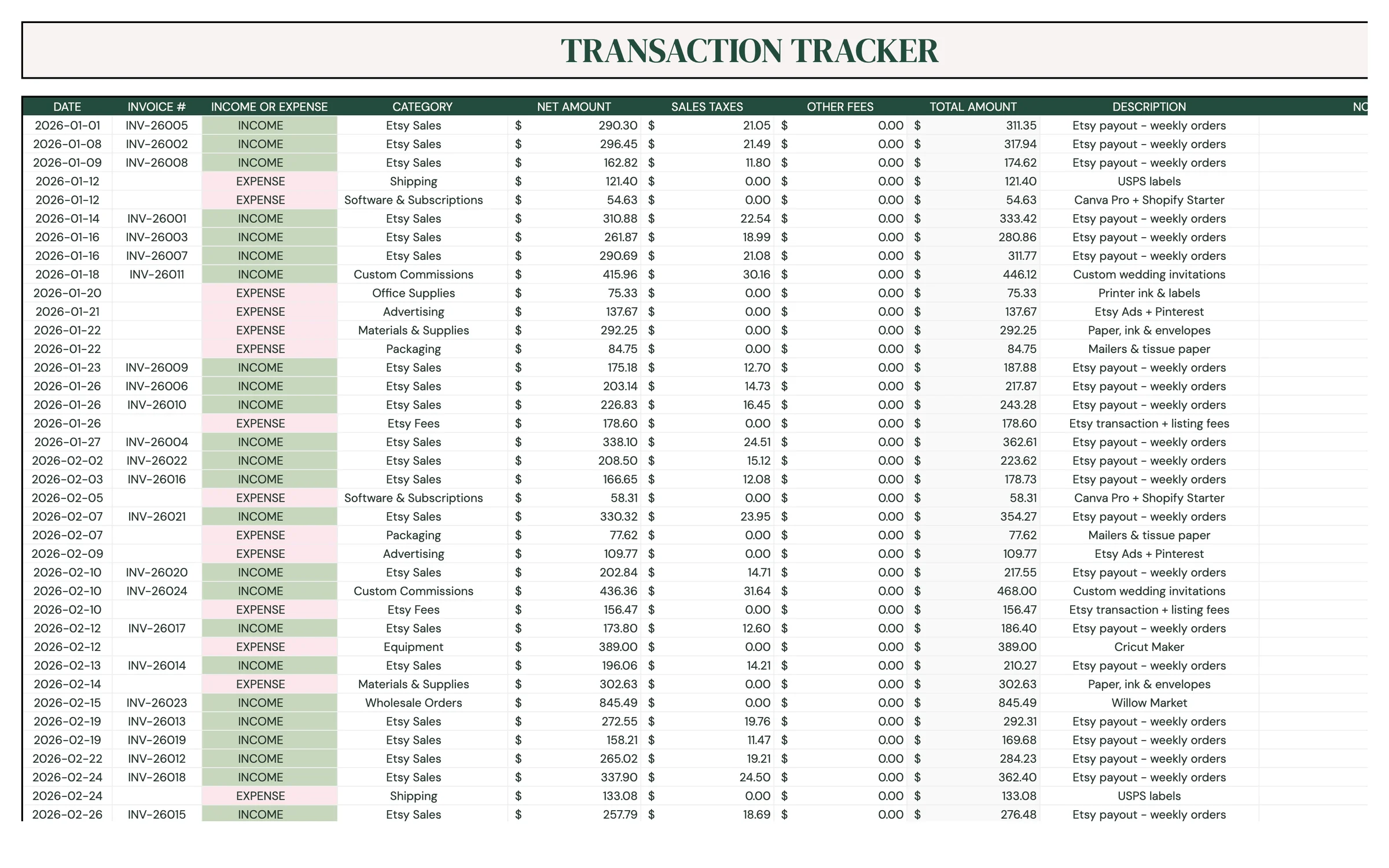
Heads up: Choose INCOME OR EXPENSE before CATEGORY. If you change the type afterwards, re-pick the category so it matches.
Read your monthly dashboard
MONTHLY DASHBOARD shows one month at a time. You only choose the period. Everything else fills in.
- Type the YEAR and pick the MONTH from the dropdown at the top left.
- Read PROFIT / LOSS, NET INCOME and NET EXPENSES at the top, with the INCOME vs EXPENSES chart.
- PROFIT GOAL PROGRESS shows how close you are to that month's goal and how much is left to achieve your goal, plus your PROFIT MARGIN.
- The INCOME and EXPENSES tables break each category into gross amount, TAXES & FEES, net amount and PERCENTAGE, with INCOME BREAKDOWN and EXPENSES BREAKDOWN charts.
Review your year
ANNUAL DASHBOARD covers 12 months from the start month you choose, so it works for a calendar year or a fiscal year.
- Under START DATE, type the year and pick the start month. It's set to May by default. Change it to January for a calendar year, or to your own fiscal start month.
- Read PROFIT / LOSS, PROFIT MARGIN, NET INCOME and NET EXPENSES for the whole period.
- ANNUAL OVERVIEW lists every MONTH with INCOME, EXPENSES, PROFIT, PROFIT GOAL, MARGIN and CUMULATIVE PROFIT.
- PROFIT GOAL PROGRESS compares the year with your ANNUAL PROFIT GOAL.
- Scroll down for the ANNUAL CASHFLOW and CUMULATIVE PROFIT charts and the income and expense breakdowns by category.
Track sales tax and fees
TAXES TRACKER adds up the SALES TAXES and OTHER FEES you logged on TRANSACTIONS, month by month.
- Under START DATE, type the year and pick the start month (it defaults to May, so change it to match your tax year).
- At the top, read TOTAL SALES TAX COLLECTED (on income), TOTAL SALES TAX PAID (on expenses) and the DIFFERENCE.
- SALES TAX TRACKER shows Sales tax collected, Sales tax paid and Difference for each month, with a Total and Average.
- OTHER FEES shows Fees (income) and Fees (expenses) each month the same way, with distribution charts below.
Tip: This tab tracks what you've logged. Check with your accountant or local tax authority for what you actually owe and when to file.
Keep your books current
A short weekly habit keeps month-end painless.
- Each week, log new sales and expenses on TRANSACTIONS. Your shop's order list and statements make a handy checklist.
- At month-end, switch MONTH to the month just finished and review profit vs. goal.
- Check TAXES before any sales tax filing.
- Add new categories on BOOKKEEPING SETUP as your business grows, and extend your monthly profit goals.
Your routine
A few minutes a week keeps everything accurate.
- Log the week's sales and expenses
- Add invoice or order numbers
- Glance at the MONTH dashboard
- Match TRANSACTIONS to your statements
- Review profit vs. goal on MONTH
- Check sales tax on TAXES
- Review your year on ANNUAL
- Share your numbers with your tax preparer
- Set next year's monthly profit goals
Tips & tricks
Log from your phone
Install the free Google Sheets app and open your copy. Logging a sale or receipt on the go takes seconds.
Share with your accountant
Click Share in the top-right and add your accountant's email as a Viewer (or Editor if they'll make changes).
Use invoice numbers
Fill INVOICE # with your order or invoice number so you can match any line to its source document later.
Change the colors
Format → Theme lets you change fonts and accent colors across the whole template in one go.
Keep a backup
File → Make a copy at the end of each year (or before big changes) to save a snapshot of your books.
Prefer dark mode?
Your order includes a Dark Mode edition with the same tabs and formulas. Open the link in your PDF and tap “Make my dark copy”. You can keep both and use whichever you like.
Troubleshooting
I don't see “Make a copy”.
Make sure you're signed in to a Google account. On a phone, open the link in your browser (not the Etsy app) or in the Google Sheets app.
A cell says it's protected when I type.
That cell holds a formula. Type only in the light input cells. That's what keeps everything calculating correctly.
My category isn't in the CATEGORY dropdown.
Add it on BOOKKEEPING SETUP under STEP 3 first, and check you picked the right INCOME OR EXPENSE type for that row.
A transaction isn't showing on a dashboard.
Check that the DATE is a real date inside the period you selected, and that the row has a type, a category and a NET AMOUNT.
A dashboard shows #N/A or an error.
Make sure the period you picked starts on or after the START DATE on BOOKKEEPING SETUP. Profit goals only exist for months from that date onward.
My annual numbers don't match the calendar year.
ANNUAL and TAXES start from the month you choose. Change the start month to January for a calendar year.
Still stuck? Message us on Etsy or email help.planly@gmail.com and a real person will help.
Don't have Planly Biz Books Lite yet?
Simple books for side hustles and new shops.