

Before you start
You only need three things:
- A free Google account
- A computer for setup (phone or tablet works afterwards)
- Your supply receipts or a list of what you paid for materials
- A rough idea of how long each product takes you to make
Throughout this guide, light cells are the ones you type in. Everything else is calculated automatically and protected so nothing breaks.
Tour of the tabs
Planly Price It Right has 4 tabs. Here's what each one does and what (if anything) you fill in.
Setup
Your currency, sales tax percentage and the list of units you buy supplies in.
You fill: Pick a currency, enter your sales tax rate and add any units you use.
Materials
Your material list and inventory, with unit prices, stock status and total inventory value.
You fill: Each supply's name, SKU, price, number of units, unit and how much you have on hand.
Price Calculator
Works out the cost of one product and its selling price, with a full price breakdown and “what if” questions.
You fill: Product name, batch size, pricing method, and the materials, labor, equipment and other costs it uses.
Price List
A saved list of every product you've priced, with costs, profit, discount, sales tax and final price.
You fill: Paste each finished calculation as values; add quantity sold and notes.
Make your copy
Your template lives in your own Google Drive, so the first step is making your personal copy.
- Open the PDF from your Etsy purchase (Etsy → You → Purchases and reviews → Download files).
- Click the “Make my copy” button. If you're asked, sign in to your Google account.
- Google shows a “Copy document” screen. Click the blue “Make a copy” button.
- Your copy opens. Rename it if you like (click the title in the top-left), e.g. “My Shop Pricing”.
Tip: Bookmark your copy, or star it in Google Drive, so it's one click away whenever you price something new.
Set your currency, sales tax and units
SETUP has three short steps. Everything you enter here is used across the other tabs.
- STEP 1: under CURRENCY, enter your currency symbol ($, €, £…). It appears next to every price in the template.
- STEP 2: under SALES TAX PERCENTAGE, enter the rate you charge (for example 8%). Enter 0% if you don't collect sales tax.
- STEP 3: check the UNITS list. It comes with common units like sheet, bar, unit, ml, g, bag, oz, roll and cup.
- Add any unit you buy supplies in that isn't listed (yard, skein, lb…) in the next empty row.
Tip: Light-colored cells are where you type. Everything else is calculated for you and protected, so nothing breaks by accident.
Build your material list
MATERIAL LIST & INVENTORY is your supply library. Enter each material once and you can pick it in every product you price.
- In the MATERIALS column, type the name of each supply (e.g. “Soy wax”, “8 oz jar”, “Cotton wick”). Add an INTERNAL SKU if you use one.
- Under PRICE, enter what you paid for the pack, and under # OF UNITS how many units it contained.
- Choose the UNIT from the dropdown (these come from SETUP). UNIT PRICE calculates itself: price divided by number of units.
- Enter your current INVENTORY (how many units you have), the date in LAST CHECKED, and a MIN. INVENTORY you never want to drop below.
- Use NOTES for supplier names, links or colors.
Tip: Give each material a unique name. It's what you'll pick from the dropdown on PRICE CALCULATOR.
Keep an eye on your inventory
The top of MATERIALS turns your list into a quick stock check, so you know what to reorder before you run out.
- STATUS fills in for each material: In stock, Reorder soon (within 1.5 times your minimum), Time to reorder (at or below your minimum) or Out of Stock.
- The counters at the top show how many materials are IN STOCK, REORDER SOON, TIME TO REORDER and OUT OF STOCK.
- INVENTORY VALUE shows what all your supplies on hand are worth, with charts beside it.
- When you restock or use up supplies, update the INVENTORY number and LAST CHECKED date.
Start a product on the calculator
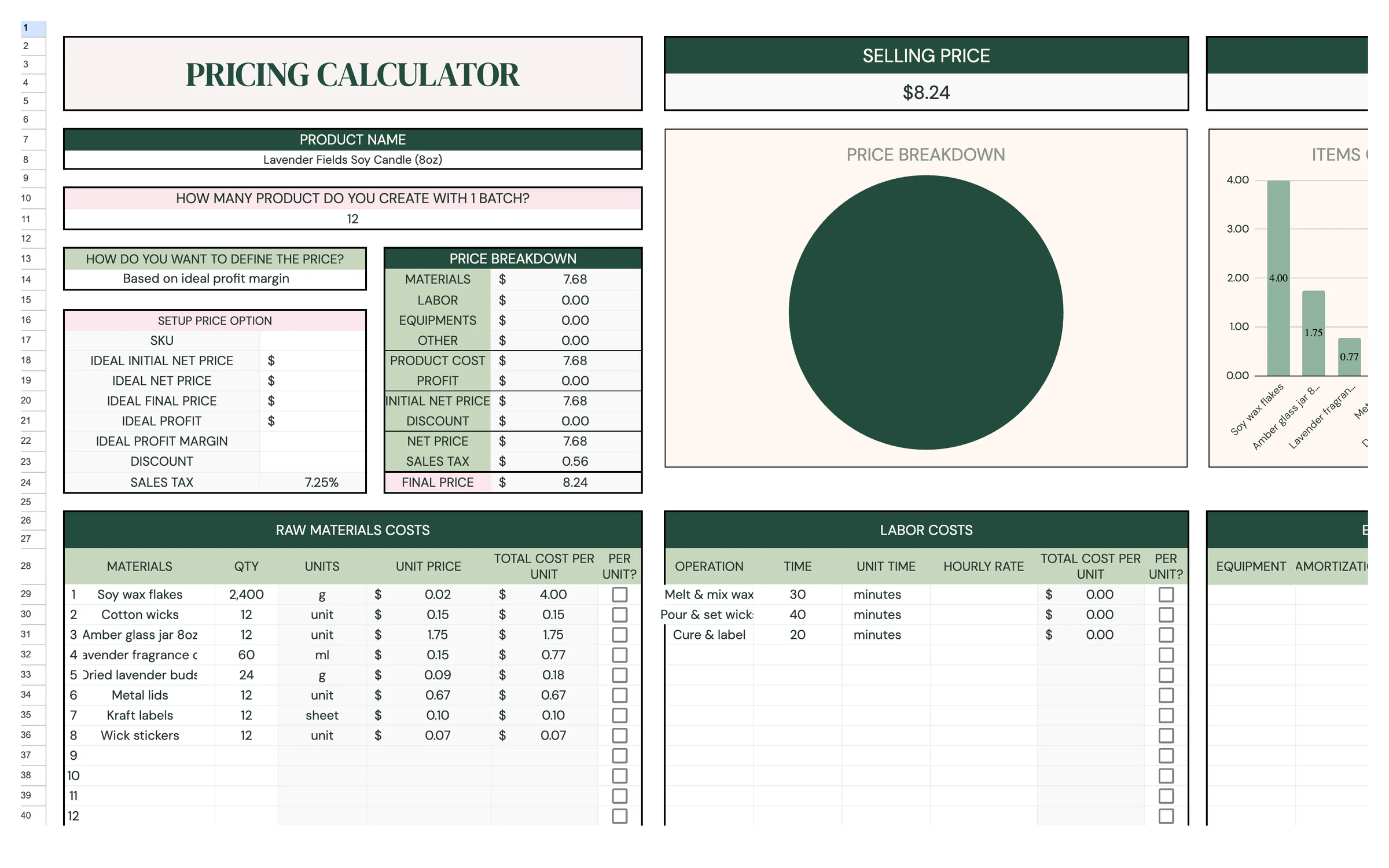
PRICE CALCULATOR prices one product at a time. Start with the basics at the top left.
- Type the PRODUCT NAME and its SKU.
- Under HOW MANY PRODUCT DO YOU CREATE WITH 1 BATCH?, enter how many items one batch makes (enter 1 if you make them one at a time).
- Under HOW DO YOU WANT TO DEFINE THE PRICE?, pick a method: Based on ideal final price, ideal initial net price, ideal net price, ideal profit or ideal profit margin.
- In SETUP PRICE OPTION, fill in the matching field, for example IDEAL PROFIT MARGIN if you chose “Based on ideal profit margin”.
- Enter a DISCOUNT percentage if you plan to offer one (or leave it at 0). SALES TAX comes from SETUP automatically.
Tip: Not sure which method to pick? “Based on ideal profit margin” is the easiest place to start. Try a margin, then compare the price to similar products.
Add materials, labor, equipment and other costs
The four cost tables below the price breakdown add up to your PRODUCT COST: what it really costs you to make one item.
- RAW MATERIALS COSTS: pick each material from the MATERIALS dropdown and enter the QTY used. UNITS and UNIT PRICE fill in from your material list.
- LABOR COSTS: name each OPERATION (e.g. “Pouring”, “Packaging”), enter the TIME, choose minutes or hours under UNIT TIME, and enter your HOURLY RATE.
- EQUIPMENT COSTS: list tools you reuse (molds, a heat gun…), their UNIT COST, and under AMORTIZATION how many uses you want to spread that cost over.
- OTHER COSTS: anything else, like labels, boxes or shipping supplies: the ITEM, # OF ITEM and UNIT COST.
- In each table, tick PER UNIT? if the amount you entered is for one product. Leave it unticked if it's for the whole batch. The template divides it by your batch size.
Heads up: The PER UNIT? box makes a big difference. If one batch makes 10 candles and you entered the wax for the whole batch, leave PER UNIT? unticked.
Read your price breakdown
Once your costs are in, the top of the tab shows your price. You never type here. It's all calculated.
- SELLING PRICE is the final price your customer pays, including sales tax. NET PRICE is what you receive before tax.
- REAL PROFIT shows how much of the net price you keep after product costs.
- PRICE BREAKDOWN lists MATERIALS, LABOR, EQUIPMENTS, OTHER, PRODUCT COST, PROFIT, INITIAL NET PRICE, DISCOUNT, NET PRICE, SALES TAX and FINAL PRICE.
- Not happy with the result? Change your pricing method or the value in SETUP PRICE OPTION and watch the breakdown update.
Tip: INITIAL NET PRICE is your price before any discount; NET PRICE is after the discount. If you don't offer discounts, the two are the same.
Try the “what if” questions
OTHER PERSPECTIVE QUESTIONS at the bottom of the tab help you test ideas before you change your price.
- QUESTION 1: enter a net price under IF I WANT TO SELL (NET PRICE) MY PRODUCT to see what your profit and profit margin would be.
- QUESTION 2: enter a profit goal under IF I WANT TO MAKE to see how many units you need to sell, with and without your discount.
- QUESTION 3: enter an amount under IF I REDUCE MY PRODUCTION COST BY to see your new profit and margin.
- QUESTION 4: enter a margin under IF I CHANGE MY PROFIT MARGIN TO to see the net price it would take.
Save the product to your price list
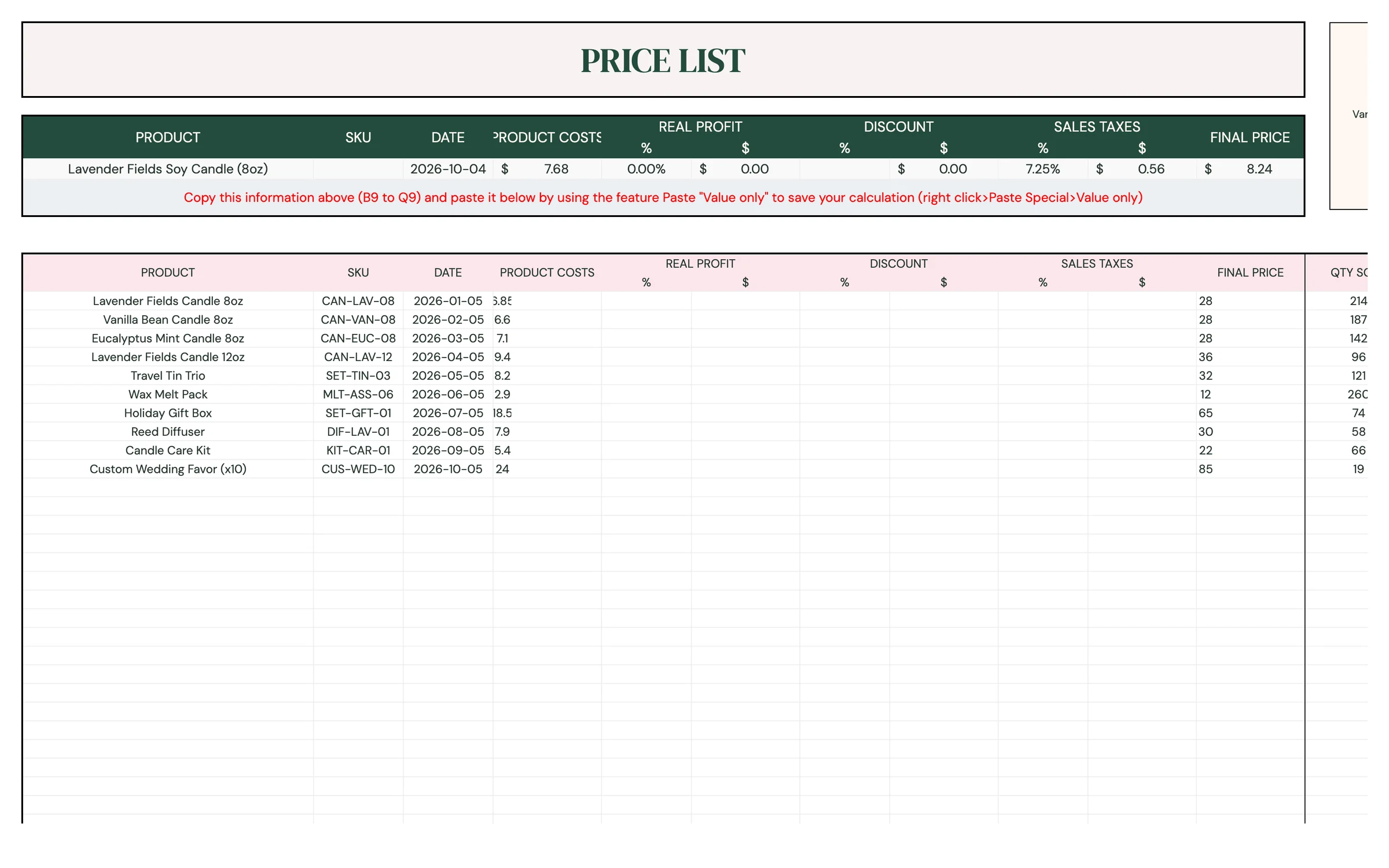
PRICE CALCULATOR holds one product at a time, so save each finished price to PRICE LIST before you start the next one.
- Open PRICE LIST. The first row always shows the product currently on PRICE CALCULATOR, with today's DATE.
- Select that row from the PRODUCT column to FINAL PRICE (B9 to Q9) and copy it.
- Click the next empty row below, right-click and choose Paste special → Values only. This saves the numbers so they don't change.
- Fill in QTY SOLD as you sell, and TOTAL PROFIT shows what that product has earned you. Add NOTES for anything worth remembering.
- Go back to PRICE CALCULATOR, clear the product details and cost rows, and price your next product.
Heads up: Use Paste special → Values only. A normal paste copies the live formulas, and the row will change the next time you use the calculator.
Your routine
A few minutes a week keeps everything accurate.
- Add any new supplies to MATERIALS
- Price it on PRICE CALCULATOR
- Save it to PRICE LIST with Paste special → Values only
- Update INVENTORY and LAST CHECKED on MATERIALS
- Reorder anything marked Time to reorder or Out of Stock
- Update QTY SOLD on PRICE LIST
- Update PRICE and # OF UNITS for that material
- Re-run affected products on PRICE CALCULATOR
- Save the updated prices as new rows on PRICE LIST
Tips & tricks
Pay yourself properly
Use a real HOURLY RATE in LABOR COSTS, even if you're just starting. Underpricing your time is the most common pricing mistake.
Time a real batch
Use a timer the next time you make a batch. Real numbers make your labor costs (and your prices) far more accurate.
Use it on your phone
Install the free Google Sheets app and open your copy to check a price or update inventory at a craft fair or supply store.
Share with a partner
Click Share in the top-right and add a business partner's email as an Editor, so you both work from the same numbers.
Keep a backup
File → Make a copy any time to save a snapshot. It's handy before a big price review.
Prefer dark mode?
Your order includes a Dark Mode edition with the same tabs and formulas. Open the link in your PDF and tap “Make my dark copy”. You can keep both and use whichever you like.
Troubleshooting
I don't see “Make a copy”.
Make sure you're signed in to a Google account. On a phone, open the link in your browser (not the Etsy app) or in the Google Sheets app.
A cell says it's protected when I type.
That cell holds a formula. Type only in the light input cells. That's what keeps everything calculating correctly.
My material isn't in the dropdown on PRICE CALCULATOR.
Add it to the MATERIALS column on the MATERIALS tab first. It appears in the dropdown right away.
The unit I need isn't in the UNIT dropdown.
Add it to the UNITS list in STEP 3 on SETUP, then pick it on MATERIALS.
My costs look far too high or too low.
Check the PER UNIT? boxes and your batch size. Ticked means the amount is for one product; unticked means it's for the whole batch and gets divided by HOW MANY PRODUCT DO YOU CREATE WITH 1 BATCH?.
My saved rows on PRICE LIST keep changing.
They were pasted with formulas. Copy the row again and use right-click → Paste special → Values only.
Still stuck? Message us on Etsy or email help.planly@gmail.com and a real person will help.
Don't have Planly Price It Right yet?
Price your products with confidence.