

Before you start
You only need three things:
- A free Google account
- A computer for setup (phone or tablet works afterwards)
- A rough list of your income and monthly bills
Throughout this guide, light cells are the ones you type in. Everything else is calculated automatically and protected so nothing breaks.
Tour of the tabs
Planly Budget on a Page has 4 tabs. Here's what each one does and what (if anything) you fill in.
Instructions
A filled-in January budget with helpful notes on the key cells.
You fill: Nothing. Hover over cells with a small black corner to read the tips.
Mock Data
A complete example budget so you can see how every section works together.
You fill: Nothing. It's for reference (or practice).
My Budget
Your one-page budget: dashboard, budget summary, income, bills, expenses, subscriptions, debts, savings and a transaction tracker.
You fill: Budget name, period, currency, starting balance, your categories and planned amounts, then every transaction.
Bonus
SAVING GOALS: up to 15 goals with progress, months left and an estimated finish date.
You fill: Each goal's amount and monthly goal, then every contribution.
Make your copy
Your template lives in your own Google Drive, so the first step is making your personal copy.
- Open the PDF from your Etsy purchase (Etsy → You → Purchases and reviews → Download files).
- Click the “Make my copy” button. If you're asked, sign in to your Google account.
- Google shows a “Copy document” screen. Click the blue “Make a copy” button.
- Your copy opens. Rename it if you like (click the title in the top-left), e.g. “My 2027 Budget”.
Tip: Bookmark your copy, or star it in Google Drive, so it's one click away.
Learn from the example
Before you type anything, take a quick look at how a finished budget looks.
- Open the INSTRUCTIONS tab. It's a filled-in January budget.
- Hover over cells with a small black triangle in the corner (like BUDGET PERIOD, CATEGORY, DUE and the TRANSACTION TRACKER headings) to read a note explaining what goes there.
- Open MOCK DATA to see another complete example, from the BUDGET SUMMARY down to the TRANSACTION TRACKER.
- Notice how each transaction's BUDGET NAME matches a category above. That's what fills in the REAL column.
Tip: You don't need to delete anything on INSTRUCTIONS or MOCK DATA. Your own budget lives on MY BUDGET.
Set up MY BUDGET
A few details at the top of MY BUDGET set the stage for the month.
- Click “ENTER YOUR BUDGET NAME HERE” and type a name, e.g. “January 2027”.
- Next to BUDGET PERIOD, enter the first and last day of the month (double-click a date cell to open a small calendar).
- Next to CURRENCY SYMBOL, type your symbol ($, €, £…).
- In BUDGET SUMMARY, enter your STARTING BALANCE: under BUDGET, what you plan to start the month with; under REAL, what you actually have on day one.
- In INCOME, list each CATEGORY (paycheck, side hustle…) and the EXPECTED amount.
Tip: Light-colored cells are where you type. Everything else is calculated for you.
Plan your spending
Now list where your money is going this month. Enter planned amounts before the month starts.
- BILLS: type each CATEGORY (rent, utilities, insurance, phone…), its DUE date and BUDGET amount.
- EXPENSES: flexible spending like groceries, gas, dining out and clothes, each with a BUDGET.
- SUBSCRIPTIONS: streaming, apps and memberships, with DUE date and BUDGET.
- DEBTS: loan and credit card payments, with DUE date and BUDGET.
- SAVINGS: emergency fund, retirement and other goals, each with a BUDGET.
- Check BUDGET SUMMARY: AMOUNT LEFT under BUDGET shows what's still unplanned.
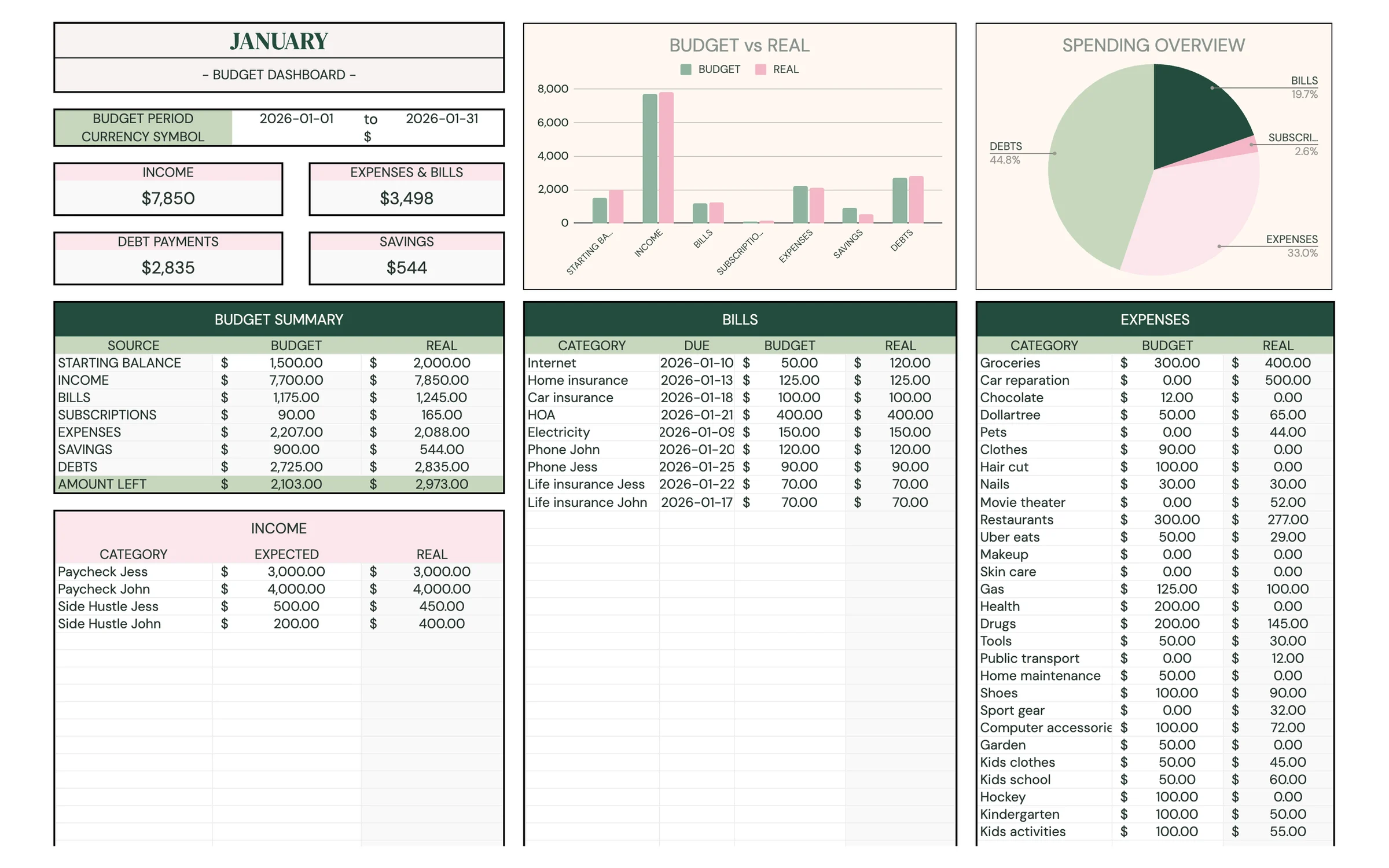
Tip: Use each category name only once across all sections. The transaction tracker matches transactions to categories by name.
Log transactions and watch it update
The TRANSACTION TRACKER at the bottom of the page is where you record what really happened, income included.
- Scroll down to TRANSACTION TRACKER.
- For every paycheck, purchase or payment, enter the DATE and AMOUNT.
- Choose the BUDGET NAME from the dropdown and CATEGORY fills in by itself. Add a DESCRIPTION if you like (optional).
- Watch the REAL columns fill in across INCOME, BILLS, EXPENSES, SUBSCRIPTIONS, DEBTS and SAVINGS.
- Check the dashboard cards at the top (INCOME, EXPENSES & BILLS, DEBT PAYMENTS, SAVINGS) and AMOUNT LEFT in BUDGET SUMMARY.
- WHERE DOES MY MONEY GO? shows each category's share of your spending, and WHEN DO I SPEND MY MONEY? charts when your spending happens.
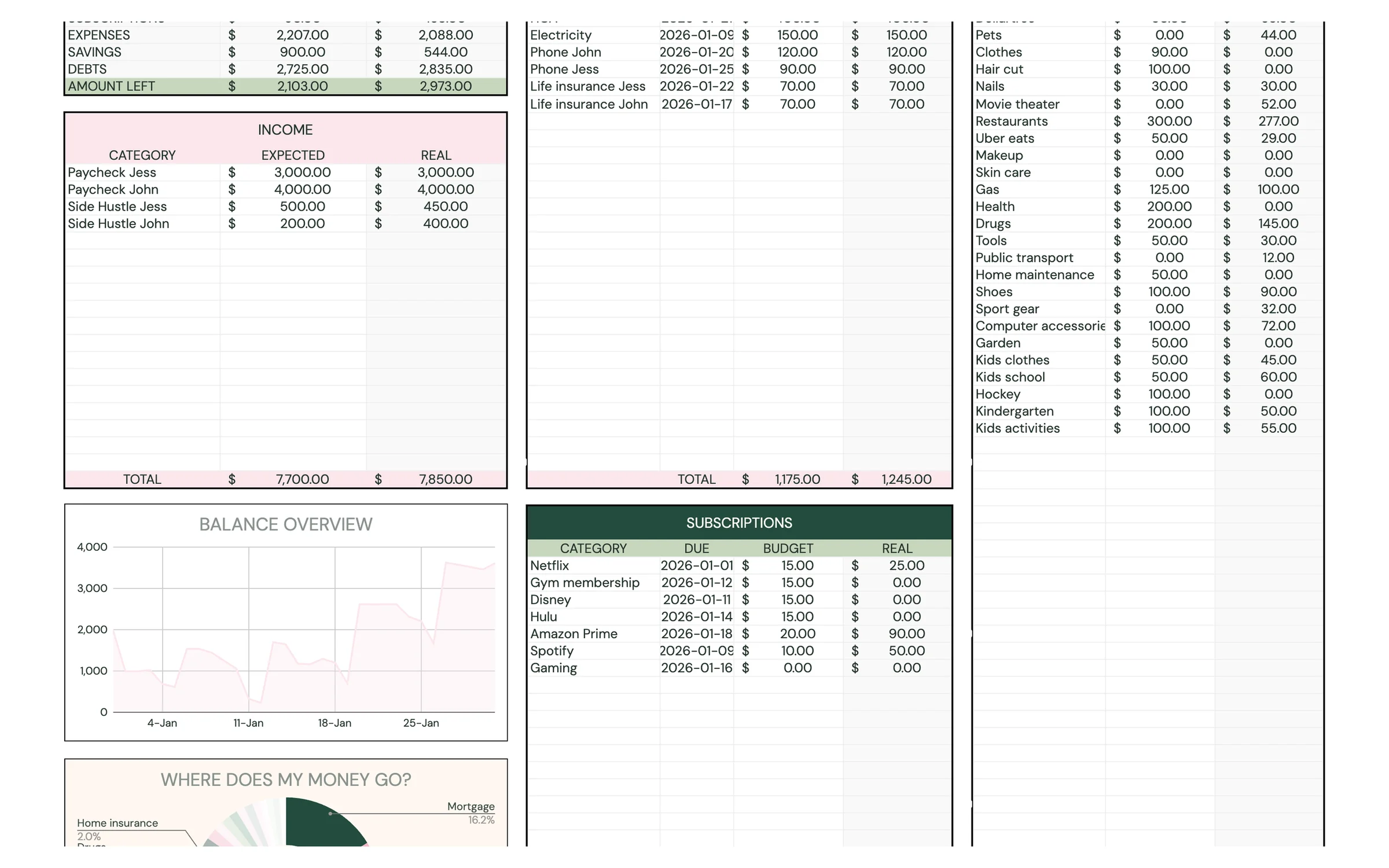
Heads up: A category only appears in the BUDGET NAME dropdown after you've typed it in one of the sections above.
Track saving goals
The BONUS tab is a simple saving goals tracker for things like a vacation, a new car or an emergency fund.
- Open BONUS and type your CURRENCY SYMBOL.
- In FUNDS OVERVIEW, enter each GOAL NAME, GOAL AMOUNT and MONTHLY GOAL, plus anything you've already saved under START.
- Each time you save, log it in CONTRIBUTION TRACKER: DATE, GOAL NAME and AMOUNT.
- Watch SAVED, LEFT, PROG, MONTHS LEFT and ESTIMATE DATE update, along with the totals at the top.
Start a new month
Each month gets its own copy of MY BUDGET, so you can look back at previous months any time.
- Right-click the MY BUDGET tab at the bottom of the screen and choose Duplicate.
- Right-click the new tab, choose Rename and give it the month's name (e.g. “FEB”).
- On the new tab, update the budget name, BUDGET PERIOD and STARTING BALANCE.
- Clear last month's rows in the TRANSACTION TRACKER and adjust any planned amounts that change.
Tip: Duplicate before you start logging, so your categories and plan carry over and only the transactions need clearing.
Your routine
A few minutes a week keeps everything accurate.
- Log the week's transactions
- Glance at AMOUNT LEFT
- Log any saving goal contributions on BONUS
- Compare BUDGET vs. REAL for each section
- Check WHERE DOES MY MONEY GO?
- Duplicate MY BUDGET for the new month
Tips & tricks
Add your own categories
Type new categories straight into any section. They appear in the BUDGET NAME dropdown right away.
Use it on your phone
Install the free Google Sheets app and open your copy. Logging a purchase on the go takes seconds.
Share with a partner
Click Share in the top-right and add your partner's email as an Editor, so you both log in the same budget.
Print a one-page snapshot
File → Print (or Download → PDF) on MY BUDGET gives you a printable version of your month.
Change the colors
Format → Theme lets you change fonts and accent colors across the whole template in one go.
Prefer dark mode?
Your order includes a Dark Mode edition with the same tabs and formulas. Open the link in your PDF and tap “Make my dark copy”. You can keep both and use whichever you like.
Troubleshooting
I don't see “Make a copy”.
Make sure you're signed in to a Google account. On a phone, open the link in your browser (not the Etsy app) or in the Google Sheets app.
A cell says it's protected when I type.
That cell holds a formula. Type only in the light input cells. That's what keeps everything calculating correctly.
My category isn't in the BUDGET NAME dropdown.
Type it in the matching section first (Income, Bills, Expenses, Subscriptions, Debts or Savings). Then it appears in the dropdown.
A transaction isn't counted.
Check that it has an AMOUNT and a BUDGET NAME selected, and that you haven't used the same category name twice.
Dates look wrong (day and month swapped).
File → Settings → Locale controls the date format. Pick your country and the dates switch to your format.
Still stuck? Message us on Etsy or email help.planly@gmail.com and a real person will help.
Don't have Planly Budget on a Page yet?
A one-page budget for people who hate budgeting.