

Before you start
You only need three things:
- A free Google account
- A computer for setup (phone or tablet works afterwards)
- Current balances for your accounts, investments and debts, plus rough values for property
Throughout this guide, light cells are the ones you type in. Everything else is calculated automatically and protected so nothing breaks.
Tour of the tabs
Planly Wealth Tracker has 1 tabs. Here's what each one does and what (if anything) you fill in.
Net Worth
Your worth and annual growth, a monthly NET WORTH summary with charts, and detailed ASSETS and LIABILITIES tables from START through DECEMBER.
You fill: Your currency, the names of what you own and owe, and their balances once a month.
Make your copy
Your template lives in your own Google Drive, so the first step is making your personal copy.
- Open the PDF from your Etsy purchase (Etsy → You → Purchases and reviews → Download files).
- Click the “Make my copy” button. If you're asked, sign in to your Google account.
- Google shows a “Copy document” screen. Click the blue “Make a copy” button.
- Your copy opens. Rename it if you like (click the title in the top-left), e.g. “Our Net Worth 2027”.
Tip: Bookmark your copy, or star it in Google Drive, so it's one click away for your monthly check-in.
Set your currency
Every amount on the tab uses the symbol you choose here.
- Open the NET WORTH tab.
- Find CURRENCY at the top left.
- Type your symbol in the light cell below it (for example $, €, or £).
Tip: Light-colored cells are where you type. Everything else is calculated for you and protected, so nothing breaks by accident.
List what you own
Scroll down to ASSETS. It has four groups, each with blank rows where you name an item and enter its value.
- Cash & Bank Accounts: everyday money, savings and cash on hand (e.g. “Everyday”, “Emergency fund”).
- Investments: retirement accounts, brokerage accounts, crypto and similar.
- Properties: your home, land or rental property, at a realistic market value.
- Other Assets: vehicles, valuables or anything else worth counting.
- Type each item's name in the left column, then enter today's value in the START column.
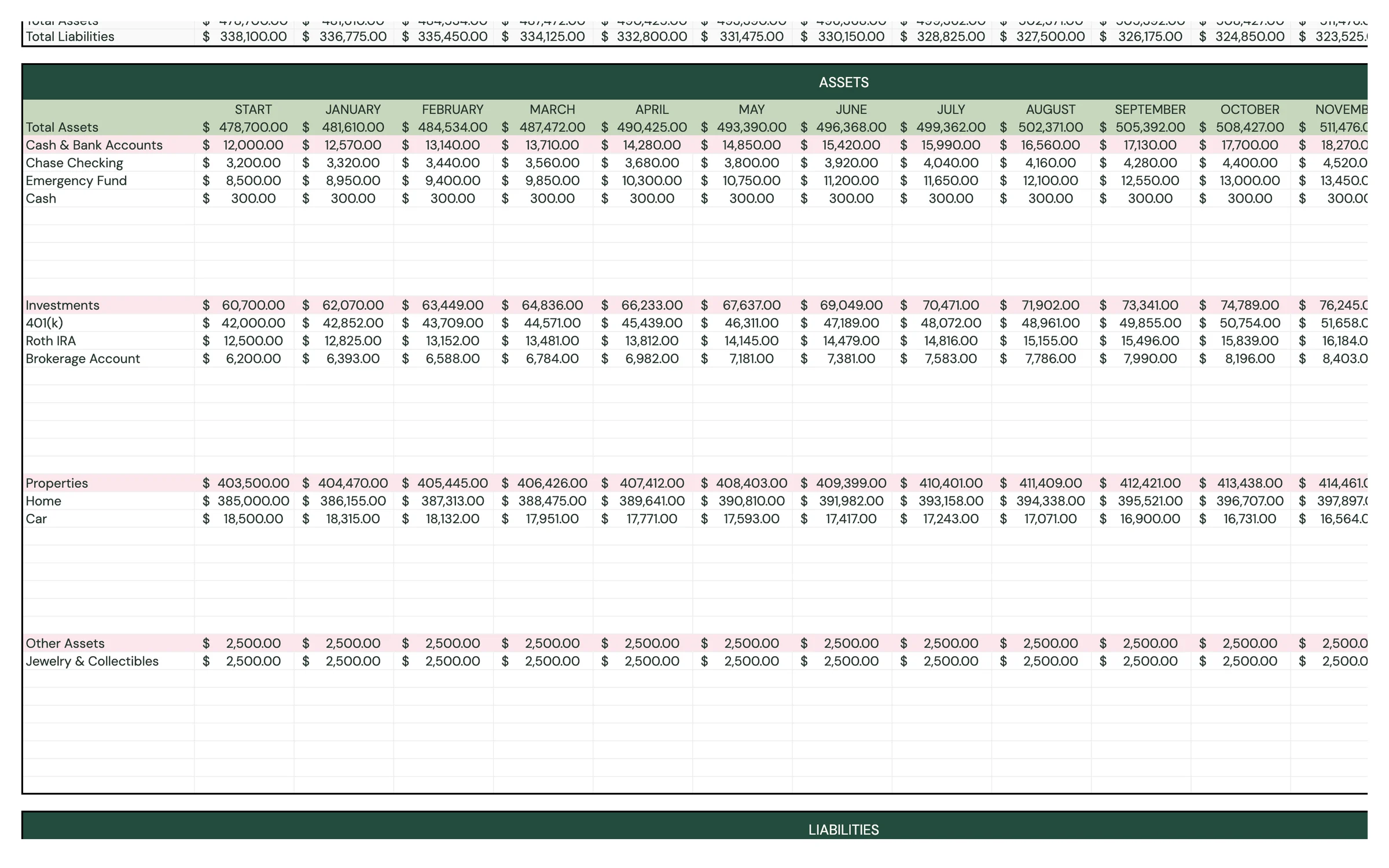
Tip: Be consistent: use the same method to value your home or car each month (for example, an online estimate) so changes reflect reality, not guesswork.
List what you owe
Below the assets, LIABILITIES works the same way.
- Short-Term Debts: credit cards and other balances you expect to clear soon.
- Long-Term Debts: mortgage, car loans, student loans.
- Other Liabilities: anything else you owe, like a personal loan from family.
- Name each debt and enter its current balance in the START column.
Read your net worth
With your START column filled, the top of the tab comes alive. You never type here.
- YOUR WORTH: what you own minus what you owe, right now.
- YOUR ANNUAL GROWTH: how much your net worth has changed since START, with the percentage next to it.
- NET WORTH table: Net Worth, Total Assets and Total Liabilities for START and every month, with GROWTH in the last column.
- Charts: NET WORTH (month by month), ASSETS vs LIABILITIES and ASSET DISTRIBUTION (how your assets split across the four groups) update as you add months.
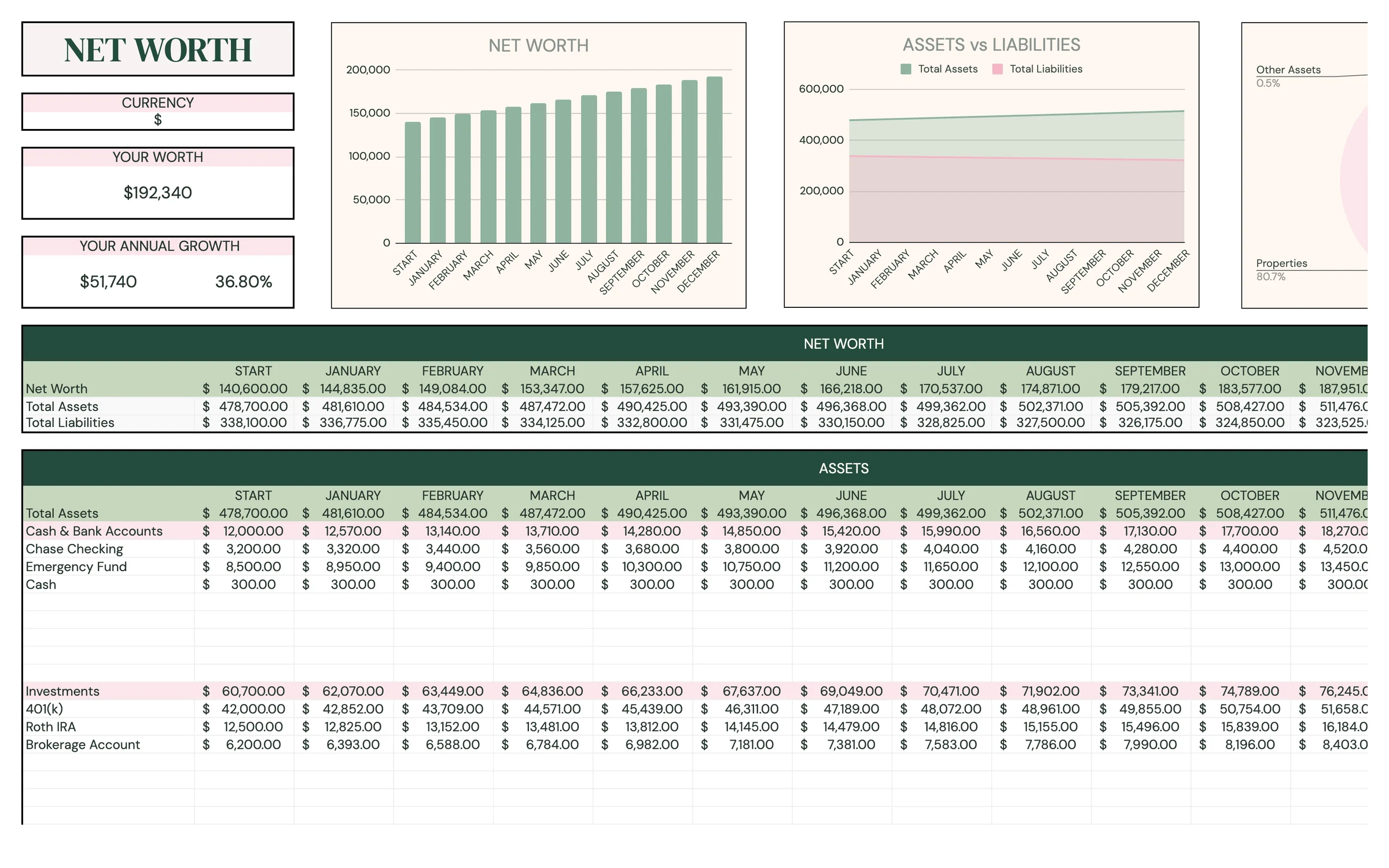
Tip: A negative net worth is completely normal, especially with student loans or a new mortgage. What matters is the direction it's moving.
Update once a month
Pick a regular day (the first of the month or right after payday) and fill in that month's column.
- Gather this month's balances from your statements or apps.
- In ASSETS, enter each item's current value in this month's column (JANUARY, FEBRUARY and so on).
- In LIABILITIES, enter each debt's current balance in the same column.
- Check YOUR WORTH and the GROWTH column to see how the month went.
- Opened a new account or took on a new debt? Add it to a blank row in the right group.
Heads up: Fill every item for a month, even if a balance didn't change. A blank cell counts as zero, which would make your net worth jump for that month.
Your routine
A few minutes a week keeps everything accurate.
- Enter every asset value for the month
- Enter every debt balance
- Check YOUR WORTH and GROWTH
- Review your growth from START to DECEMBER
- Open your download link and make a fresh copy for the new year
- Use December's balances as the new START column
Tips & tricks
Pick a fixed day
Updating on the same day each month makes the month-to-month GROWTH comparison fair.
Use it on your phone
Install the free Google Sheets app and open your copy to update balances from anywhere.
Share with a partner
Click Share in the top-right and add your partner's email as an Editor to track your household net worth together.
Change the colors
Format → Theme lets you change fonts and accent colors across the whole template in one go.
Keep a backup
File → Make a copy at the end of each year to keep a record of your progress.
Prefer dark mode?
Your order includes a Dark Mode edition with the same tabs and formulas. Open the link in your PDF and tap “Make my dark copy”. You can keep both and use whichever you like.
Troubleshooting
I don't see “Make a copy”.
Make sure you're signed in to a Google account. On a phone, open the link in your browser (not the Etsy app) or in the Google Sheets app.
A cell says it's protected when I type.
That cell holds a formula, like a group total. Type only in the light input cells under each group.
My net worth jumped or dropped wildly in one month.
Check for a missing balance in that month's column. Blank cells count as zero.
Should debts be entered as negative numbers?
No. Enter what you owe as a positive balance in LIABILITIES. The sheet subtracts it from your assets for you.
I've run out of rows in a group.
Combine small items into one line (e.g. “Other savings”), or put them in that section's “Other” group.
Still stuck? Message us on Etsy or email help.planly@gmail.com and a real person will help.
Don't have Planly Wealth Tracker yet?
The one number that tells your money story.