

Before you start
You only need three things:
- A free Google account
- A computer for setup (phone or tablet works afterwards)
- A handful of favorite recipes to start your recipe book
- Optional: calorie and macro info for your recipes if you want to track nutrition
Throughout this guide, light cells are the ones you type in. Everything else is calculated automatically and protected so nothing breaks.
Tour of the tabs
Planly Fresh Plate has 12 tabs. Here's what each one does and what (if anything) you fill in.
Setup
The lists every other tab uses: food categories, units and single ingredients with their calories and macros.
You fill: Add or rename categories and units; add single ingredients you eat on their own.
Recipe Book
Your recipe names, organized by category, from breakfast to dessert.
You fill: Replace the “Add…” placeholders with your recipe names.
Recipe Cards
A full card for each recipe: times, servings, link, ingredients, directions, notes, calories and macros.
You fill: One card per recipe, in the same order as your recipe book.
Recipe Finder
Pulls up any recipe card and adjusts it for the number of people you're cooking for.
You fill: Choose a category, a recipe and how many people.
Meal Planner
Your week of breakfasts, lunches, dinners and snacks, plus each day's ingredient list.
You fill: A start date, then a category and recipe for each meal.
Meal Schedule
A clean one-page view of the week's menu.
You fill: Nothing. It reads the meal planner.
Inventory
What's in your fridge, freezer, pantry and elsewhere.
You fill: Ingredients, quantities and units; tick what you need to buy.
Shopping List
An automatic list of the week's ingredients, plus a section for extra items.
You fill: Extra items to buy; tick anything you don't need.
Printable Shopping List
Your shopping list grouped by category, ready to print or check off in the store.
You fill: Nothing. Just tick items off as you shop.
Calorie Tracker
Daily calories, fat, protein, carbs and fiber from your planned meals, compared with your targets.
You fill: Your daily targets; tick anything you didn't eat.
Weight Tracker (imperial / metric)
Daily weigh-ins and BMI for each participant, in pounds and feet or kilograms and centimeters.
You fill: Start date, names, heights, then weigh-ins.
Make your copy
Your template lives in your own Google Drive, so the first step is making your personal copy.
- Open the PDF from your Etsy purchase (Etsy → You → Purchases and reviews → Download files).
- Click the “Make my copy” button. If you're asked, sign in to your Google account.
- Google shows a “Copy document” screen. Click the blue “Make a copy” button.
- Your copy opens. Rename it if you like (click the title in the top-left), e.g. “Our Meal Plan”.
Tip: Bookmark your copy, or star it in Google Drive, so it's one click away every week.
Review your categories, units and single ingredients
SETUP holds the lists behind every dropdown in the template. The defaults cover most kitchens, so you may only need a few tweaks.
- FOOD CATEGORIES: grocery aisles like Fruits & Vegetables, Meat & Seafood, Dairy & Eggs, Pantry and Spices. Add or rename any to match how you shop.
- UNITS: Piece, Cup, Tbsp., Tsp., Gram, Pound, Can and many more. Add any unit you use that's missing.
- SINGLE INGREDIENT: for foods you eat on their own (an apple, a yogurt), type the INGREDIENT and choose its FOOD CATEGORY ASSOCIATED.
- Under CALORIE & MACRO, enter its Calorie, Fat, Protein, Carbs and Fiber so it counts on the calorie tracker.
Tip: Light-colored cells are where you type. Everything else is calculated for you and protected, so nothing breaks by accident.
List your recipes in the recipe book
RECIPE BOOK is the index of everything you cook. Recipe names you enter here become the choices on the meal planner.
- Find the column for each category: BREAKFAST, LUNCH, APPETIZER, SOUP, SALAD, MAIN COURSE, SIDE DISH and DESSERT.
- Replace the placeholders (“Add lunch 1”, “Add main course 2”…) with your recipe names, top to bottom.
- Keep each category's list in order without gaps. The position of a recipe matters for the next step.
- The SINGLE INGREDIENT column fills itself from SETUP.
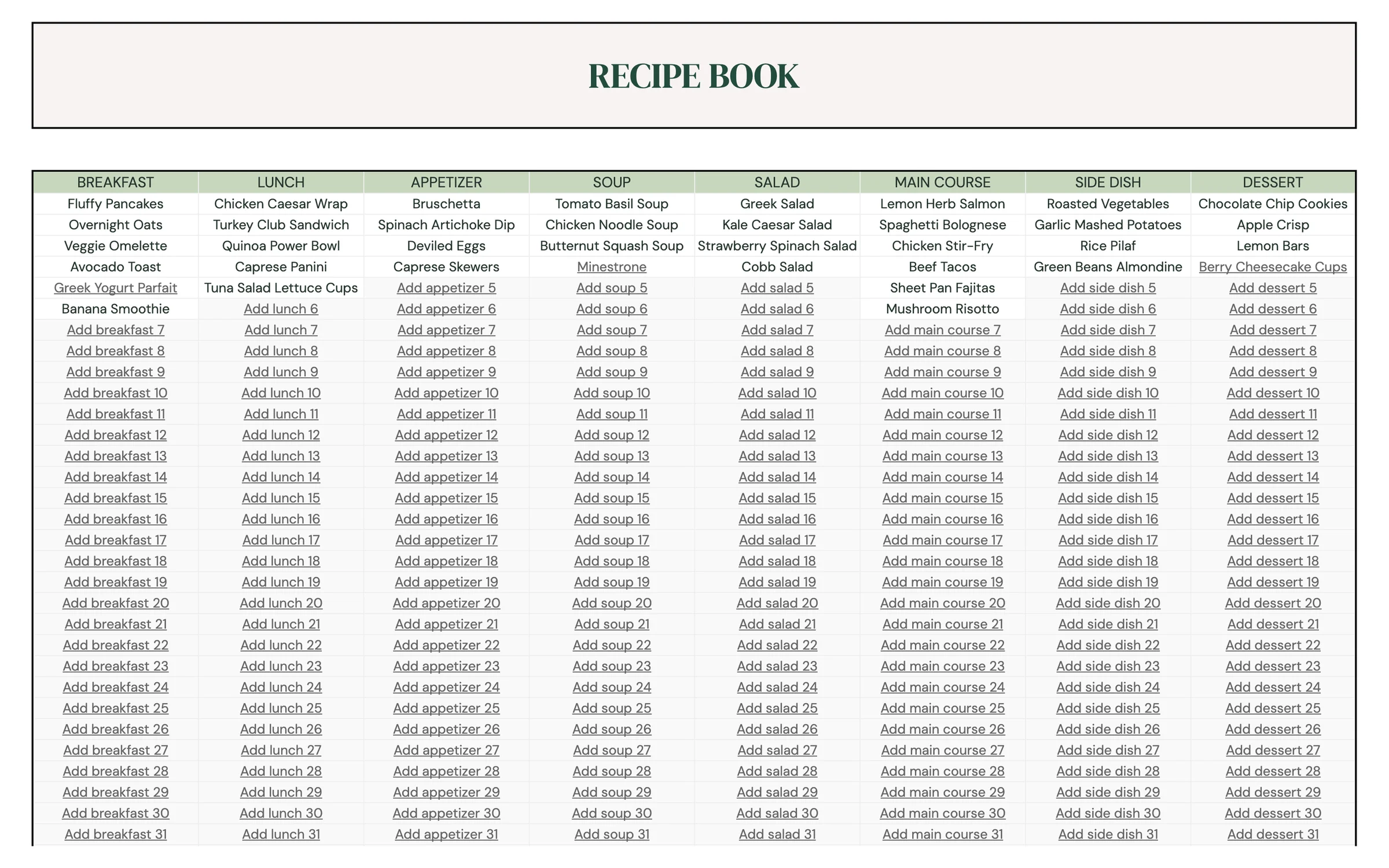
Tip: The Pancakes example shows how a finished recipe looks. Keep it as a reference, or overwrite it with your own breakfast.
Fill in your recipe cards
Each category has its own column of cards. The first card in a column belongs to the first recipe in that category on RECIPE BOOK, the second card to the second recipe, and so on.
- Use the GO TO links at the top to jump to a category's column, then find the card that matches the recipe's position in your recipe book.
- Type the recipe name, Prep time, Cook time, Servings and a Link to the original recipe if you have one.
- List each INGREDIENT with its QTY, then pick the UNIT and CATEGORY from the dropdowns.
- Write the DIRECTIONS step by step and add any NOTES.
- For nutrition tracking, enter Total calories (Calories per serving works itself out) and the Fat, Protein, Carbs and Fiber per serving.
Heads up: For fractions, type them as a formula: =1/4, not 1/4. Without the “=” sign the sheet reads it as a date.
Look up a recipe with the recipe finder
RECIPE FINDER shows any recipe card on one screen and adjusts it for the number of people you're feeding, which is handy while you cook.
- Under CHOSE YOUR RECIPE CATEGORY, pick a category (Breakfast, Lunch, Main Course…).
- Under CHOSE YOUR RECIPE, pick a recipe from that category.
- Enter a number under FOR HOW MANY PEOPLE ? to scale the servings, ingredient quantities and total calories.
- Read the times, link, ingredients, directions and nutrition totals below.
Plan your week
MEAL PLANNER is a seven-day plan with rows for BREAKFAST, LUNCH, DINNER and SNACKS each day.
- Enter the first day of your week under START DATE. The day names and dates fill in automatically.
- For each meal, choose a CATEGORY (for example Main Course or Single Ingredient), then choose a recipe under MENU.
- SERVINGS fills in from the recipe card.
- Tick LEFT OVER? when a meal is leftovers from an earlier day, so its ingredients aren't added again.
- Scroll down to INGREDIENT LIST under each day to see everything that day's meals need.
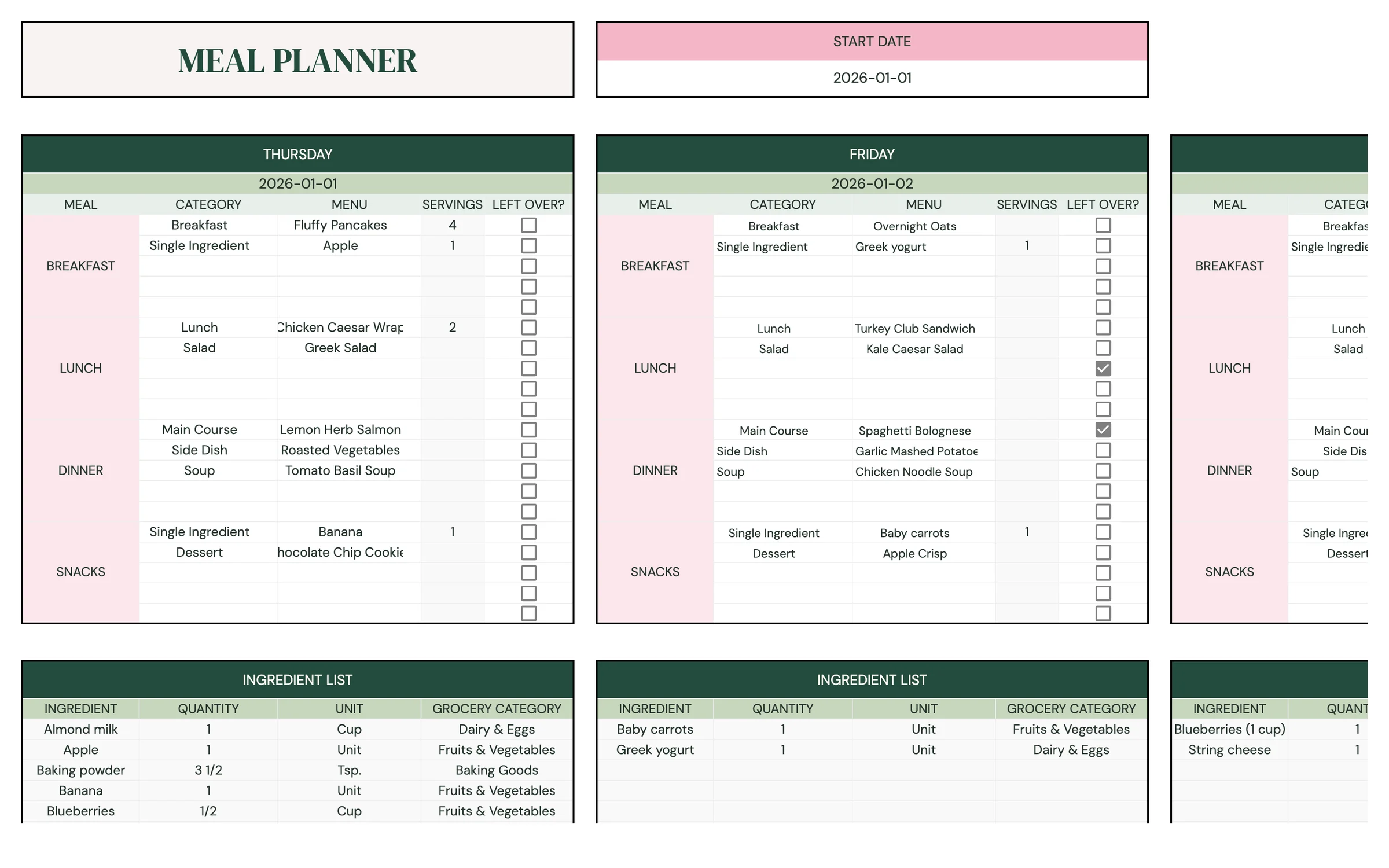
Tip: Each meal has several rows, so you can add a side dish, a salad or a dessert alongside the main recipe.
Check the meal schedule
MEAL SCHEDULE turns your plan into a simple one-page menu, with no typing needed.
- Open MEAL SCHEDULE to see each DAY and DATE with its BREAKFAST, LUNCH, DINNER and SNACKS.
- Print it (File → Print) and stick it on the fridge so everyone knows what's for dinner.
Take stock of what you have
INVENTORY keeps track of what's already in your kitchen, so you don't buy things twice.
- Use the FRIDGE, FREEZER, PANTRY and OTHER sections.
- In each, type the INGREDIENT and its QTY, then pick the UNIT and CATEGORY.
- Tick NEED TO BUY? for anything that's running low and it's added to your shopping list.
- Update quantities after you shop and as you use things up.
Tip: Spell ingredients exactly as you do on your recipe cards, so the shopping list can show how much you already have.
Build your shopping list
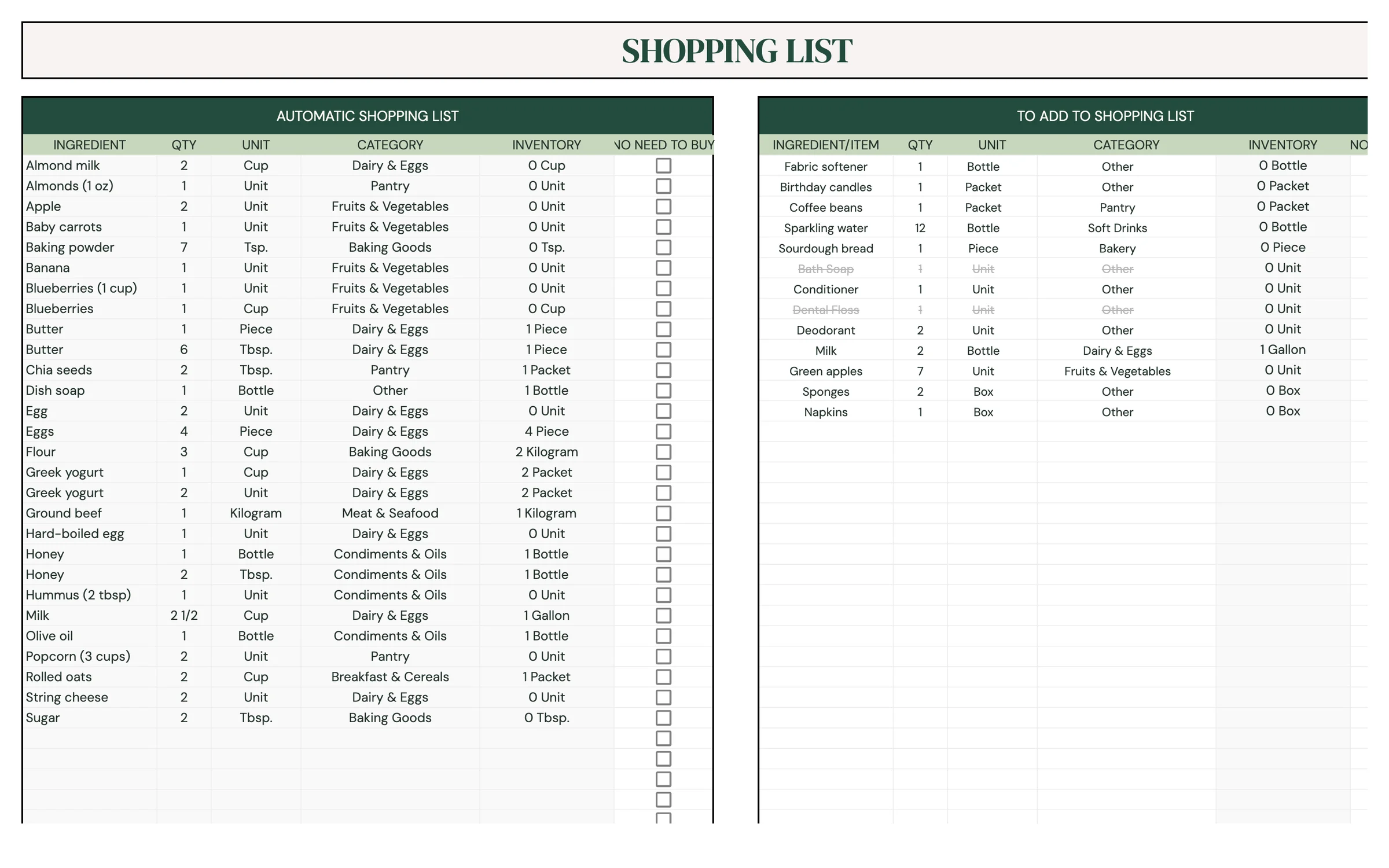
SHOPPING LIST does the adding up for you: the ingredients from the week's meals appear automatically.
- AUTOMATIC SHOPPING LIST shows each INGREDIENT with its total QTY, UNIT and CATEGORY for the week.
- The INVENTORY column shows how much of it you already have at home.
- Tick NO NEED TO BUY for anything you already have enough of.
- Under TO ADD TO SHOPPING LIST, add household extras (soap, pet food, paper towels) with QTY, UNIT and CATEGORY.
Print or use the shopping list in the store
PRINTABLE SHOPPING LIST groups everything you need by category, so you can work through the store aisle by aisle.
- Open PRINTABLE SHOPPING LIST. Items you marked NO NEED TO BUY are left off.
- Check ITEM/INGREDIENT BY CATEGORY and QUANTITY, and add NOTES (brand, size) if you like.
- Print it with File → Print, or open it in the Google Sheets app and tick items off as you shop.
Track calories and macros
CALORIE & MACRO TRACKER adds up the nutrition from the meals on your plan, day by day. It's optional, so skip it if you're not counting.
- For each day, enter your TARGET CALORIE & MACRO: CALORIE, FAT, PROTEIN, CARBS and FIBER.
- SUMMARY OF THE DAY lists each planned meal with its calories and macros per serving, taken from your recipe cards and SETUP.
- Tick UNEATEN for anything you skipped, so it's removed from the totals.
- Check COMPARISON: YOUR TARGET, YOUR DAILY TOTAL and the DIFFERENCE.
Tip: Totals are only as good as your recipe cards. Fill in the calories and macros per serving on each card to get accurate numbers.
Log your weight
Use WEIGHT TRACKER (imperial) for pounds and feet, or WEIGHT TRACKER (metric) for kilograms and centimeters.
- Enter a START DATE. The Dates column lists every day from there.
- Under PARTICIPANTS, type each person's NAME and HEIGHT (feet and inches, or cm on the metric tab).
- On each weigh-in day, type the weight in that date's row under the person's column.
- Current Weight and BMI update with the latest entry.
Your routine
A few minutes a week keeps everything accurate.
- Update the START DATE on MEAL PLANNER and choose the week's meals
- Update INVENTORY
- Review SHOPPING LIST and tick NO NEED TO BUY
- Print the PRINTABLE SHOPPING LIST
- Tick UNEATEN on CALORIE TRACKER for anything you skipped
- Log a weigh-in if you're tracking weight
- Add its name to RECIPE BOOK
- Fill in the matching card on RECIPE CARDS
Tips & tricks
Start with ten recipes
You don't need your whole cookbook on day one. Add the meals you make most often, then add more as you go.
Plan around leftovers
Cook a bigger dinner, then plan it again for lunch the next day and tick LEFT OVER? so the ingredients aren't counted twice.
Use it on your phone
Install the free Google Sheets app and open your copy in the store to tick off the PRINTABLE SHOPPING LIST as you go.
Share with your family
Click Share in the top-right and add family members as Editors, so everyone can see the menu and add to the shopping list.
Change the colors
Format → Theme lets you change fonts and accent colors across the whole template in one go.
Prefer dark mode?
Your order includes a Dark Mode edition with the same tabs and formulas. Open the link in your PDF and tap “Make my dark copy”. You can keep both and use whichever you like.
Troubleshooting
I don't see “Make a copy”.
Make sure you're signed in to a Google account. On a phone, open the link in your browser (not the Etsy app) or in the Google Sheets app.
A cell says it's protected when I type.
That cell holds a formula. Type only in the light input cells. That's what keeps everything calculating correctly.
The wrong ingredients show for a recipe.
Recipe cards are matched by position. Make sure the recipe's card is in the same spot in its category column as the recipe is in its RECIPE BOOK list (third breakfast = third breakfast card).
My recipe isn't in the MENU dropdown.
Choose the right CATEGORY first, and check that the recipe name is typed in that category's column on RECIPE BOOK.
A fraction turned into a date.
Retype it with an equals sign, like =1/2. The sheet then reads it as a number.
An item isn't on the printable list.
Check that NO NEED TO BUY isn't ticked for it on SHOPPING LIST, and that its meal isn't marked LEFT OVER? on MEAL PLANNER.
Still stuck? Message us on Etsy or email help.planly@gmail.com and a real person will help.
Don't have Planly Fresh Plate yet?
Plan the week, shop once, eat well.