

Before you start
You only need three things:
- A free Google account
- A computer for setup (phone or tablet works afterwards)
- A short list of the habits you want to build
Throughout this guide, light cells are the ones you type in. Everything else is calculated automatically and protected so nothing breaks.
Tour of the tabs
Planly Habit Streak has 3 tabs. Here's what each one does and what (if anything) you fill in.
Mock Data
A filled-in example month that shows how a working tracker looks.
You fill: Nothing. Use it for reference.
Habit Tracker I
Your monthly tracker: daily habits, weekly habits, progress charts, top habits and streaks.
You fill: Year, month, your habits with a goal, then daily and weekly check-ins.
Habit Tracker II
A second tracker with the exact same layout.
You fill: Use it for another month, or for a second person.
Make your copy
Your template lives in your own Google Drive, so the first step is making your personal copy.
- Open the PDF from your Etsy purchase (Etsy → You → Purchases and reviews → Download files).
- Click the “Make my copy” button. If you're asked, sign in to your Google account.
- Google shows a “Copy document” screen. Click the blue “Make a copy” button.
- Your copy opens. Rename it if you like (click the title in the top-left), e.g. “My 2027 Habits”.
Tip: Bookmark your copy, or star it in Google Drive, so it's one click away every day.
Look at the example
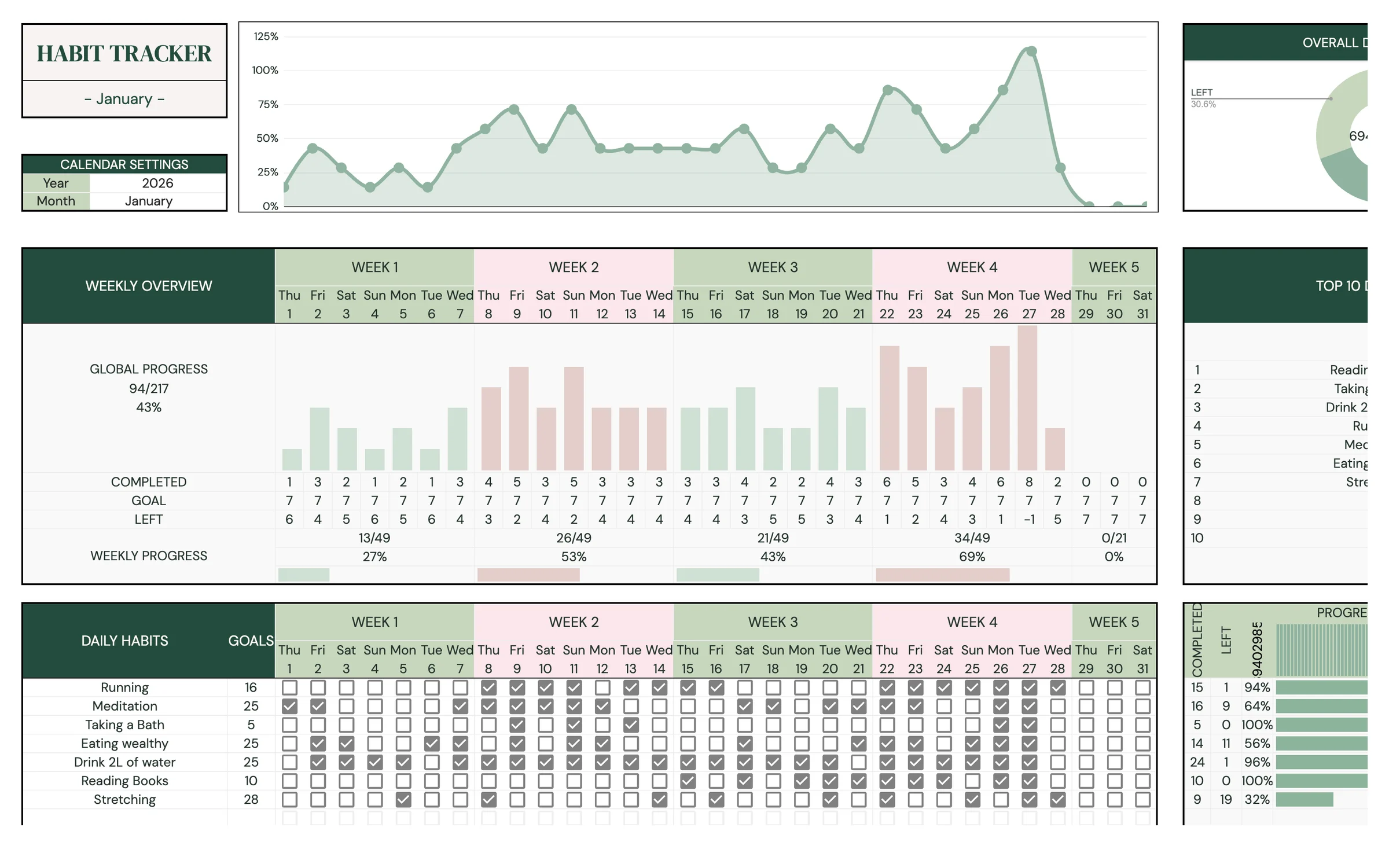
MOCK DATA is a finished sample month. A quick look shows you what each part does before you start your own.
- Open the MOCK DATA tab.
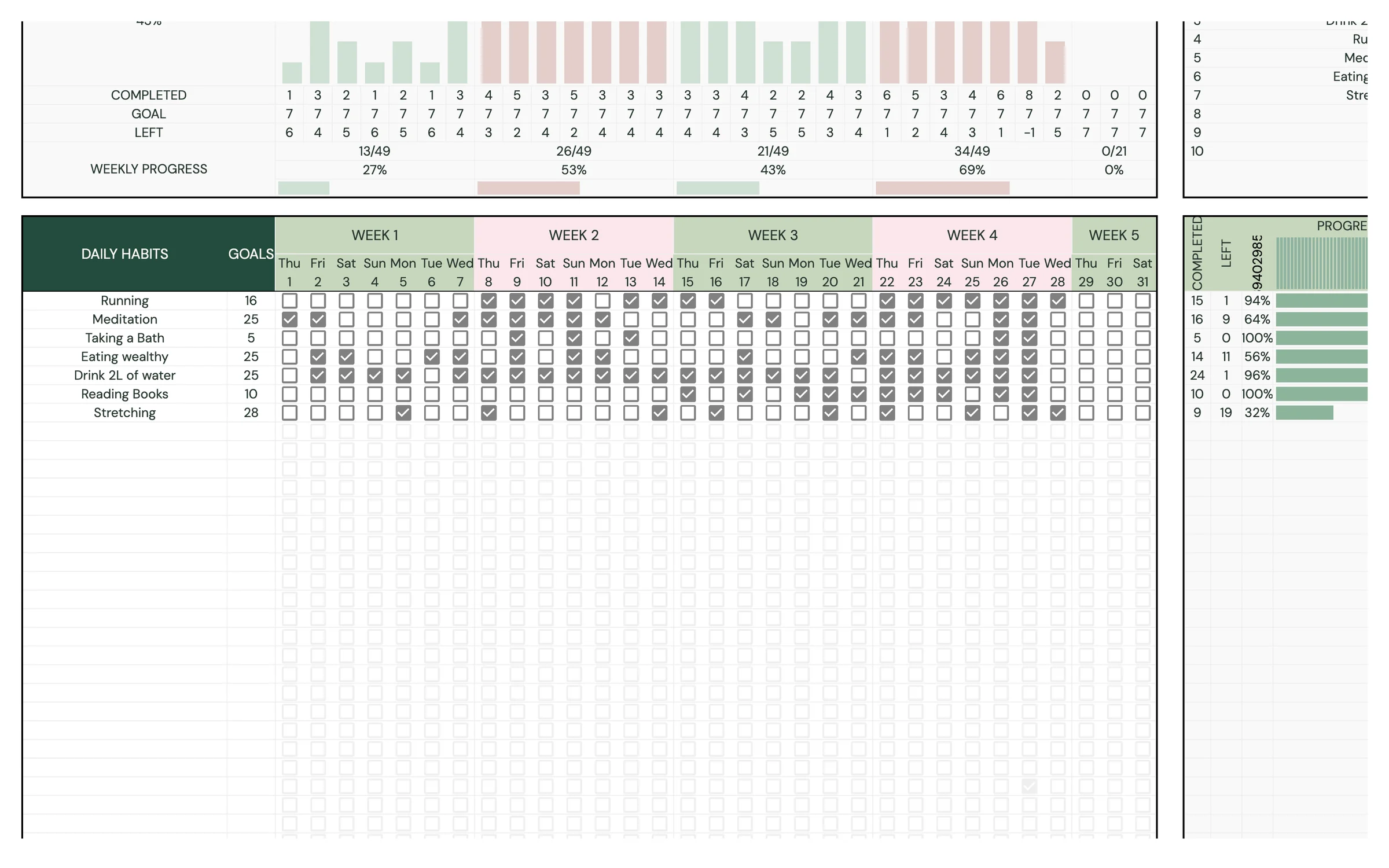
- Under DAILY HABITS, notice each habit has a name, a number in GOALS and a row of checkboxes for every day.
- Look at the right side: COMPLETED, LEFT, PROGRESS, CURRENT STREAK and LONGEST STREAK fill in from those checkboxes.
- Scroll up to see WEEKLY OVERVIEW, GLOBAL PROGRESS and TOP 10 DAILY HABITS built from the same data.
Tip: You don't need to delete anything on MOCK DATA. Your own tracking happens on HABIT TRACKER I and II.
Set the year and month
The calendar settings decide which dates appear across the top of the grid.
- Open HABIT TRACKER I.
- In CALENDAR SETTINGS, type the year next to Year (it defaults to 2027).
- Pick the month from the Month dropdown.
- Check the day names and dates above WEEK 1 to WEEK 5. They update to match your month.
Tip: Light-colored cells are where you type. Everything else is calculated for you and protected, so nothing breaks by accident.
Add your daily habits
Daily habits are the things you want to do most days: water, reading, a walk, stretching.
- Scroll to DAILY HABITS and type one habit per row (there's room for 30).
- In GOALS, enter how many days this month you want to complete it, for example 20 for “Read 10 pages”.
- Leave the checkboxes empty for now; you'll tick them as the month goes.
- Look at the right side: LEFT now shows your full goal and PROGRESS starts at 0%.
Heads up: A habit needs both a name and a goal to be counted. If COMPLETED or PROGRESS stays blank, check that GOALS is filled in.
Add your weekly habits
Some habits happen once a week: laundry, meal prep, a long run. WEEKLY HABITS gives each one a single checkbox per week.
- Scroll to WEEKLY HABITS and type one habit per row (there's room for 15).
- In GOALS, enter how many weeks this month you want to do it (up to 5).
- Each habit gets one checkbox under WEEK 1, WEEK 2, WEEK 3, WEEK 4 and WEEK 5.
- COMPLETED, LEFT and PROGRESS on the right update as you tick weeks off.
Check in every day
This is the whole routine: tick the box for each habit you completed today.
- Find today's column in the DAILY HABITS grid (the day names and dates are at the top).
- Tick the checkbox for every habit you did today.
- At the end of each week, tick your WEEKLY HABITS for that week.
- Watch CURRENT STREAK grow each day you keep a habit going, and LONGEST STREAK record your best run.
Tip: Missed a day? Just leave it unticked. Your PROGRESS still counts every day you did complete.
Read your progress
The top of the tab sums up your month at a glance, with no typing needed.
- OVERALL DAILY PROGRESS shows the share of all your daily check-ins completed so far.
- WEEKLY OVERVIEW shows how many habits you completed each day, grouped by week.
- GLOBAL PROGRESS and WEEKLY PROGRESS show COMPLETED vs. GOAL and what's LEFT.
- TOP 10 DAILY HABITS and TOP 3 WEEKLY HABITS rank the habits you're most consistent with.
Start the next month
You have two identical trackers, so you can move straight into the next month without losing this one.
- Open HABIT TRACKER II and set its Year and Month in CALENDAR SETTINGS.
- Copy your habit names and goals from HABIT TRACKER I (select, copy, paste) and adjust anything that changed.
- Start ticking boxes on the new tab.
- The month after, go back to HABIT TRACKER I: change the Month, untick last month's boxes and keep going.
Tip: Want to keep every month? Right-click a tracker tab → Duplicate before you reuse it, so you keep a snapshot of the month you finished.
Your routine
A few minutes a week keeps everything accurate.
- Tick today's daily habits
- Glance at your current streaks
- Tick your weekly habits for the week
- Check WEEKLY PROGRESS
- Look at TOP 10 DAILY HABITS for the habit that needs a push
- Review OVERALL DAILY PROGRESS and LONGEST STREAK
- Adjust goals that were too easy or too hard
- Set up the next month on the other tracker tab
Tips & tricks
Use it on your phone
Install the free Google Sheets app and open your copy. Ticking a checkbox takes one tap, so daily check-ins are quick.
Start small
Three to five daily habits is plenty for a first month. You can add more rows once the routine sticks.
Set honest goals
A goal of 20 days instead of 30 leaves room for busy days and keeps your PROGRESS motivating.
Track with a partner
Use HABIT TRACKER II for a partner or friend, or click Share in the top-right and add them as an Editor so you can cheer each other on.
Change the colors
Format → Theme lets you change fonts and accent colors across the whole template in one go.
Keep a backup
File → Make a copy any time to save a snapshot. It's handy before you clear a month.
Prefer dark mode?
Your order includes a Dark Mode edition with the same tabs and formulas. Open the link in your PDF and tap “Make my dark copy”. You can keep both and use whichever you like.
Troubleshooting
I don't see “Make a copy”.
Make sure you're signed in to a Google account. On a phone, open the link in your browser (not the Etsy app) or in the Google Sheets app.
A cell says it's protected when I type.
That cell holds a formula. Type only in the light input cells (habit names, goals, the year and month) and tick the checkboxes.
My habit's progress stays blank.
Each habit needs both a name and a number in GOALS. Fill in the goal and the COMPLETED, LEFT and PROGRESS columns appear.
The dates at the top are wrong.
Check the Year and Month in CALENDAR SETTINGS. The grid's day names and dates follow those two cells.
Dates look wrong (day and month swapped).
File → Settings → Locale controls the date format. Pick your country and the dates switch to your format.
How do I start a new year?
Open your original download link and make a fresh copy. It always delivers the newest edition. Then set the year in CALENDAR SETTINGS.
Still stuck? Message us on Etsy or email help.planly@gmail.com and a real person will help.
Don't have Planly Habit Streak yet?
Small habits, big glow-up.