

Before you start
You only need three things:
- A free Google account
- A computer for setup (phone or tablet works afterwards)
- A recent statement for each debt: balance, interest rate and minimum payment
Throughout this guide, light cells are the ones you type in. Everything else is calculated automatically and protected so nothing breaks.
Tour of the tabs
Planly Debt Countdown has 2 tabs. Here's what each one does and what (if anything) you fill in.
Setup
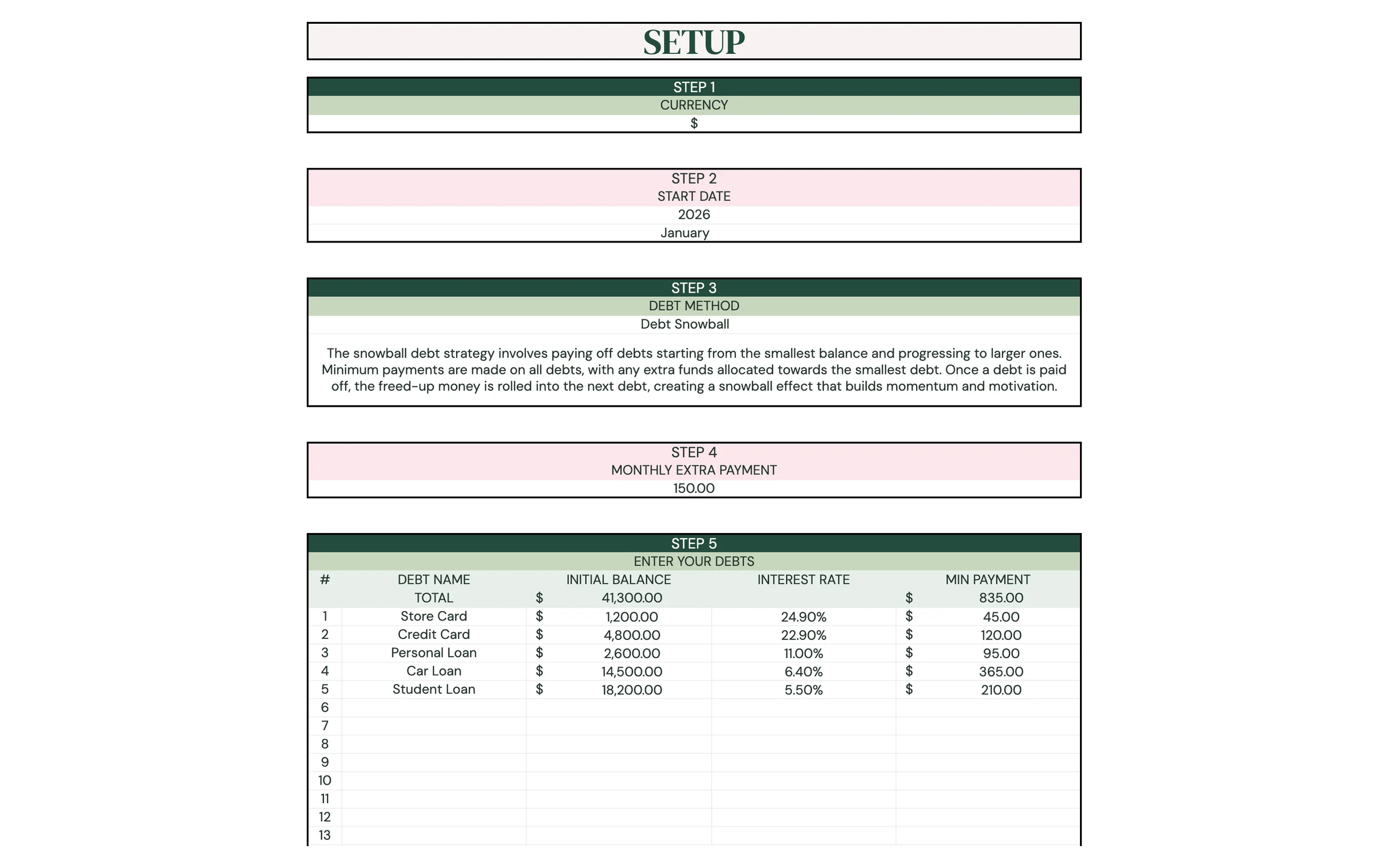
Five numbered steps: currency, start date, debt method, monthly extra payment and your list of debts.
You fill: Everything that drives the plan. Fill it once, then update when things change.
Debt Dashboard
Your payoff plan: overview totals, a card for each debt with its debt-free date, charts and a month-by-month schedule.
You fill: Nothing. It fills itself from SETUP.
Make your copy
Your template lives in your own Google Drive, so the first step is making your personal copy.
- Open the PDF from your Etsy purchase (Etsy → You → Purchases and reviews → Download files).
- Click the “Make my copy” button. If you're asked, sign in to your Google account.
- Google shows a “Copy document” screen. Click the blue “Make a copy” button.
- Your copy opens. Rename it if you like (click the title in the top-left), e.g. “Our Debt Countdown”.
Tip: Bookmark your copy, or star it in Google Drive, so it's one click away whenever you check your progress.
Set your currency and start date
STEP 1 and STEP 2 on SETUP tell the plan which currency to show and which month it starts from.
- Open the SETUP tab.
- Under STEP 1 – CURRENCY, type your currency symbol (for example $, €, or £). Every amount on the dashboard uses it.
- Under STEP 2 – START DATE, type the year, then pick the month from the dropdown below it.
- Choose the month your debt balances are from, usually this month or last month, matching the statements you're using.
Tip: Light-colored cells are where you type. Everything else is calculated for you and protected, so nothing breaks by accident.
Heads up: If you see “WARNING! Graphs will show data only if the start date is before the current month”, move the start date back to an earlier month so the charts can draw.
Choose your debt method
STEP 3 – DEBT METHOD decides which debt gets your extra money first. A short explanation of the method you pick appears right below the dropdown.
- Click the cell under DEBT METHOD and open the dropdown.
- Debt Snowball: pays the smallest balance first. Quick wins keep you motivated, and each paid-off payment rolls into the next debt.
- Debt Avalanche: pays the highest interest rate first. This usually costs the least interest overall.
- Custom: pays debts in the order you list them in STEP 5, so you decide the priority.
Tip: Not sure? Try each method and watch Total interest owed and the debt-free dates change on the dashboard. Pick the one you'll actually stick with.
Add your extra payment and your debts
STEP 4 and STEP 5 are the heart of the plan: what you can pay on top of the minimums, and every debt you owe.
- Under STEP 4 – MONTHLY EXTRA PAYMENT, enter the amount you can add each month on top of all your minimum payments (enter 0 if none for now).
- Under STEP 5 – ENTER YOUR DEBTS, fill one row per debt: DEBT NAME (e.g. “Visa”, “Car loan”).
- Enter its INITIAL BALANCE as of the start date you chose.
- Enter its INTEREST RATE (the APR from your statement) and its MIN PAYMENT.
- Repeat for each debt (there's room for 25). The TOTAL row adds up your balances and minimum payments.
Tip: Using the Custom method? List your debts in the exact order you want to pay them off.
Read your debt dashboard
Open DEBT DASHBOARD. You never type here. It turns your SETUP answers into a complete payoff plan.
- Overview: your Current Balance, plus Monthly extra payment, Min payment, Total monthly payment and Total interest owed.
- Debt cards: to the right of the overview, each debt gets its own card with its Debt Free Date, Initial balance, Min. Payment, Interest rate and Interest owed.
- Summary: INITIAL BALANCE, MONTHLY PAYMENT and DEBT PAID OFF ON: the month your last debt is gone.
- Debt table: every debt with its INITIAL BALANCE, INTEREST RATE, MIN. PAYMENT, INTEREST OWED and MONTHS LEFT.
- Schedule: month by month, your total BALANCE and the +/- change, followed by the PAYMENT, INTEREST and BALANCE for each debt.
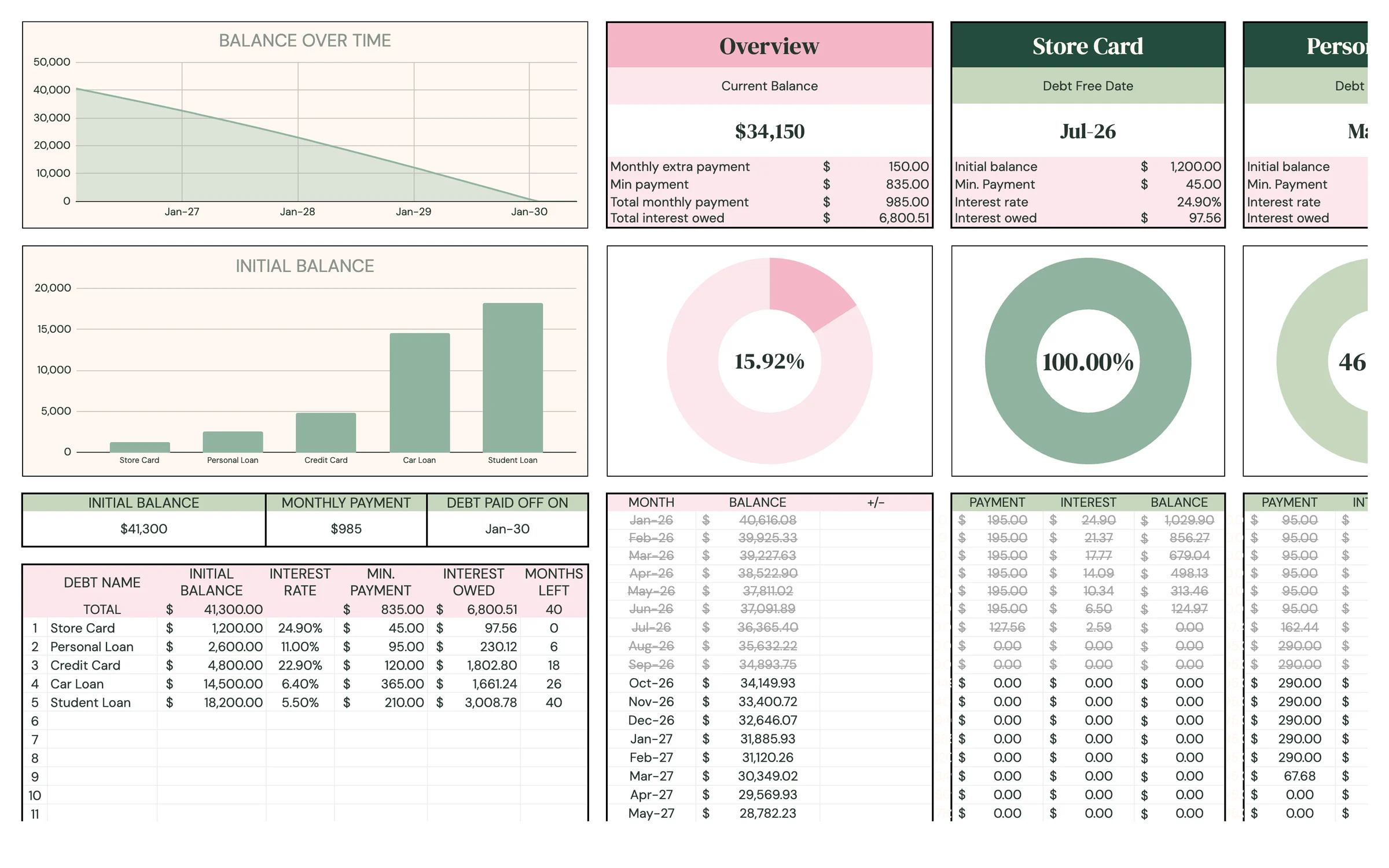
Tip: Scroll right along the top of the dashboard to see the cards for all your debts.
Keep your plan up to date
The dashboard is a plan, so it stays accurate when your SETUP numbers match real life.
- Make your payments as planned: the minimum on every debt, plus your extra payment on the debt your method targets.
- Once a month, compare the schedule's BALANCE for each debt with your statements.
- If you paid more or less than planned, or a rate changed, update that debt's INITIAL BALANCE or INTEREST RATE on SETUP, and move the START DATE to match the new statement month.
- Got a raise or a windfall? Increase the MONTHLY EXTRA PAYMENT and watch DEBT PAID OFF ON move closer.
- When a debt is paid off, celebrate. Its freed-up payment rolls into the next debt in your plan.
Tip: Even a small bump in the extra payment can shave months off your debt-free date. Try different amounts to see what's possible.
Your routine
A few minutes a week keeps everything accurate.
- Pay every minimum plus your extra payment
- Compare the schedule with your statements
- Update balances or rates on SETUP if they drifted
- Add a new debt in STEP 5
- Adjust the MONTHLY EXTRA PAYMENT
- Try a different DEBT METHOD to compare interest
Tips & tricks
Compare methods in seconds
Switch DEBT METHOD between Snowball and Avalanche and note the Total interest owed and DEBT PAID OFF ON for each. It's the fastest way to choose.
Use it on your phone
Install the free Google Sheets app and open your copy to check your debt-free date anywhere.
Share with a partner
Click Share in the top-right and add your partner's email as an Editor so you can work on the plan together.
Change the colors
Format → Theme lets you change fonts and accent colors across the whole template in one go.
Keep a snapshot
File → Make a copy before big changes, so you can look back at how far you've come.
Prefer dark mode?
Your order includes a Dark Mode edition with the same tabs and formulas. Open the link in your PDF and tap “Make my dark copy”. You can keep both and use whichever you like.
Troubleshooting
I don't see “Make a copy”.
Make sure you're signed in to a Google account. On a phone, open the link in your browser (not the Etsy app) or in the Google Sheets app.
A cell says it's protected when I type.
That cell holds a formula. Type only in the light input cells on SETUP. That's what keeps everything calculating correctly.
The charts on the dashboard are empty.
Check SETUP for the warning under START DATE. The start date needs to be before the current month for the graphs to show data.
My debt-free date looks way too far away.
Check that each MIN PAYMENT is more than the monthly interest on that debt, and that each interest rate is typed with a percent sign (e.g. 19.99%).
A debt isn't showing on the dashboard.
Make sure its row in STEP 5 has a DEBT NAME and an INITIAL BALANCE filled in.
Still stuck? Message us on Etsy or email help.planly@gmail.com and a real person will help.
Don't have Planly Debt Countdown yet?
Your debt-free countdown, month by month.