

Before you start
You only need three things:
- A free Google account
- A computer for setup (phone or tablet works afterwards)
- A rough holiday budget
- The people you buy for and send cards to
Throughout this guide, light cells are the ones you type in. Everything else is calculated automatically and protected so nothing breaks.
Tour of the tabs
Planly Merry List has 10 tabs. Here's what each one does and what (if anything) you fill in.
Start Here
A quick welcome, the 3 steps to get going and a map of the template.
You fill: Nothing. Read it once.
Setup
Your household name, the holiday and its date, your total budget and currency, plus the lists the dropdowns use: budget categories, gift groups, your people and where you shop.
You fill: The light cells at the top, then the lists if you want to change them.
Dashboard
Six summary cards and 4 charts: planned vs spent by category, gift progress, gift spending by group and to-dos by month.
You fill: Nothing. It fills itself.
Gift List
Room for 150 gifts, one per row, with group, idea, store, budget, actual cost, status, who's buying, order date and tracking, plus a By person table.
You fill: Each gift and its status as you go.
Budget
Everything you spend that isn't a gift (food, decorations, travel, cards), plus your plan by category with planned, spent and left.
You fill: Each cost: planned, then actual.
Cards
Up to 200 names with mailing address, email or phone, group and three ticks: Sending, Sent and Got one.
You fill: Names and addresses, then the ticks.
Events
Up to 20 parties, dinners and get-togethers with date, time, where, hosting, guests, what you're bringing and outfits.
You fill: Each event and its details.
Menu
Every dish for every holiday meal on the left, and one grocery list with sections, costs and Got it ticks on the right.
You fill: Dishes, then the groceries you need.
To-Do
About 40 holiday to-dos from early November to after the holidays, each with a due date that counts back from your holiday date.
You fill: Who's doing it, then a tick when it's done.
Calendar
A month calendar showing open to-dos and your events on their dates, with the holiday highlighted.
You fill: Pick a month. Nothing else.
Make your copy
Your planner lives privately in your own Google Drive, so the first step is making your personal copy.
- Open the PDF from your Etsy purchase (Etsy → You → Purchases and reviews → Download files).
- Click the “Make my copy” button. If you're asked, sign in to your Google account.
- Google shows a “Copy document” screen. Click the blue “Make a copy” button.
- Your copy opens. Rename it if you like (click the title in the top-left), e.g. “Christmas 2026”.
Tip: Bookmark your copy, or star it in Google Drive, so it's one click away all season.
Add your holiday details
The light cells at the top of SETUP feed the dashboard title, the countdown, every due date and your budget plan.
- Open the SETUP tab.
- In C6, type your Household, e.g. “The Carter family”. It shows in the dashboard title.
- In C7, pick the Holiday: Christmas, Hanukkah, Kwanzaa, The holidays or New Year. You can also type your own.
- In C8, enter the Holiday date. It starts on December 25, 2026. Every due date on TO-DO, the countdown and the dates of Christmas Eve, Christmas morning, Christmas dinner and New Year's Eve on EVENTS follow this date.
- In C9, enter your Total budget for the whole season, gifts included.
- In C10, pick your Currency. Money labels across the planner show it, e.g. “Budget (£)”.
Tip: Light-colored cells are where you type. Everything else is calculated for you, so nothing breaks by accident.
Adjust your lists
The lists to the right on SETUP fill the dropdowns on the other tabs. The defaults work well, so change only what you need.
- Budget categories (E6 to F17): Gifts 50%, Food & drinks 15%, Decorations 8%, Travel 8%, Events & hosting 6%, Giving & charity 4%, Cards & postage 3%, Wrapping & shipping 3% and Outfits 3%. Change the names or percentages to fit your family.
- Keep the total in F18 at 100%. It turns pink when it doesn't add up.
- Leave Gifts as the first category. The first category also counts everything you spend on GIFT LIST, whatever you call it.
- Gift groups (H6 to H15): Family, Kids, Friends, Work, Teachers & helpers, Neighbors, Secret Santa and Other.
- Your people (J6 to J13): Me, Partner and Kids to start. Use real names so you can see who's buying and cooking what.
- Where you shop (L6 to L17): Amazon, Target, Walmart, Etsy, Local shop and Handmade, with room for more.
List your gifts
GIFT LIST holds 150 gifts, one per row. A person with two gifts gets two rows, and the By person table adds them up for you.
- Type the Recipient and pick their Group.
- Add a Gift idea and pick Where to buy.
- Enter a Budget for the gift. Add the Actual cost once you buy it.
- Set Status as you go: Idea, Ordered, Bought, Wrapped, then Given.
- Pick who's buying in Bought by, and add Ordered on and the order number or tracking for anything shipped.
- Check the cards at the top: Gifts, Gift budget, Spent, Still to buy and Wrapped or given.
- The By person table on the right lists everyone on your list once, with their total budget, spent and number of gifts. It fills itself.
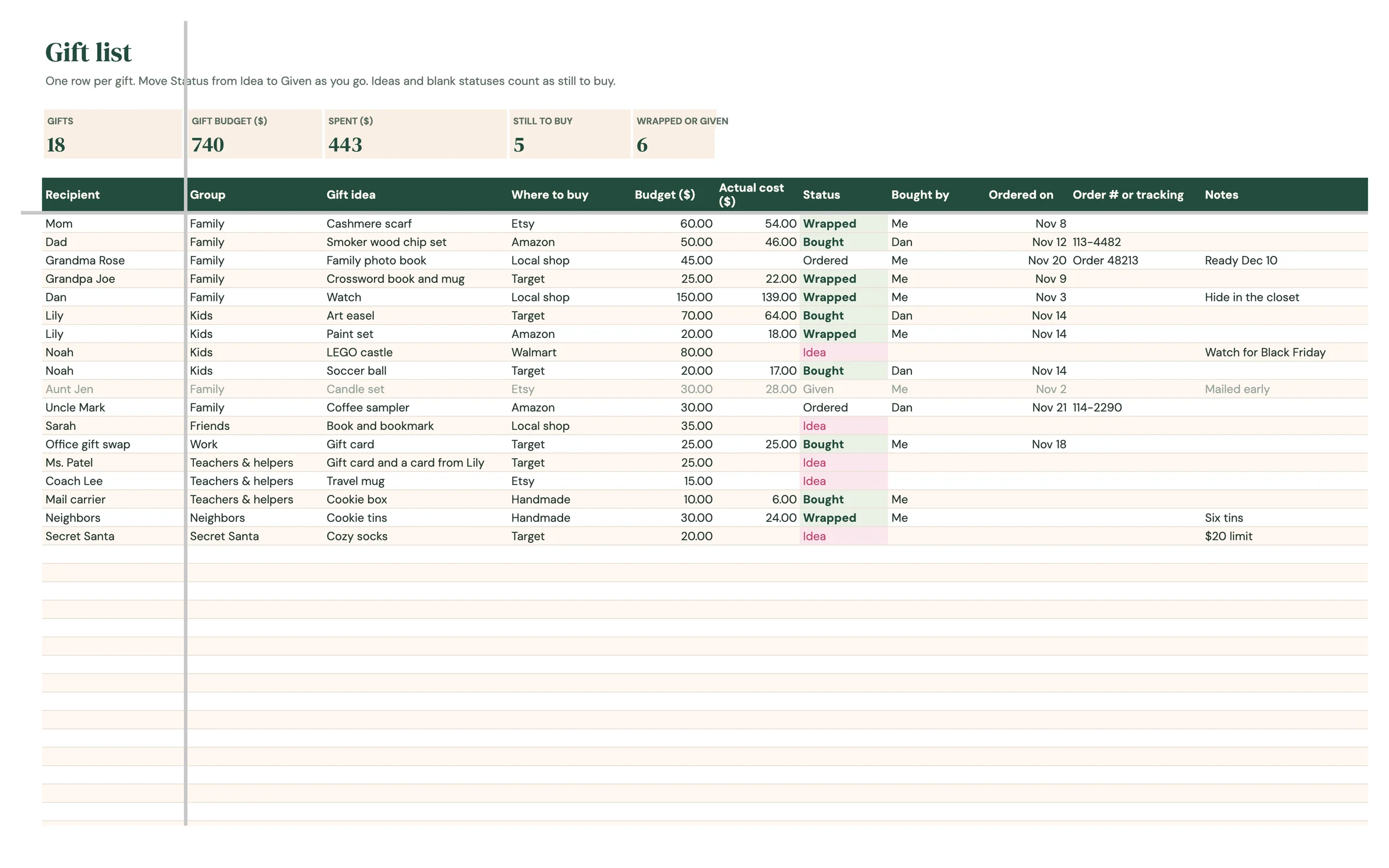
Tip: Still to buy counts every gift with a recipient and a blank or Idea status. Ordered gifts are no longer counted as still to buy.
Track everything else
BUDGET is for spending that isn't a gift: groceries, the tree, travel, cards, stamps and so on. It comes with 12 common items to get you started.
- For each item, pick a Category, then enter what you Planned to spend.
- Add the Actual amount and Date once you've paid. Add your own items in the empty rows.
- The cards at the top show Total budget, Gifts (from GIFT LIST), Everything else, Total spent and Left.
- The By category table shows Planned (your total budget × the % on SETUP), Spent and Left for each category.
- Spent for the first category also includes every Actual cost on GIFT LIST, so your gifts count toward the plan without typing them twice.
Tip: Only Actual amounts count as spent. Planned amounts are there to help you think ahead and never change the totals.
Send your cards
CARDS keeps your holiday card list from year to year. Three ticks on each row tell you who's on this year's list and where things stand.
- Add each household's Name(s), Mailing address, Email or phone and Group.
- Tick Sending for everyone getting a card this year.
- Tick Sent as each card goes in the mail. Until then, the Sent box is pink for anyone you're sending to.
- Tick Got one when a card arrives from them, so next year's list is easy.
- Check the cards at the top: On your list, Sending, Sent, Still to send and Cards received.
Tip: Next year, untick Sending and Sent for everyone (select the column, press Delete to clear the ticks) and start fresh with the same addresses.
Plan your events
EVENTS lists every party, dinner and get-together. It starts with Office party, Cookie swap, School concert, Christmas Eve dinner, Christmas morning, Christmas dinner and New Year's Eve.
- Add or rename events, then fill in the Date, Time and Where.
- The dates for Christmas Eve dinner, Christmas morning, Christmas dinner and New Year's Eve fill in from your holiday date. Type over them if your plans are different.
- Tick Hosting for anything at your place. The event name turns green.
- Add Guests, what you're Bringing or serving, Outfit plans and Notes.
- Next up at the top shows your next event from today.
Tip: Events whose date has passed turn grey, so the ones still ahead stand out.
Work through your to-dos
TO-DO has about 40 tasks from early November to after the holidays. Each one has a When, and the due date is worked out from your holiday date.
- Read through the list. Pick Who's doing each task from your people.
- Due dates count back from the holiday date using the table on the right: Early November is 50 days before, Mid December 12 days before, Christmas Eve 1 day before and After the holidays 7 days after.
- Change a task's When to move it, or type your own date over the Due date.
- Tick Done when it's finished. The task greys out and is crossed off.
- Add your own tasks in the empty rows and pick a When for each.
- Check the cards at the top: Tasks, Done, Progress and Overdue.
Tip: Change the Days before numbers in the table on the right to move every task in that group at once.
See your month
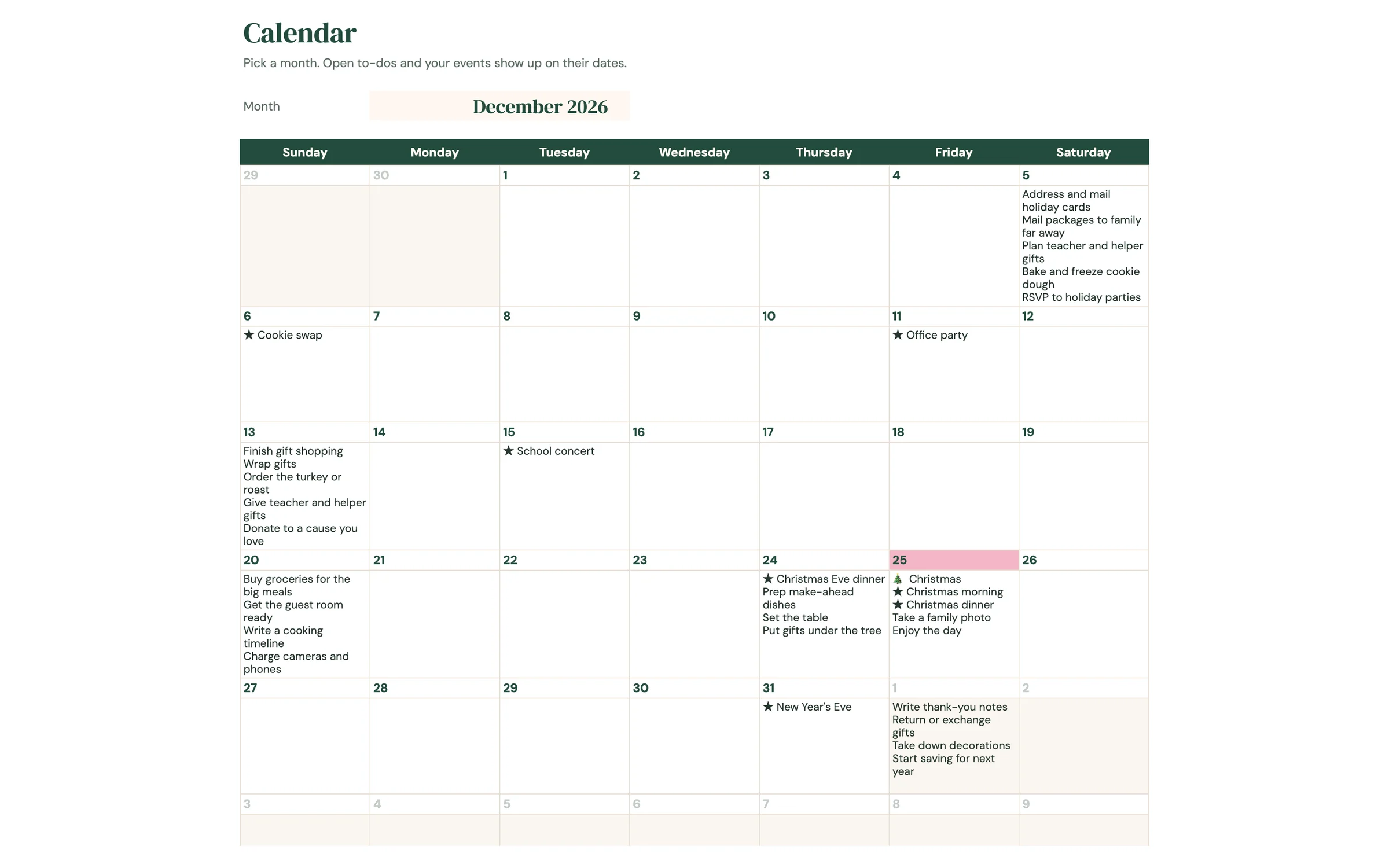
CALENDAR puts your open to-dos and your events on their dates. There's nothing to type here except the month.
- Pick a month in C5. It starts on December 2026.
- Events show with a ★ and open to-dos show by name on their due date.
- Your holiday shows with a 🎄 and its date is highlighted in pink. Today is highlighted in green.
- Days from the months before and after are faded.
- Ticked-off to-dos disappear from the calendar.
Read your dashboard
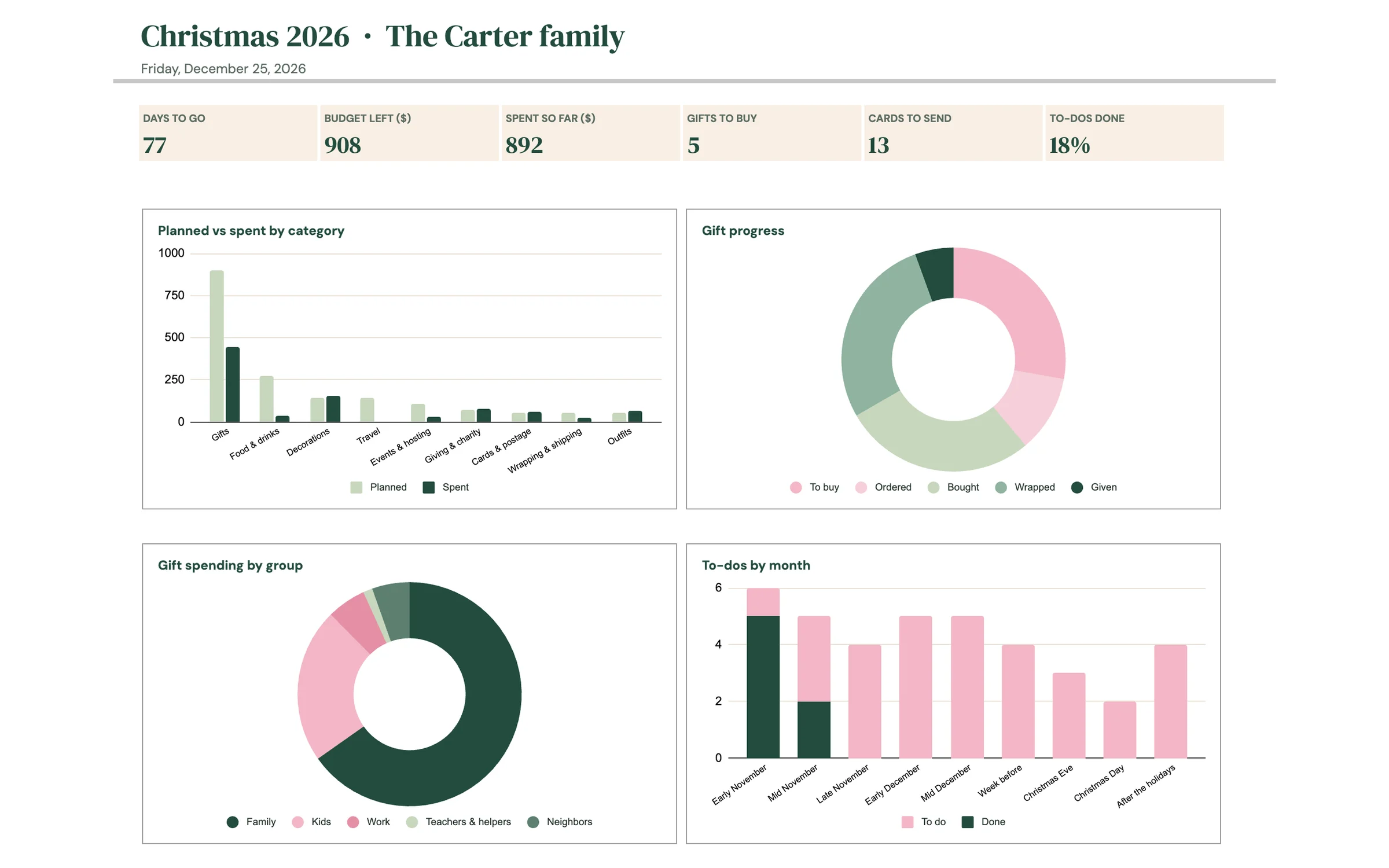
The dashboard pulls everything together. There's nothing to type here.
- The title shows the holiday, the year and your household, with the date underneath.
- The cards show Days to go, Budget left, Spent so far, Gifts to buy, Cards to send and To-dos done.
- Planned vs spent by category compares your plan with what you've spent, gifts included.
- Gift progress shows how many gifts are To buy, Ordered, Bought, Wrapped and Given.
- Gift spending by group shows where your gift money goes.
- To-dos by month shows done and still to do for each part of the season.
Your routine
A few minutes a week keeps everything accurate.
- Add gift ideas and set budgets
- Update your card list and addresses
- Book travel and plan who hosts
- Move gifts along from Ordered to Wrapped
- Tick off cards as they go out
- Plan menus and start the grocery list
- Check CALENDAR for what's due
- Shop the grocery list and tick Got it
- Mark gifts Given
- Change the holiday date on SETUP
- Clear last year's gifts and spending
- Untick Sending and Sent on CARDS
Tips & tricks
What the colors mean
GIFT LIST: a pink Status means the gift still needs buying (blank or Idea), green means Bought or Wrapped, and the whole row turns grey once it's Given. A pink Actual cost means the gift cost more than its budget. BUDGET: a pink Left means that category is over plan. SETUP: a pink total means your percentages don't add up to 100%. CARDS: a pink Sent box means you're sending to them but haven't yet, and the name greys out once it's sent. EVENTS: a green name means you're hosting, and grey means the date has passed. MENU and TO-DO: grey crossed-off rows are done. TO-DO: a pink due date means the task is overdue. CALENDAR: pink is your holiday, green is today, and faded days belong to the months before and after.
Plan together
Click Share in the top-right and add your partner's email as an Editor, so you can both update gifts and groceries in the same planner.
Hide gift ideas from the kids
If the kids use the same computer, right-click the GIFT LIST tab and choose Hide sheet. Bring it back with View → Hidden sheets.
Shop the sales
Add Black Friday or Cyber Monday in Notes for gifts you want to catch on sale, then filter GIFT LIST by Status = Idea when the sales start.
Use it every year
Make a copy of your finished planner (File → Make a copy) to keep this year's lists, then change the date and clear the gifts in the copy.
Prefer dark mode?
Your order includes a Dark Mode edition with the same tabs and formulas. Open the link in your PDF and tap “Make my dark copy”. You can keep both and use whichever you like.
Troubleshooting
Why is a gift's Status pink?
The gift has a recipient but its Status is blank or Idea, so it still needs buying. Pick Ordered, Bought, Wrapped or Given and the pink clears.
Why is a whole gift row grey?
Its Status is Given. The gift is done, so the row fades to keep your attention on what's left.
Why is the Actual cost pink?
It's higher than the Budget you set for that gift. Raise the budget or leave it as a reminder.
Why doesn't my gift spending show on BUDGET?
Gift spending is added to the first category in By category, and to the Gifts card at the top. Only gifts with an Actual cost count. Typing gifts again on BUDGET would count them twice.
Why is a number in Left pink?
You've spent more than planned in that category. Planned is your total budget × the % on SETUP, so raise the % or the total budget if you need to.
Why are my due dates in the wrong year?
Due dates count back from the Holiday date in SETUP C8. Change it to this year's date and every due date moves with it.
Why did a task disappear from the calendar?
Ticked tasks are left off the calendar. Untick Done on TO-DO to bring it back.
I don't see “Make a copy”.
Make sure you're signed in to a Google account. On a phone, open the link in your browser (not the Etsy app) or in the Google Sheets app.
A cell says it's protected when I type.
That cell holds a formula. Type only in the light input cells. That's what keeps everything calculating correctly.
Dates look wrong (day and month swapped).
File → Settings → Locale controls the date format. Pick your country and the dates switch to your format.
Still stuck? Message us on Etsy or email help.planly@gmail.com and a real person will help.
Don't have Planly Merry List yet?
Gifts, budget, cards and menus for a calmer holiday season.