

Before you start
You only need three things:
- A free Google account
- A computer for setup (phone or tablet works afterwards)
- A list of the chores that need doing each day
Throughout this guide, light cells are the ones you type in. Everything else is calculated automatically and protected so nothing breaks.
Tour of the tabs
Planly Chore Champs has 5 tabs. Here's what each one does and what (if anything) you fill in.
2 – 6 Members
One weekly chore chart per household size, each with a row of chores for every person, daily checkboxes, a daily progress score and an achievement score per person.
You fill: Week start date, family member names, each person's chores, then checkmarks as chores get done.
Make your copy
Your template lives in your own Google Drive, so the first step is making your personal copy.
- Open the PDF from your Etsy purchase (Etsy → You → Purchases and reviews → Download files).
- Click the “Make my copy” button. If you're asked, sign in to your Google account.
- Google shows a “Copy document” screen. Click the blue “Make a copy” button.
- Your copy opens. Rename it if you like (click the title in the top-left), e.g. “Family Chore Chart”.
Tip: Bookmark your copy, or star it in Google Drive, so it's one click away every day.
Choose the tab for your household
The five tabs are identical except for how many people they hold: 2 members, 3 members, 4 members, 5 members and 6 members.
- Count everyone who'll share chores: kids, adults or roommates.
- Click the matching tab at the bottom of the screen (for example “4 members” for a family of four).
- Optional: right-click the tabs you won't use and choose Hide, to keep things tidy.
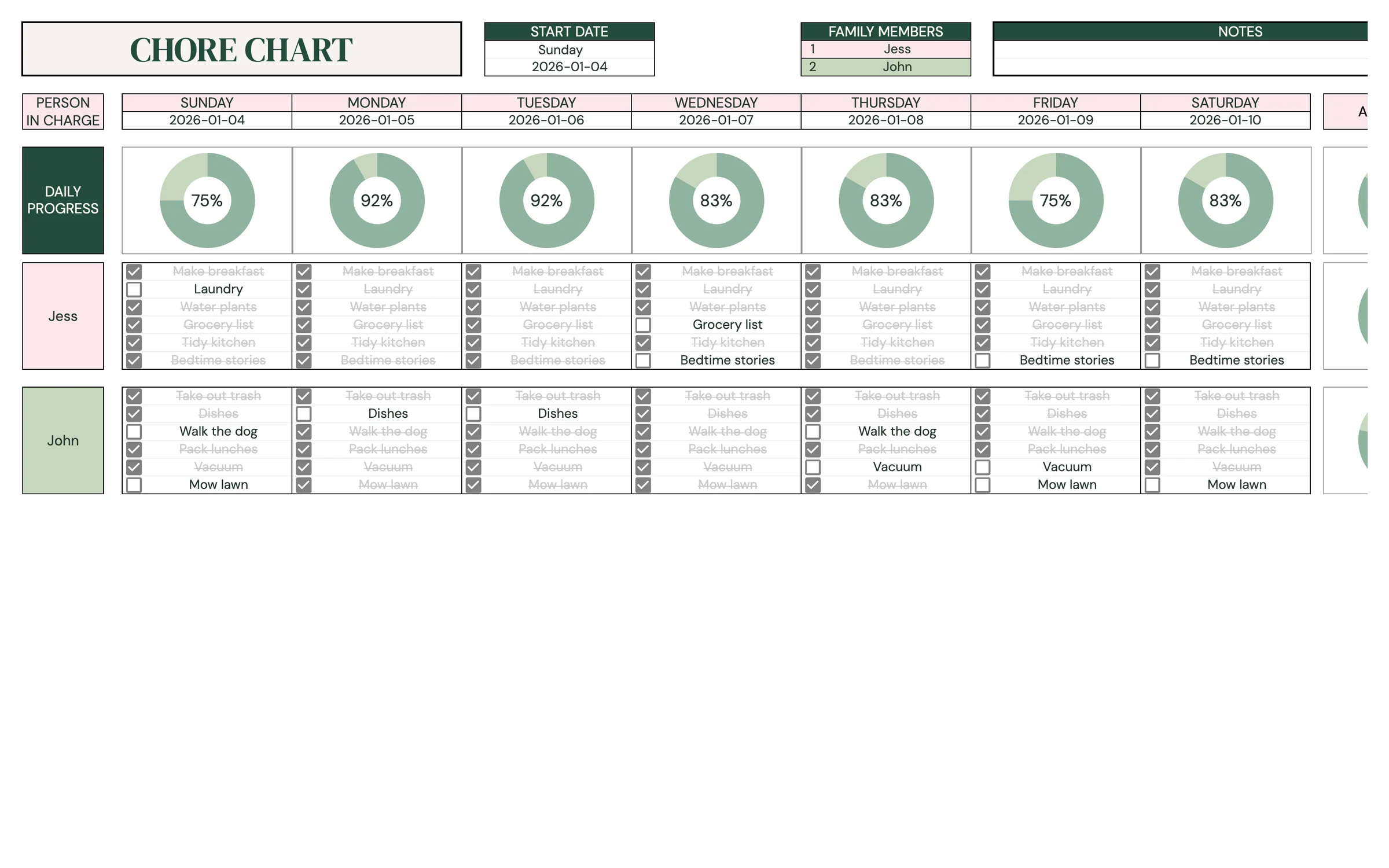
Tip: Light-colored cells are where you type. Everything else is calculated for you and protected, so nothing breaks by accident.
Set the start of your week
The chart covers one week. Tell it which day the week starts and the date of that first day.
- In the dropdown above START DATE, keep Sunday (the default) or switch to Monday if your week starts on a Monday.
- Under START DATE, enter the date of the first day of the week (a Sunday if you chose Sunday).
- Check the day names and dates across the top of the chart. They fill in for the whole week.
Heads up: The start date must match the start day you picked. If you choose Sunday and enter a Tuesday, a “Be careful, the date must be a Sunday” message appears. Just correct the date.
Add your family members
Everyone on the chart gets their own block of chores with their name on it.
- Under FAMILY MEMBERS, type each person's name next to their number.
- Each name appears at the start of its own block in the PERSON / IN CHARGE column.
- Use NOTES for house rules, rewards or reminders (“Allowance on Saturdays if you hit 80%”).
Assign the week's chores
Each person has several chore rows under every day of the week, so chores can change from day to day.
- Find the first person's block and the first day's column.
- Type a chore next to each checkbox, for example “Make bed”, “Feed the dog”, “Empty dishwasher”.
- Repeat for each day. Leave a row blank if that person has fewer chores that day.
- Fill in each family member's block the same way.
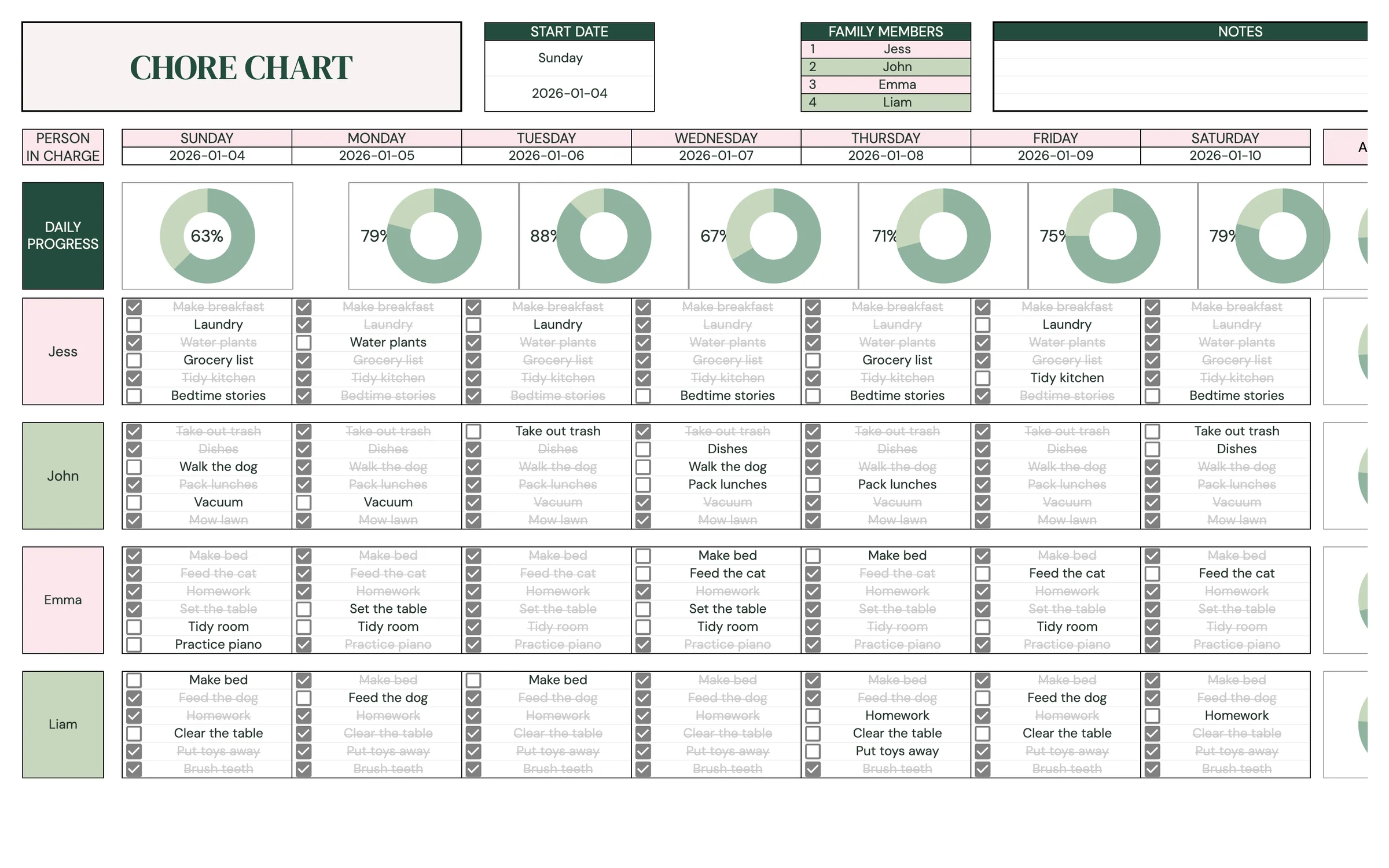
Tip: To rotate chores fairly, swap the blocks around each week. Whoever had dishes this week takes out the trash next week.
Check off chores and watch the scores
As chores get done, tick the box beside them. The scores update instantly.
- Click a checkbox to mark a chore done. Click again to undo it.
- DAILY PROGRESS at the top shows how much of each day's chores the whole household has finished.
- ACHIEVEMENT beside each person shows their completion score for the week.
- Only rows with a chore typed in count, so blank rows never pull a score down.
Start a new week
At the end of the week, celebrate the champions and reset the chart in a couple of minutes.
- Note each person's ACHIEVEMENT score (or take a screenshot) before you reset.
- Change START DATE to the next week's first day.
- Select the checkboxes, then press Delete or the space bar to untick them all.
- Keep the same chores, or rotate them between family members for the new week.
Tip: Want a record of every week? Right-click the tab and choose Duplicate before you reset, then rename the copy with the week's date.
Your routine
A few minutes a week keeps everything accurate.
- Tick off chores as they're done
- Glance at DAILY PROGRESS together at dinner
- Review everyone's ACHIEVEMENT score
- Hand out any rewards
- Update START DATE and clear the checkboxes
- Rotate chores if you like
Tips & tricks
Use it on a tablet or phone
Install the free Google Sheets app so kids can tick off their own chores from a family tablet or phone.
Share with your family
Click Share in the top-right and add family members as Editors, so everyone can check off their chores.
Make it a game
Agree on a reward for hitting a target ACHIEVEMENT score, and write it in NOTES so everyone knows the goal.
Print a copy
File → Print gives you a paper chart for the fridge, handy for younger kids who prefer a pen.
Change the colors
Format → Theme lets you change fonts and accent colors across the whole template in one go.
Prefer dark mode?
Your order includes a Dark Mode edition with the same tabs and formulas. Open the link in your PDF and tap “Make my dark copy”. You can keep both and use whichever you like.
Troubleshooting
I don't see “Make a copy”.
Make sure you're signed in to a Google account. On a phone, open the link in your browser (not the Etsy app) or in the Google Sheets app.
A cell says it's protected when I type.
That cell holds a formula. Type only in the light input cells. That's what keeps everything calculating correctly.
I see “Be careful, the date must be a Sunday”.
Your START DATE doesn't match the start day in the dropdown. Enter a Sunday (or switch the dropdown to Monday and enter a Monday).
A score stays blank.
Scores only appear once a chore is typed in. Add at least one chore for that person or day.
A name doesn't show on the chart.
Type it under FAMILY MEMBERS at the top. Names come from there.
Our household changed size.
Switch to the tab for your new number of members and copy your chores across.
Still stuck? Message us on Etsy or email help.planly@gmail.com and a real person will help.
Don't have Planly Chore Champs yet?
Fair chores, happy home.