

Before you start
You only need three things:
- A free Google account
- A computer for setup (phone or tablet works afterwards)
- The wedding date (a best guess is fine, you can change it later)
- The names of everyone in the bridal crew, and who is sharing costs
Throughout this guide, light cells are the ones you type in. Everything else is calculated automatically and protected so nothing breaks.
Tour of the tabs
Planly Bridal Crew has 8 tabs. Here's what each one does and what (if anything) you fill in.
Start Here
A quick welcome, the 3 steps to get going and a map of the template.
You fill: Nothing. Read it once.
Setup
The bride, the wedding date, your role and currency, your crew list (up to 12 people) and the expense categories.
You fill: The light cells at the top, then your crew and who is chipping in.
Dashboard
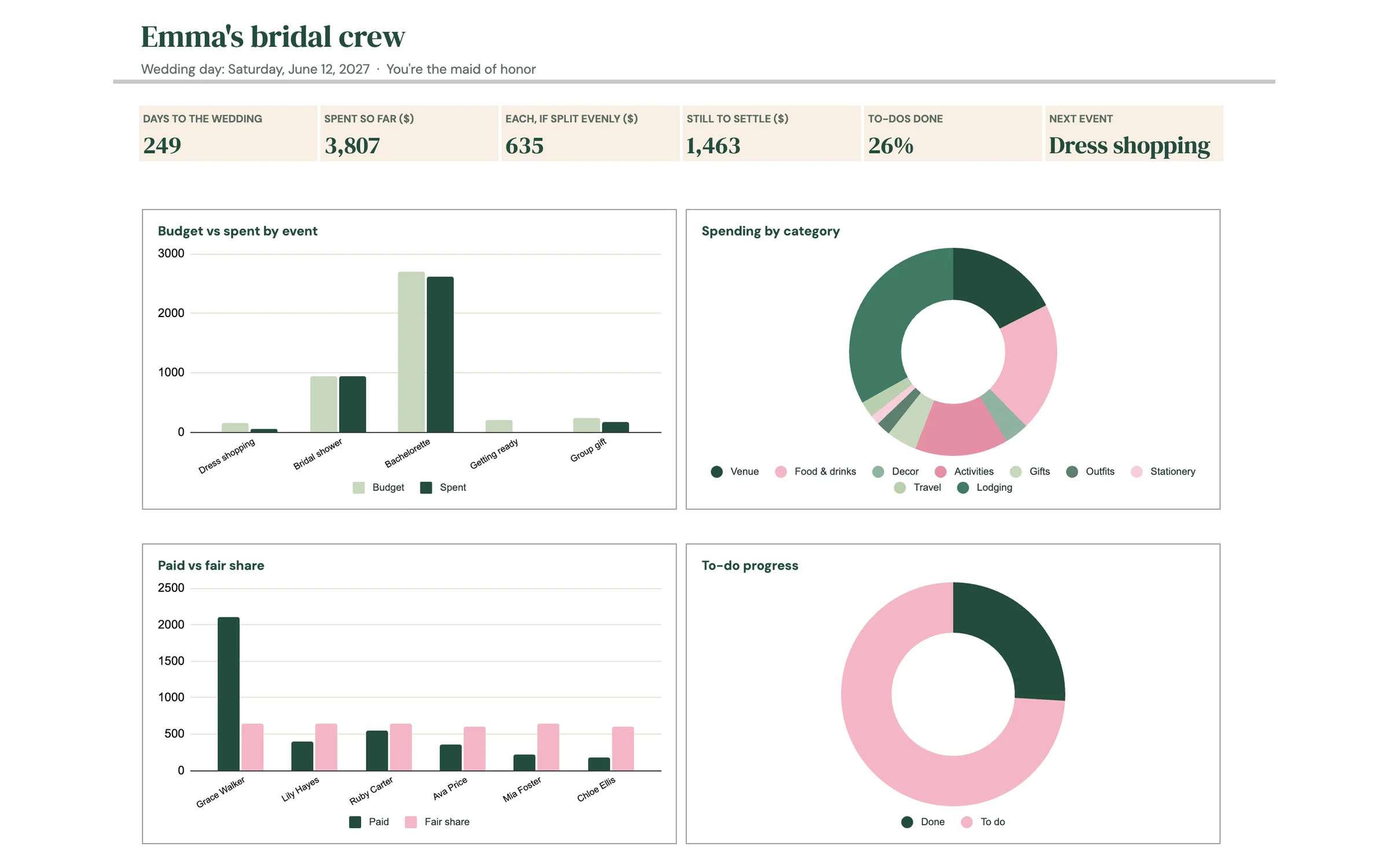
A countdown, six summary cards and 4 charts: budget vs spent by event, spending by category, paid vs fair share and to-do progress.
You fill: Nothing. It fills itself.
Events
Up to 15 get-togethers (dress shopping, shower, bachelorette and more) with date, host, guests, budget, spent and status.
You fill: Each event's details and budget. Spent fills in from EXPENSES.
Expenses
Room for 150 shared costs, with who paid, which event it was for and how it splits.
You fill: Each cost as it happens: what, amount, who paid and the split.
Settle Up
What each person paid, their fair share, their balance and a plain status like “Owes $25.00”.
You fill: Nothing. It works itself out from EXPENSES.
To-Do
27 pre-written maid of honor and bridesmaid tasks from 6+ months out to after the wedding, with automatic due dates.
You fill: Tick tasks off, pick who's doing each one, and add your own.
Shower Gifts
A list of up to 120 gifts with who gave what and whether a thank-you has gone out.
You fill: Each gift as it's opened, then tick thank-yous.
Make your copy
Your planner lives privately in your own Google Drive, so the first step is making your personal copy.
- Open the PDF from your Etsy purchase (Etsy → You → Purchases and reviews → Download files).
- Click the “Make my copy” button. If you're asked, sign in to your Google account.
- Google shows a “Copy document” screen. Click the blue “Make a copy” button.
- Your copy opens. Rename it if you like (click the title in the top-left), e.g. “Emma's Bridal Crew”.
Tip: Bookmark your copy, or star it in Google Drive, so it's one click away every time someone sends you a receipt.
Add the wedding details
The light cells at the top of SETUP feed the rest of the planner: the dashboard title, the countdown and every to-do due date.
- Open the SETUP tab.
- In C6, type the Bride's name. In C7, enter the Wedding date.
- In C8, pick Your role from the dropdown: Maid of honor, Matron of honor, Bridesmaid, Best man, Groomsman or Other.
- Pick your Currency in C9 ($, £, €, CA$, A$, NZ$, R, ₹, ¥, kr, CHF or zł). Every money heading then shows your symbol, e.g. “Amount (£)”, and SETTLE UP writes balances like “Owes £25.00”.
- Check the DASHBOARD title: it now reads “Emma's bridal crew” (with the bride's name), and the line under it shows the wedding date and your role.
Tip: Light-colored cells are where you type. Everything else is calculated for you, so nothing breaks by accident.
List your crew
The crew list on the right side of SETUP (columns E to J, rows 6 to 17) is the heart of the planner. These names fill the Host, Paid by and Who dropdowns, and they become the people costs are split between.
- In Your crew (E6 to E17), type each person's name, one per row. Up to 12 people fit.
- Pick a Role for each person (Maid of honor, Bridesmaid, Junior bridesmaid, Mother of the bride and so on) and add their Phone, Email and Dress size.
- Look at Chipping in (column J). Every box starts ticked, which means that person shares the costs.
- Untick Chipping in for anyone who isn't paying toward shared costs. Most crews don't ask the bride to pay for her own shower or bachelorette, so if you add her to the list, untick her box.
- Type each name the same way everywhere. The planner matches names exactly, so “Grace” and “Grace W.” count as two different people.
Tip: You can leave the bride off the crew list completely if she won't pay for anything. Add her only if you want to assign her tasks or record something she paid for.
Check your expense categories
The Expense categories list (L6 to L17) fills the Category dropdown on EXPENSES and the spending donut on DASHBOARD.
- Ten spending categories are ready to go: Venue, Food & drinks, Decor, Activities, Gifts, Outfits, Stationery, Travel, Lodging and Other.
- The last one, Repayment, is special: use it when someone pays another person back. Keep it in the list with that exact name.
- Rename any of the others to suit your crew, or add your own in the empty row. A new name shows up in the dropdown and on the spending donut right away.
Tip: Repayment rows settle balances on SETTLE UP but never count as spending, so they stay out of Total spent, Spent so far and the spending donut.
Set up your events
EVENTS lists every get-together you're helping with. Five are already there: Dress shopping, Bridal shower, Bachelorette, Getting ready and Group gift.
- Rename, delete or add events in the Event column (up to 15). These names fill the Event dropdown on EXPENSES, TO-DO and SHOWER GIFTS.
- Enter the Date, Time and Where for each one.
- Pick a Host from the dropdown (it reads your crew list) and type the number of Guests.
- Enter a Budget for each event.
- Spent fills in by itself: it adds up every cost on EXPENSES tagged with that event. Left is Budget minus Spent and turns pink if you go over.
- Set the Status as plans move along: Idea, Planning, Booked or Done.
- Check the cards at the top: Events, Total budget, Spent and Left.
Tip: The DASHBOARD shows your Next event, the first one with a date from today onward, so a quick look there tells you what's coming up.
Log shared costs
Every time someone pays for something the crew is sharing, add a row on EXPENSES. This is what SETTLE UP uses to work out who owes what.
- Enter the Date, What for (e.g. “Tea room deposit”), a Category and the Event it belongs to.
- Type the Amount.
- Pick who paid in Paid by. The dropdown reads your crew list.
- To share the cost between everyone with Chipping in ticked on SETUP, leave all the name boxes on that row unticked. People shows how many that is, and Each shows the share per person.
- If only some people are sharing a cost, tick the boxes under their names on that row. The cost then splits between only the people you ticked. The name columns sit between Paid by and People, with each crew member's name at the top.
- Watch the cards at the top: Total spent, Items, People splitting and Each, if split evenly.
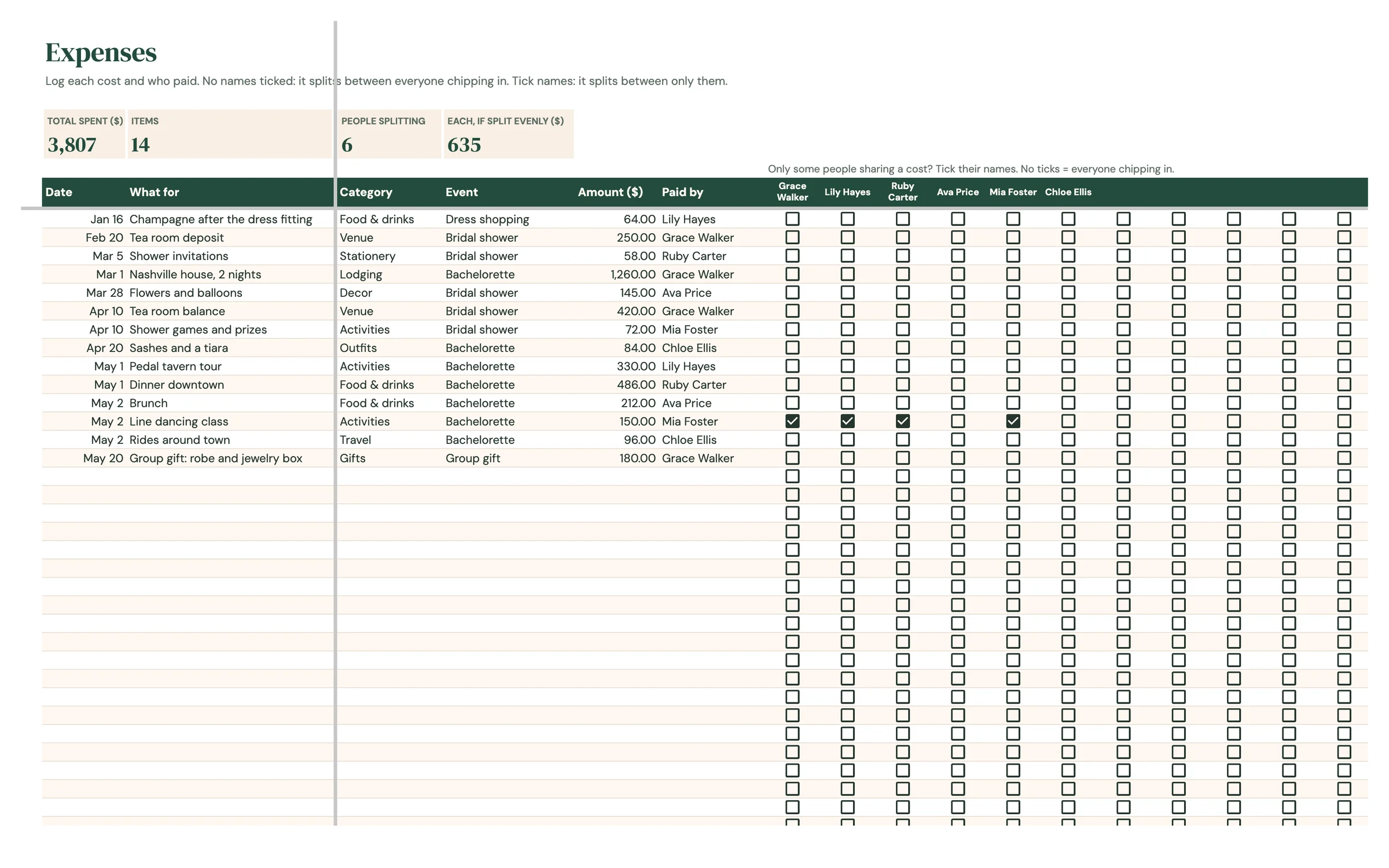
Tip: With no names ticked, the person who paid doesn't need a tick: if they're chipping in, their share is already counted. Once you tick any names, only those people share the cost, so tick the payer too if they're sharing it, not only paying for it.
Settle up
SETTLE UP does the math nobody wants to do in the group chat. There's nothing to type here.
- Each person on your crew list gets a row with what they Paid, their Fair share and their Balance (paid minus fair share).
- Status says it plainly: “Gets back $40.00” (green) if they paid more than their share, “Owes $25.00” (pink) if they paid less, or “All square”.
- The Still to settle card shows the total that still needs to change hands.
- To settle, anyone who owes pays whoever gets money back, starting with the biggest amounts.
- Record each repayment on EXPENSES so the balances update: add a row with the amount, set Category to Repayment, set Paid by to the person paying back and tick only the person who was repaid.
- When every Status shows All square, you're done.
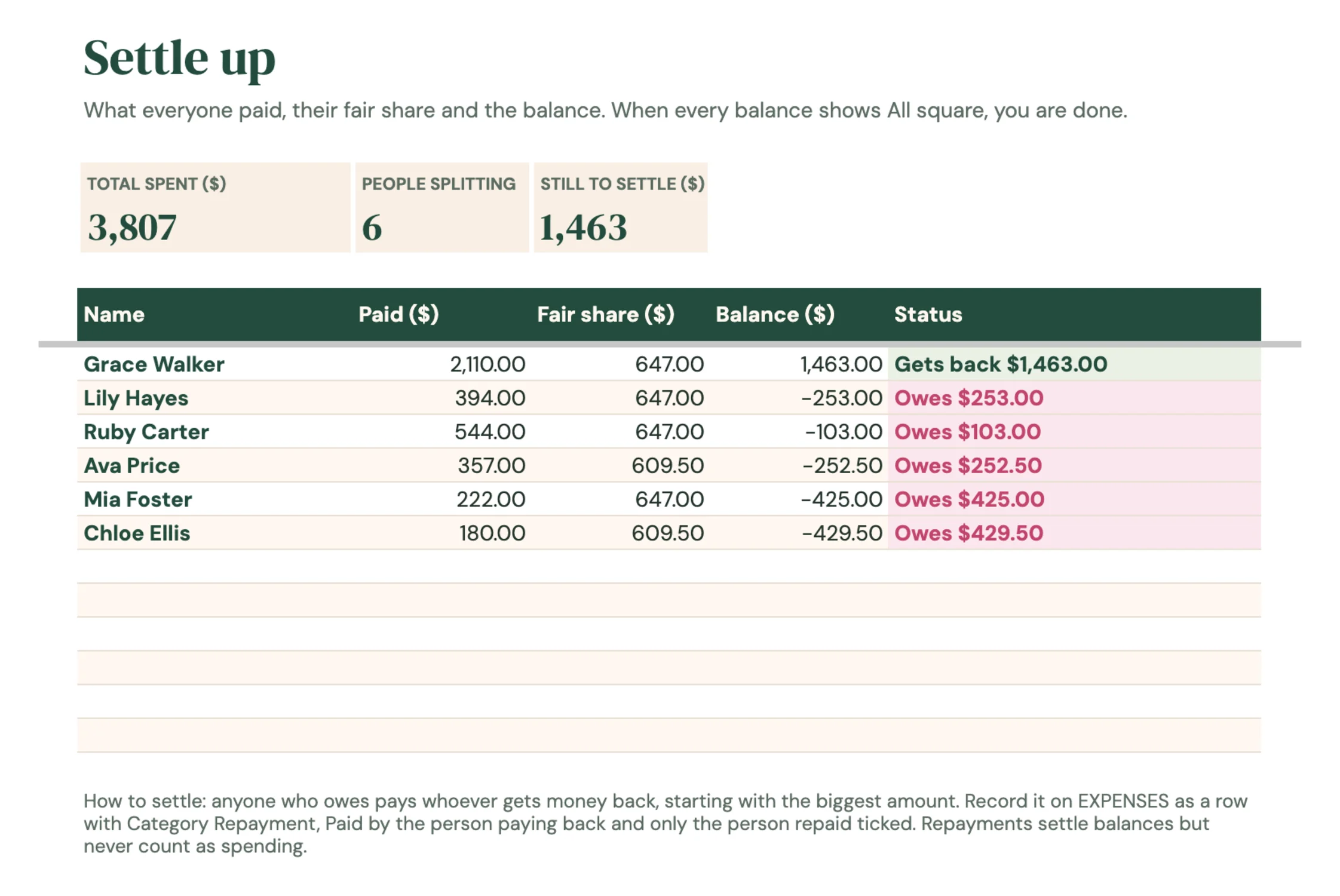
Tip: Repayment rows move the balances but never count as spending, so Total spent and the charts stay accurate. Leave the Event blank on these rows so they don't land in an event's Spent column.
Work through your to-dos
27 tasks are already written for you, from starting the group chat to returning dresses, and every one has a due date that counts back from the wedding date.
- Look at the When column and the small table to its right (When and Days before). Each phase, from 6+ months to After, has a number of days before the wedding.
- Due date fills in by itself: the wedding date minus the days for that task's When. Change When to move a task to a different phase.
- Type your own date over a Due date if a task needs a specific day.
- Pick an Event for tasks that belong to one (several already are), and pick Who from your crew list.
- Tick Done when a task is finished. It turns grey with a line through it. Use Notes for details.
- Add your own tasks in the empty rows: pick a When and type the Task, and a due date appears.
- Watch the cards at the top: Tasks, Done, Progress and Overdue.
Tip: Overdue tasks are highlighted in pink. If the wedding date changes, update it on SETUP and every due date moves with it. You can also change the Days before numbers in the small table to shift a whole phase.
Track shower gifts
Hand this tab to whoever is writing down gifts at the shower. It makes the bride's thank-you notes much easier.
- As each gift is opened, type who it's From and what the Gift is.
- Pick the Event (usually Bridal shower) and tick Opened.
- When a thank-you note goes out, tick Thank-you sent. Gifts still waiting for a note are highlighted in pink.
- Check the cards at the top: Gifts, Thank-yous sent and Still to write.
Tip: Use Notes for anything that helps the note sound personal, like “made it herself” or “for the new kitchen”.
Read your dashboard
The dashboard pulls everything together. There's nothing to type here.
- The cards show Days to the wedding, Spent so far, Each, if split evenly, Still to settle, To-dos done and Next event.
- Budget vs spent by event compares each event's budget with what's been spent on it.
- Spending by category shows where the money is going.
- Paid vs fair share shows each person's two numbers side by side. Anyone who hasn't paid anything and has no share (often the bride) is left off.
- To-do progress shows tasks done vs still to do.
Your routine
A few minutes a week keeps everything accurate.
- Log every receipt on EXPENSES
- Set the event's Status to Done
- Share the SETTLE UP numbers with the crew
- Check the Overdue card on TO-DO
- Compare Budget and Spent on EVENTS
- Settle any balances that have built up
- Work through the 1 month, 2 weeks and Week of tasks
- Settle up so no one is owed money on the wedding day
- Finish tracking shower gifts and thank-yous
Tips & tricks
What the colors mean
SETTLE UP: pink Owes, green Gets back. EVENTS: a pink Left means that event is over budget, green Done, pink Booked. TO-DO: crossed out is done, a pink due date is overdue. SHOWER GIFTS: pink until the thank-you note is sent.
Share it with the crew
Click Share in the top-right and add the crew as Editors so everyone can log what they paid, or as Viewers if you'd rather keep the typing to yourself.
Log costs right away
Add a cost the day it's paid, while the receipt is handy. A few seconds now saves a long scroll through old messages later.
Use it on your phone
Install the free Google Sheets app and open your copy. Adding a cost at the register takes less than a minute.
Keep a backup
File → Make a copy any time to save a snapshot. It's handy before you settle up.
Prefer dark mode?
Your order includes a Dark Mode edition with the same tabs and formulas. Open the link in your PDF and tap “Make my dark copy”. You can keep both and use whichever you like.
Troubleshooting
A cost is split between the wrong people.
Look at the name boxes on that row of EXPENSES. With no names ticked, the cost splits between everyone with Chipping in ticked on SETUP. As soon as you tick any names, it splits between only the people you ticked, so tick everyone who is sharing it (the person who paid too, if they're sharing).
I ticked names but everyone still got a share.
Check the ticks are on the same row as the amount. A tick one row up or down belongs to a different cost, and the row with the amount is still split between everyone chipping in. People on that row shows how many people are sharing it.
I don't see “Make a copy”.
Make sure you're signed in to a Google account. On a phone, open the link in your browser (not the Etsy app) or in the Google Sheets app.
A cell says it's protected when I type.
That cell holds a formula. Type only in the light input cells. That's what keeps everything calculating correctly.
The bride is being charged a share.
Untick Chipping in next to her name on SETUP, or leave her off the crew list. Costs with no names ticked are shared only between people with Chipping in ticked.
Someone's balance looks wrong.
Check their name in Paid by matches the crew list exactly, and that rows shared by only some people have the right names ticked. A typo in Paid by means the payment isn't credited to anyone.
I paid someone back but Total spent went up.
Set the Category on that row to Repayment. Repayments settle balances but are left out of Total spent and the charts.
An event's Spent is 0.
Pick that event in the Event column on EXPENSES. Spent only adds up costs tagged with the exact event name.
The countdown or due dates look wrong.
Check the Wedding date in C7 on SETUP. The countdown and every to-do due date are worked out from it.
Amounts show the wrong currency symbol.
Pick your currency in C9 on SETUP. Amounts are plain numbers, and every money heading and balance switches to the symbol you choose.
Still stuck? Message us on Etsy or email help.planly@gmail.com and a real person will help.
Don't have Planly Bridal Crew yet?
The shower, the bachelorette and who owes what, in one sheet.