

Before you start
You only need three things:
- A free Google account
- A computer for setup (phone or tablet works afterwards)
- A list of books you're reading, have read or want to read
Throughout this guide, light cells are the ones you type in. Everything else is calculated automatically and protected so nothing breaks.
Tour of the tabs
Planly Book Nook has 8 tabs. Here's what each one does and what (if anything) you fill in.
Setup
Currency and the lists behind the dropdowns: main genres, sub-genres, formats and tags.
You fill: Your currency; tweak genres, formats and tags if you like.
Dashboard
Reading status, totals, ratings, monthly stats and two book search tools.
You fill: Search choices only. It fills itself.
Book Tracker
Your master book log: details, reading progress and notes.
You fill: One row per book; update current pages as you read.
Photo Gallery
A book summary card and a collection of your book covers.
You fill: Choose a title to see its summary.
Gallery
Your library arranged by owned, borrowed and waiting-for-publication books.
You fill: Choose a title and how to arrange each shelf.
Library
A filterable list of every book with status icons and global progress.
You fill: Optional: pick status icons and filter the list.
Reading Habits
Daily check-ins for reading and listening, month by month, with goals and streaks.
You fill: Year, monthly goals and a tick for each day you read or listened.
Calendar
A monthly calendar of reading days, books to return and upcoming releases.
You fill: Month and start day; optional legend icons.
Make your copy
Your template lives in your own Google Drive, so the first step is making your personal copy.
- Open the PDF from your Etsy purchase (Etsy → You → Purchases and reviews → Download files).
- Click the “Make my copy” button. If you're asked, sign in to your Google account.
- Google shows a “Copy document” screen. Click the blue “Make a copy” button.
- Your copy opens. Rename it if you like (click the title in the top-left), e.g. “My 2027 Reading Journal”.
Tip: Bookmark your copy, or star it in Google Drive, so it's one click away whenever you finish a chapter.
Set up your lists
SETUP holds the choices you'll pick from on BOOK TRACKER. It comes pre-filled with common genres, so you only need to adjust it.
- Open SETUP and type your currency symbol under CURRENCY. It's used for book costs.
- Review MAIN GENRE (Fiction, Non-Fiction, Poetry…) and SUB-GENRE (Fantasy, Mystery, Romance…). Add any that are missing.
- Check FORMAT (Physical Book, E-book, Audiobook and more).
- Add your own labels under TAGS/KEYWORDS: book club picks, favorites, a reading challenge, anything you like.
Tip: Light-colored cells are where you type. Everything else is calculated for you and protected, so nothing breaks by accident.
Log your books
BOOK TRACKER is the heart of the template. Every other tab reads from it.
- Open BOOK TRACKER. Under BOOK INFORMATION, type the BOOK TITLE and AUTHOR.
- Choose GENRE, SUB-GENRE, RATINGS (one to five stars), SOURCE (Owned, Borrowed or Waiting for publication) and FORMAT from the dropdowns.
- Optional details: COST, SOLD, RETURNED DATE (for borrowed books), PUBLICATION DATE (for upcoming releases), RECOMMENDED BY and NAME OF SERIES.
- Paste a BOOK COVER LINK (a direct image address) so the cover shows in the galleries.
- Under READER'S NOTES, choose up to four KEYWORD/TAGS and write your PERSONAL NOTES.
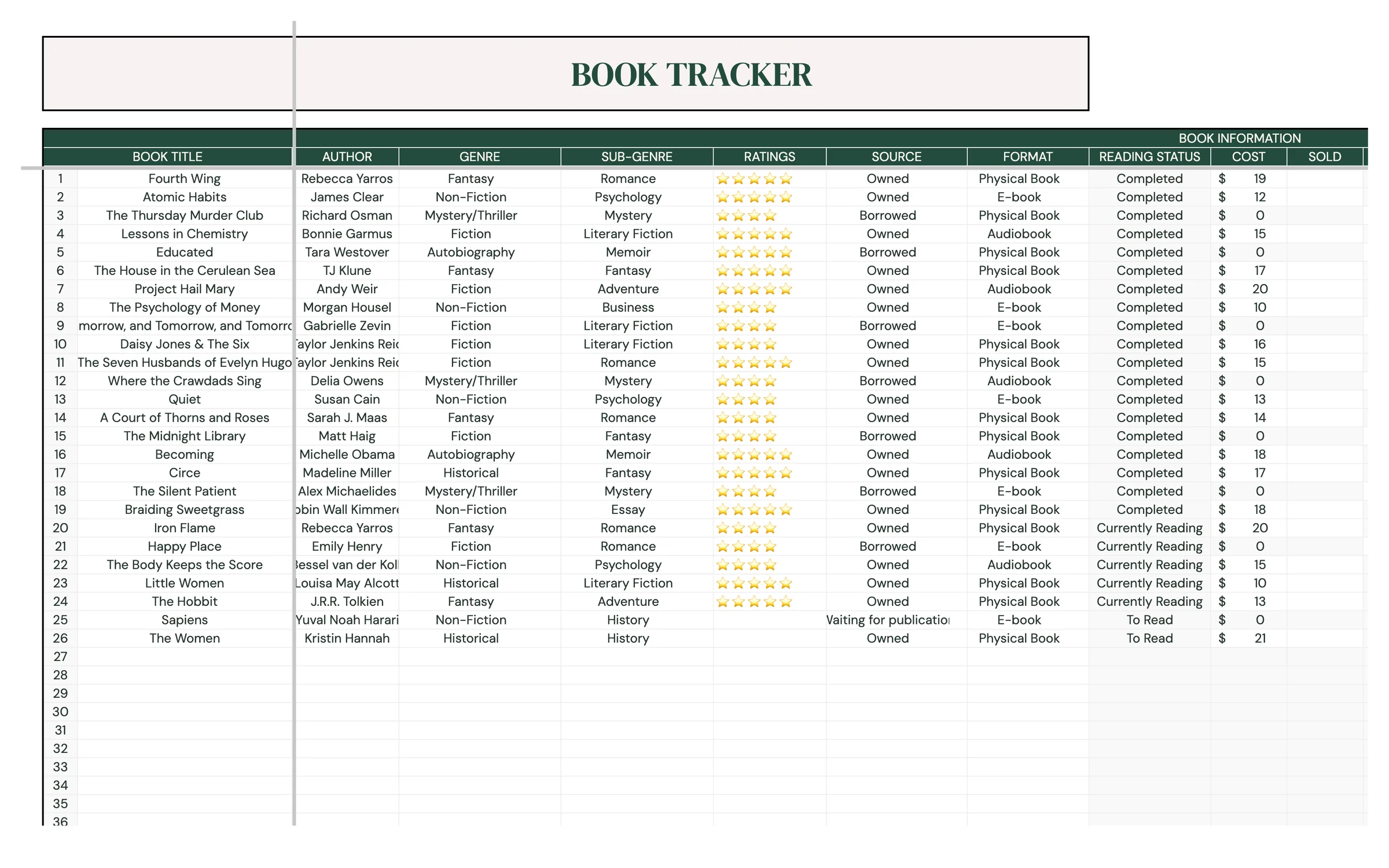
Tip: To get a cover link, find the cover image online, right-click it and choose “Copy image address”. Links ending in .jpg or .png work best.
Track your reading progress
READING STATUS and PROGRESS are calculated from your page (or hour) counts, so you never set them by hand.
- In READING PROGRESS, enter the DATE STARTED when you begin a book.
- Enter TOTAL PAGES OR HOURS (use hours for audiobooks).
- Update CURRENT PAGES OR HOURS as you read. PROGRESS and its bar update instantly.
- When you finish, enter the DATE FINISHED.
Heads up: READING STATUS reads To Read when current pages are 0, Currently Reading in between, and Completed at 100%. Enter 0 in CURRENT PAGES OR HOURS for books on your to-read list.
Explore your dashboard
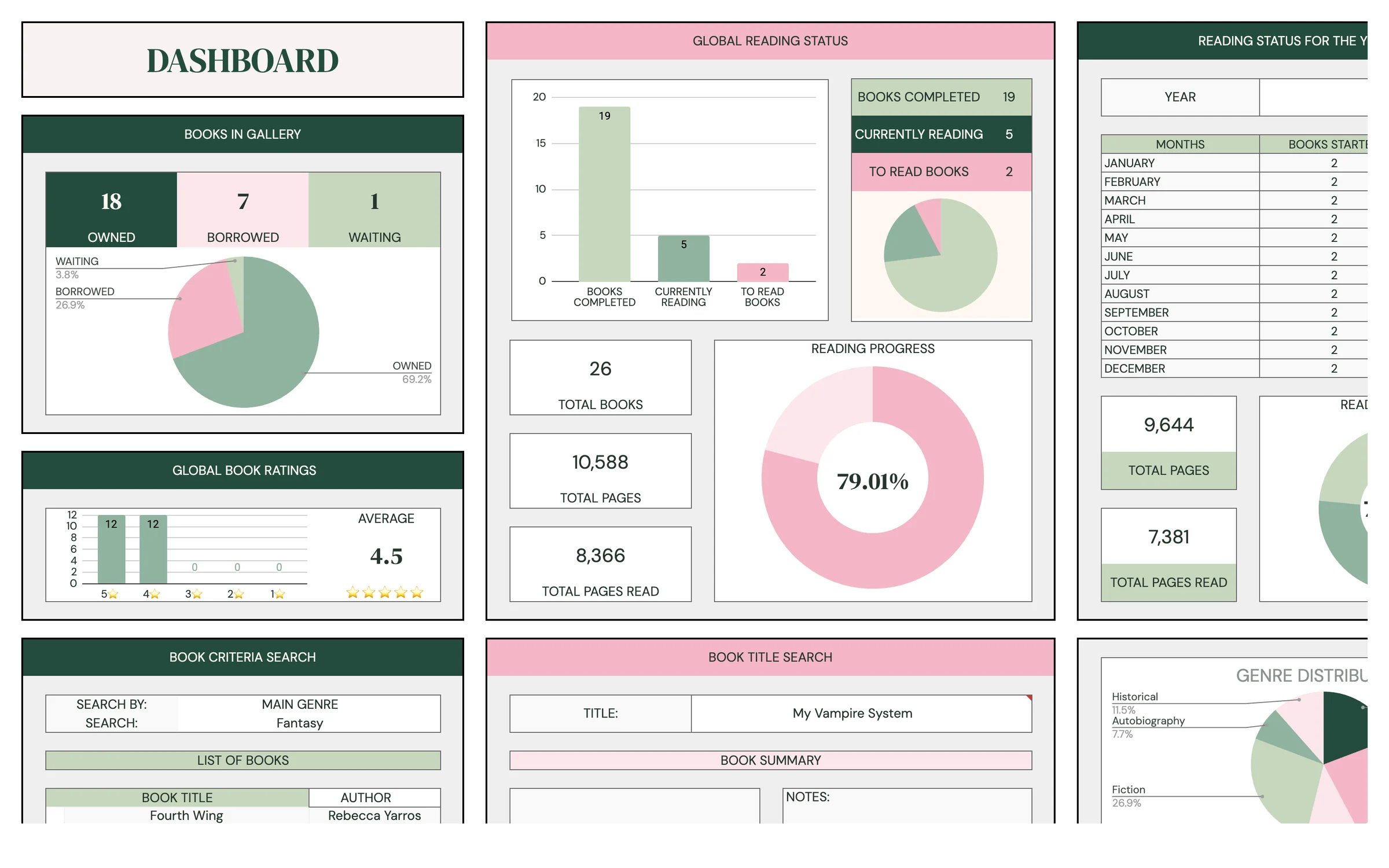
Your reading life at a glance. You don't type here, apart from the search boxes.
- GLOBAL READING STATUS shows BOOKS COMPLETED, CURRENTLY READING and TO READ BOOKS.
- BOOKS IN GALLERY splits your books into OWNED, BORROWED and WAITING; READING PROGRESS, TOTAL BOOKS, TOTAL PAGES and TOTAL PAGES READ sit alongside.
- GLOBAL BOOK RATINGS and AVERAGE RATINGS show how you rate what you read.
- The yearly section breaks the YEAR down by MONTHS: books started, books completed and pages read.
- BOOK CRITERIA SEARCH: choose SEARCH BY (main genre, sub-genre, format or tags) and a value to get a LIST OF BOOKS. BOOK TITLE SEARCH: pick a title to see its BOOK SUMMARY and notes.
Browse your galleries
Two gallery tabs turn your log into something lovely to look at.
- PHOTO GALLERY: choose a title next to TITLE: to see its BOOK SUMMARY (author, genre, ratings, dates, progress and notes). Scroll down to BOOK COLLECTIONS for a wall of your covers.
- GALLERY: choose a title for its BOOK SUMMARY, then browse the three shelves: OWNED BOOKS, BORROWED BOOKS and BOOKS WAITING FOR PUBLICATION.
- For each shelf, use ARRANGE YOUR LIBRARY BY: to switch between ORIGINAL ORDER and ALPHABETICAL ORDER.
- Check the totals for each shelf, plus GLOBAL BOOK RATINGS and GLOBAL READING STATS.
Tip: No cover showing? Check the BOOK COVER LINK on BOOK TRACKER. It must be a direct link to an image, not a web page.
Filter your library
LIBRARY lists every book with its status icon. It's left unprotected so you can sort and filter freely.
- Open LIBRARY. In ICON SETUP, choose an icon for To Read, Currently Reading and Completed.
- Check BOOKS COMPLETED and GLOBAL PROGRESS at the top.
- Use Google Sheets' filter (Data → Create a filter) to sort or filter by FORMAT, GENRE, SUB-GENRE, RATINGS and more.
Heads up: This tab isn't protected. Filter and sort as much as you like, but don't delete or type over the formulas in the table.
Build a reading habit
READING HABITS tracks the days you read and listen, with a goal and a streak for each month.
- Open READING HABITS and set the YEAR in CALENDAR SETTINGS (it defaults to 2027).
- For each month, enter your GOALS: how many days you want to read, and how many days you want to listen.
- Each day, tick the box in the READ row, the LISTENED row, or both.
- Watch COMPLETED, LEFT, PROGRESS and LONGEST STREAK update, with the WEEKLY OVERVIEW and OVERALL PROGRESS at the top.
Check the calendar
The calendar shows your reading days and the dates that matter for your books, with no typing needed.
- Open CALENDAR. Choose the month and a start day (Sunday or Monday).
- Days you read or listened (from READING HABITS) show as DAYS WITH READING ACTIVITY.
- BOOKS TO BE RETURNED appear on their RETURNED DATE, and books WAITING TO PUBLISH on their PUBLICATION DATE.
- Change the icons in LEGENDS if you'd like different symbols.
Keep your journal going
A few seconds after each reading session keeps everything accurate.
- Update CURRENT PAGES OR HOURS on BOOK TRACKER after you read.
- Tick today's box on READING HABITS.
- Add new books the moment they land on your list, with 0 current pages.
- When you finish a book, add the DATE FINISHED, your RATINGS and PERSONAL NOTES while it's fresh.
Your routine
A few minutes a week keeps everything accurate.
- Update current pages or hours
- Tick READ or LISTENED for today
- Add the date finished
- Rate it and write your notes
- Add a cover link if it's missing
- Review your month on the DASHBOARD
- Check LONGEST STREAK on READING HABITS
- Set next month's reading goals
- Check BOOKS TO BE RETURNED on the calendar
Tips & tricks
Use it on your phone
Install the free Google Sheets app and open your copy. Updating your page count from the couch takes seconds.
Make your own tags
Add tags like “Book club”, “Reread” or “2027 challenge” under TAGS/KEYWORDS on SETUP, then search by them on the DASHBOARD.
Track audiobooks in hours
For audiobooks, enter hours instead of pages in CURRENT and TOTAL PAGES OR HOURS. PROGRESS works the same way.
Share your shelf
Click Share in the top-right and add a friend as a Viewer to show off your galleries, or as an Editor to keep a shared family library.
Change the colors
Format → Theme lets you change fonts and accent colors across the whole template in one go.
Prefer dark mode?
Your order includes a Dark Mode edition with the same tabs and formulas. Open the link in your PDF and tap “Make my dark copy”. You can keep both and use whichever you like.
Troubleshooting
I don't see “Make a copy”.
Make sure you're signed in to a Google account. On a phone, open the link in your browser (not the Etsy app) or in the Google Sheets app.
A cell says it's protected when I type.
That cell holds a formula, like READING STATUS or PROGRESS. Type only in the light input cells.
READING STATUS is blank.
Enter TOTAL PAGES OR HOURS and CURRENT PAGES OR HOURS (use 0 if you haven't started). The status is worked out from those two numbers.
My book cover doesn't show.
BOOK COVER LINK needs a direct image address. Right-click the cover online, choose “Copy image address” and paste that link.
My new genre isn't in the dropdown.
Add it to MAIN GENRE or SUB-GENRE on SETUP first. Then it appears in BOOK TRACKER.
Dates look wrong (day and month swapped).
File → Settings → Locale controls the date format. Pick your country and the dates switch to your format.
Still stuck? Message us on Etsy or email help.planly@gmail.com and a real person will help.
Don't have Planly Book Nook yet?
Every book you read, logged and rated.