

Before you start
You only need three things:
- A free Google account
- A computer for setup (phone or tablet works afterwards)
- A list of your bills, subscriptions and debt payments with amounts and next due dates
- Your paydays (optional, but handy)
Throughout this guide, light cells are the ones you type in. Everything else is calculated automatically and protected so nothing breaks.
Tour of the tabs
Planly Bill Buddy has 4 tabs. Here's what each one does and what (if anything) you fill in.
Setup
Your currency and every recurring payment: income, bills, subscriptions and debts.
You fill: Currency symbol, then each item's name, frequency, amount and first payment date.
Payments
The PAYMENT SCHEDULE: every upcoming payment in date order, built from SETUP.
You fill: Tick PAID; optionally a new date, new amount or a note.
Calendar I
A SMART CALENDAR showing one month of payments, color-coded by type.
You fill: Year, month and the day your week starts; notes.
Calendar II
A second calendar with the same layout, set up to show the following month.
You fill: Year, month and week start, if you want a different month.
Make your copy
Your template lives in your own Google Drive, so the first step is making your personal copy.
- Open the PDF from your Etsy purchase (Etsy → You → Purchases and reviews → Download files).
- Click the “Make my copy” button. If you're asked, sign in to your Google account.
- Google shows a “Copy document” screen. Click the blue “Make a copy” button.
- Your copy opens. Rename it if you like (click the title in the top-left), e.g. “Our Bills 2027”.
Tip: Bookmark your copy, or star it in Google Drive, so it's one click away.
Add your bills on SETUP
SETUP is the only place you list your payments. Everything else is built from it.
- Open SETUP and type your currency symbol ($, €, £…) under CURRENCY.
- In BILLS, type each bill's NAME (rent, electricity, insurance…).
- Choose its FREQUENCY from the dropdown: One time, Every Week, Every 2 Weeks, Every 4 Weeks, Every Month, Every 2 Months, Every Quarter, Every 6 Months or Every Year.
- Enter the AMOUNT and the 1st PAYMENT date (the next date it's due).
- Repeat for SUBSCRIPTIONS and DEBTS, and add your paychecks under INCOME if you want paydays on the calendar too.
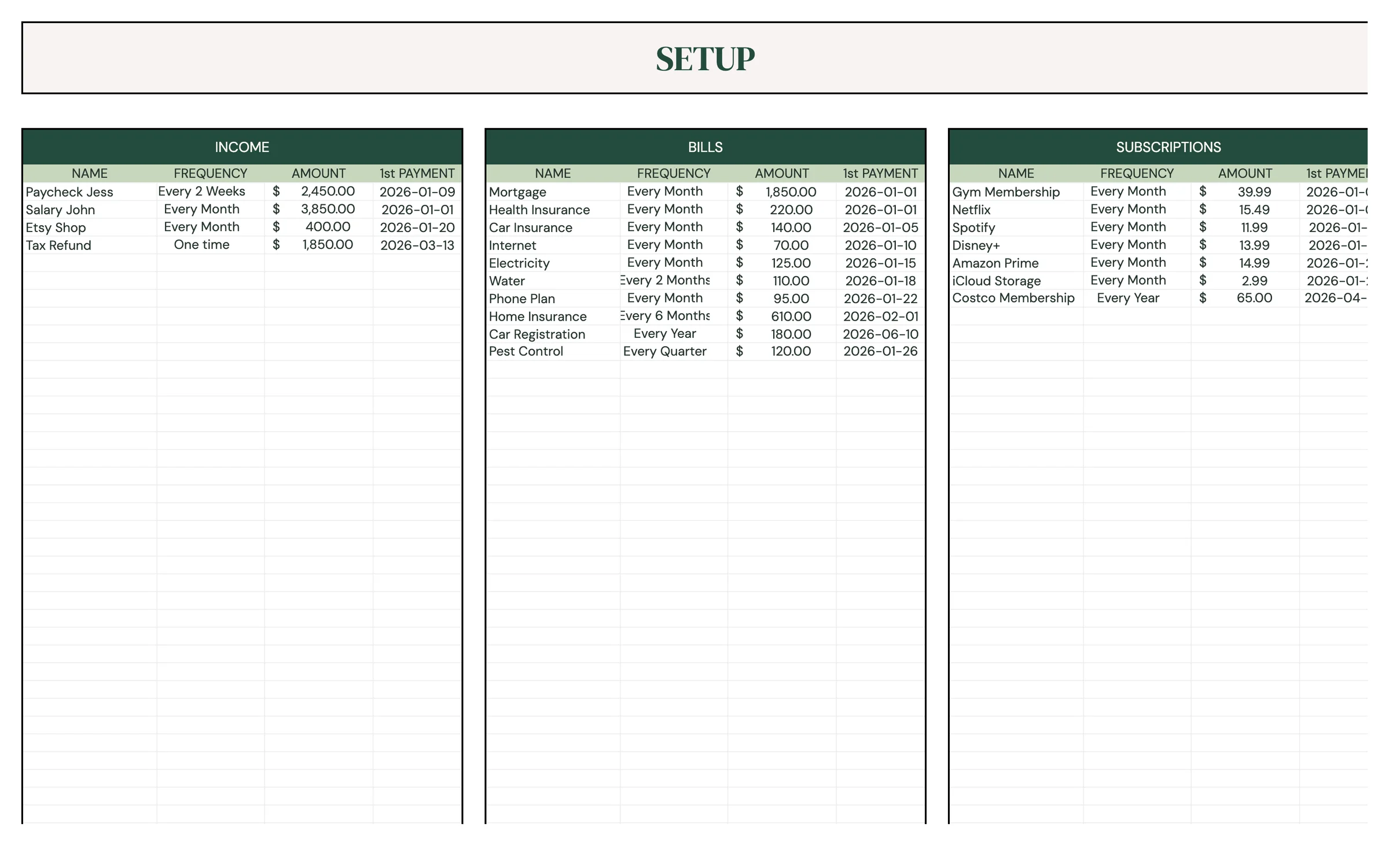
Tip: Each recurring item fills twelve months of payments from its 1st PAYMENT date. For example, 12 monthly payments, 26 every-two-weeks payments or 4 quarterly payments.
Heads up: Give every item a unique name (e.g. “Phone – Jess” and “Phone – John”). The template looks items up by name, so duplicates can show the wrong type.
Review your payment schedule
PAYMENTS lists every upcoming payment in date order, with its NAME, DATE, AMOUNT, YEAR, MONTH and CATEGORY filled in for you.
- Open PAYMENTS and scroll through your PAYMENT SCHEDULE.
- If one payment moves (a bill comes early, or a holiday shifts it), enter the NEW DATE on that row.
- If one payment's amount is different (a higher winter electric bill), enter the NEW AMOUNT.
- Use NOTE for anything you want to remember, like a confirmation number, or “paid by card”.
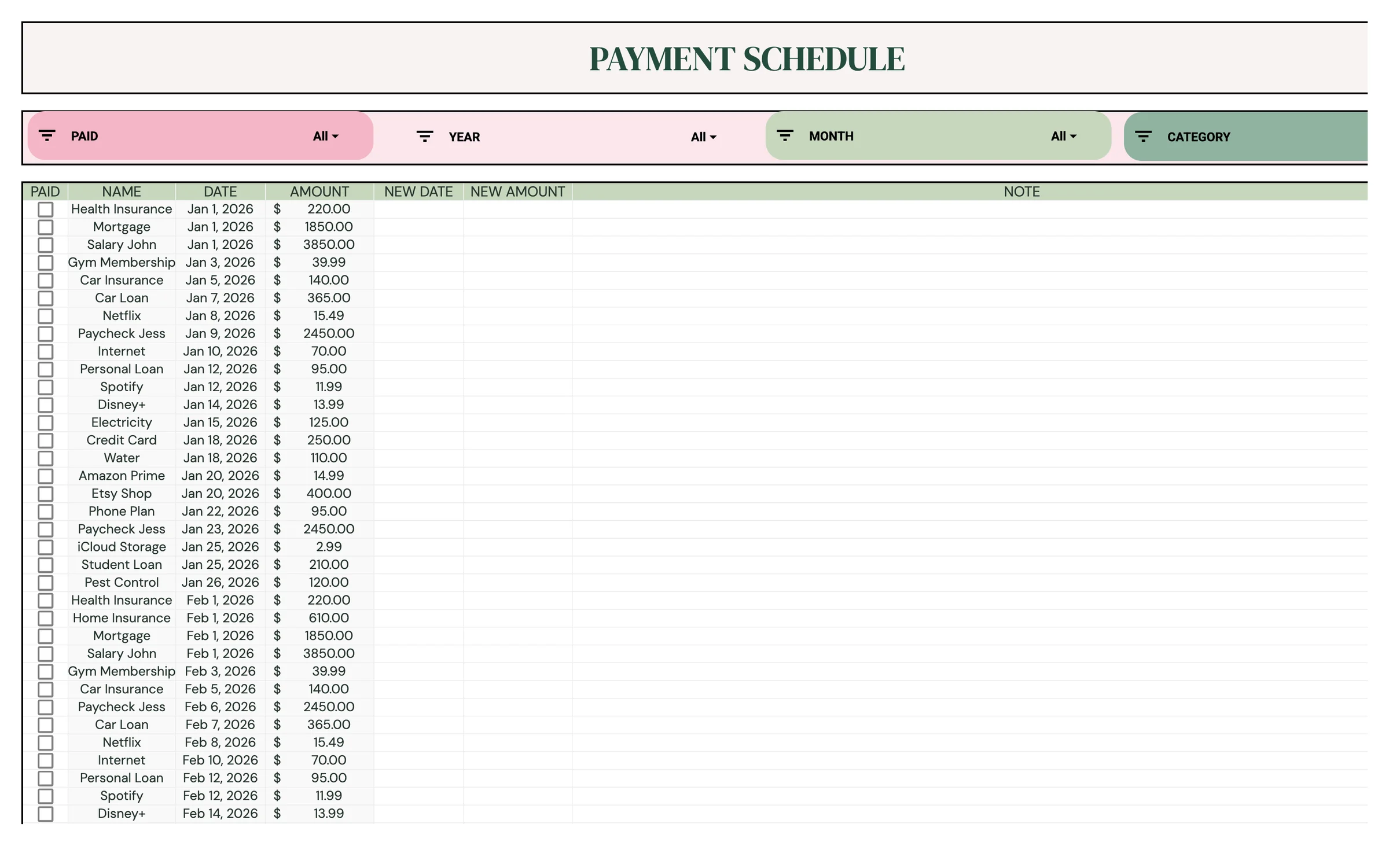
Tip: NEW DATE and NEW AMOUNT change just that one payment. To change every future payment, edit the item on SETUP instead.
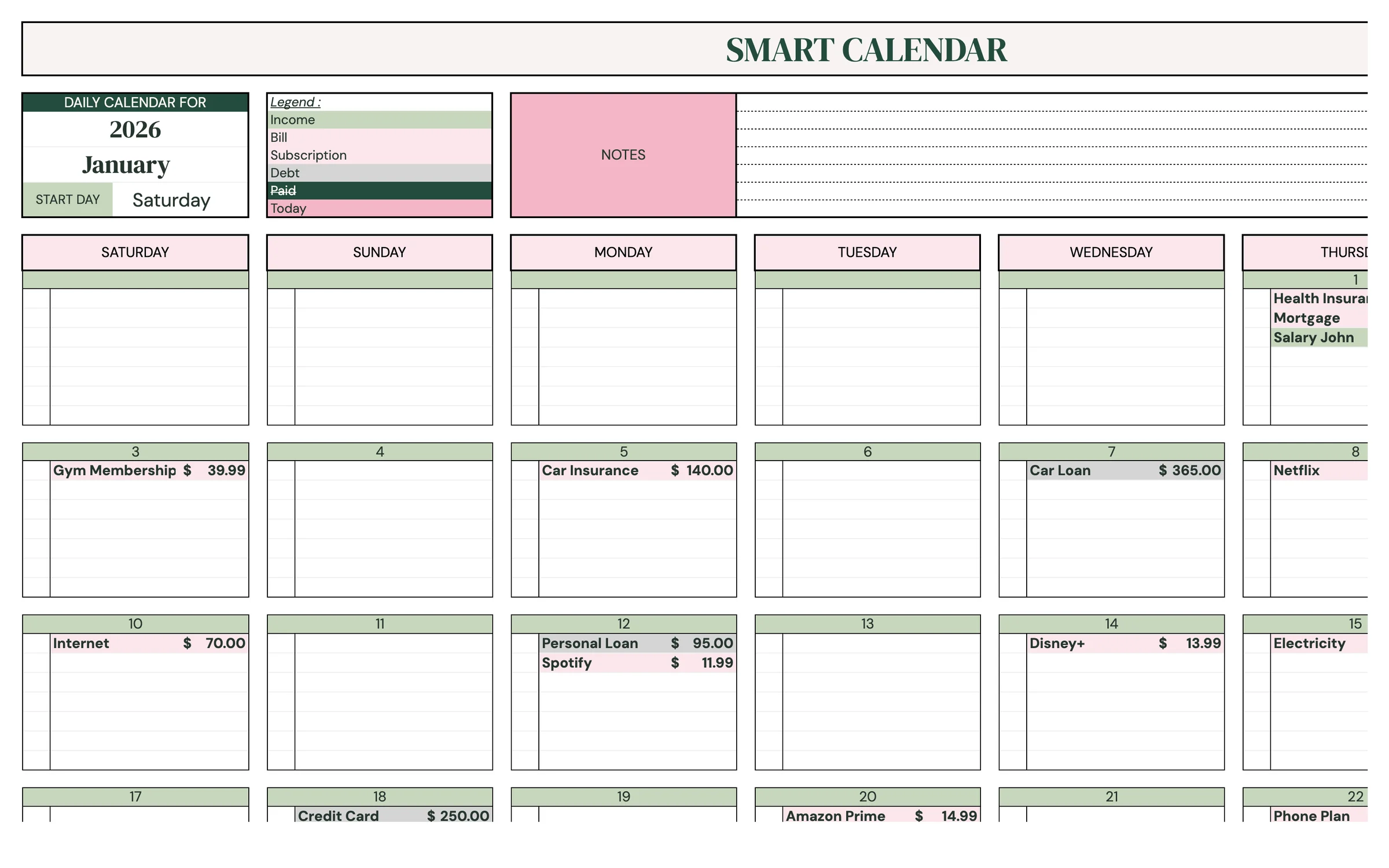
Set up the calendar
The SMART CALENDAR shows a month of payments on their dates, color-coded so you can see what's coming at a glance.
- Open CALENDAR I. Under DAILY CALENDAR FOR, check the year (type a new one to change it) and choose the month from the dropdown.
- Next to START DAY, choose the day your week starts (for example Sunday or Monday).
- Read the legend: Income, Bill, Subscription, Debt, Paid and Today each have their own color.
- Use the NOTES area for reminders.
- Open CALENDAR II to see the following month, so you can plan two months side by side.
Mark bills as paid
Checking off payments keeps you on top of what's done and what's still due.
- When you pay a bill, open PAYMENTS and tick the PAID checkbox on its row.
- Switch to CALENDAR I. The payment now shows in the Paid color.
- Anything not yet ticked is still waiting to be paid.
Heads up: Add all your recurring items on SETUP before you start ticking PAID or entering new dates. The schedule is sorted by date, so adding items later can shift rows while your checkmarks and notes stay where they were.
Keep it going month to month
Once it's set up, Bill Buddy needs just a couple of minutes each month.
- At the start of each month, change the month on CALENDAR I (and CALENDAR II for the month after).
- Add any new bills on SETUP; remove ones you've cancelled.
- Update an item's AMOUNT on SETUP when a price changes for good.
- When a recurring item's twelve months run out, update its 1st PAYMENT date to the next due date, or make a fresh copy for the new year.
Your routine
A few minutes a week keeps everything accurate.
- Check what's due this week on CALENDAR I
- Tick PAID for anything you've paid
- Switch CALENDAR I and CALENDAR II to the new months
- Add or remove bills on SETUP
- Note any one-off changes with NEW DATE or NEW AMOUNT
- Open your download link and make a fresh copy for the new year
- Re-enter your bills with their new 1st PAYMENT dates
Tips & tricks
Add your paydays
List your paychecks under INCOME on SETUP. Seeing paydays next to due dates makes it easy to plan which paycheck covers which bill.
Use it on your phone
Install the free Google Sheets app and open your copy. Ticking a bill as paid takes seconds.
Share with a partner
Click Share in the top-right and add your partner's email as an Editor, so you both see what's due and what's paid.
Print the month
File → Print (or Download → PDF) on CALENDAR I gives you a calendar to stick on the fridge.
Change the colors
Format → Theme lets you change fonts and accent colors across the whole template in one go.
Prefer dark mode?
Your order includes a Dark Mode edition with the same tabs and formulas. Open the link in your PDF and tap “Make my dark copy”. You can keep both and use whichever you like.
Troubleshooting
I don't see “Make a copy”.
Make sure you're signed in to a Google account. On a phone, open the link in your browser (not the Etsy app) or in the Google Sheets app.
A cell says it's protected when I type.
That cell holds a formula. Type only in the light input cells. That's what keeps everything calculating correctly.
A bill doesn't show on the calendar.
Check that it has a NAME, FREQUENCY, AMOUNT and a valid 1st PAYMENT date on SETUP, and that the calendar is set to the right year and month.
A bill only appears once.
Its FREQUENCY is probably One time or Every Year. Pick the right frequency on SETUP and the rest of the payments appear.
My PAID checkmarks are next to the wrong payments.
This happens if items were added on SETUP after you started ticking. Untick the affected rows and tick the right ones again.
Dates look wrong (day and month swapped).
File → Settings → Locale controls the date format. Pick your country and the dates switch to your format.
Still stuck? Message us on Etsy or email help.planly@gmail.com and a real person will help.
Don't have Planly Bill Buddy yet?
Never miss a due date again.