

Before you start
You only need three things:
- A free Google account
- A computer for setup (phone or tablet works afterwards)
- A rough list of your income and monthly bills
- A rough list of your bills, subscriptions, debts and savings goals
Throughout this guide, light cells are the ones you type in. Everything else is calculated automatically and protected so nothing breaks.
Tour of the tabs
Planly Balance Budget has 22 tabs. Here's what each one does and what (if anything) you fill in.
Setup
Your currency, how leftover money is handled, and the master list of budget categories.
You fill: Currency symbol, calculation method, and your bills, expenses, savings, subscriptions and debts.
Name your Bank
Optional: running totals for your everyday money, savings, cash and cards, based on what you log.
You fill: Optional: simple account and card names, types and starting amounts; money moved between them.
Annual Dashboard
Your year at a glance: budget summary, sinking funds, debt, net worth and the no-spending challenge.
You fill: Nothing. It fills itself.
Annual Totals
Budget, real and difference for income and every category group, month by month.
You fill: Nothing. It fills itself.
Jan – Dec
One budget per month: budget summary, income, bills, expenses, savings, subscriptions, debts and a transaction tracker.
You fill: Planned amounts and due dates, your income, then every transaction.
50/30/20
The tab labeled 503020: compares any month against your goal split of needs, wants and savings/debts.
You fill: Pick a month, set your goal percentages, and tag each category as Need, Want or Savings / Debts.
Calendar
A daily calendar of paydays, bills, subscriptions and debt payments.
You fill: Pick the month; tick bills as paid; add notes.
Sinking Funds
Savings goals with progress bars, months left and an estimated finish date.
You fill: Each fund's goal and monthly goal, then every contribution.
Debt Calculator
Your debt-free plan using the snowball, avalanche or a custom order.
You fill: Start date, strategy, extra payment and your debts.
Net Worth
What you own minus what you owe, month by month, with your annual growth.
You fill: Asset and liability balances once a month.
Challenge
A no-spending challenge plus five “give it up” money challenges.
You fill: Monthly goals, your challenge details and daily check-ins.
Make your copy
Your template lives in your own Google Drive, so the first step is making your personal copy.
- Open the PDF from your Etsy purchase (Etsy → You → Purchases and reviews → Download files).
- Click the “Make my copy” button. If you're asked, sign in to your Google account.
- Google shows a “Copy document” screen. Click the blue “Make a copy” button.
- Your copy opens. Rename it if you like (click the title in the top-left), e.g. “Our 2027 Budget”.
Tip: Bookmark your copy, or star it in Google Drive, so it's one click away all year.
Choose your currency and budget method
Two quick choices on SETUP control how every other tab displays and calculates money.
- Open the SETUP tab.
- Under CURRENCY, type your currency symbol ($, €, £…) in the light cell. Every money cell in the template uses it.
- Under CALCULATION SETUP, pick Zero based budget or Carry over budget from the dropdown.
- Zero based budget: each month stands on its own and the goal is to give every dollar of income a job.
- Carry over budget: whatever is left in Left to Spend and Left to Budget rolls forward into the next month, which is handy if your income varies or you have big expenses in some months.
Tip: Light-colored cells are where you type. Everything else is calculated for you and protected, so nothing breaks by accident.
List your categories
The CATEGORIES section on SETUP is your master list. Whatever you type here appears automatically on all twelve month tabs.
- In BILLS, list your fixed bills: rent or mortgage, utilities, insurance, phone, internet…
- In EXPENSES, list flexible spending: groceries, gas, dining out, shopping, pets…
- In SAVINGS, list where you put money aside: emergency fund, sinking funds, retirement…
- In SUBSCRIPTIONS, list streaming, apps and memberships.
- In DEBTS, list credit cards, car loans, student loans and other monthly debt payments.
Tip: Give every category a unique name across all five lists. The transaction tracker looks categories up by name, so two items called “Insurance” would get mixed up.
Name your bank (optional)
This step is optional. Give your accounts simple names (like “Everyday”, “Savings” and “Cash”) and Balance Budget keeps a running total for each, based on what you log: the starting amount, plus income you add to it, minus spending paid from it. Prefer to keep it simple? Skip it. Everything else works without it.
- In CHECKING AND SAVING ACCOUNTS, type a simple ACCOUNT NAME (e.g. “Everyday”, “Savings”) and choose its ACCOUNT TYPE: Checking or Saving.
- Enter each STARTING BALANCE. Cash is already available in every dropdown.
- In CREDIT CARD ACCOUNTS, add each CREDIT CARD NAME and its STARTING BALANCE (what you currently owe).
- Whenever you move money from one account to another (including paying off a card), log it in TRANSFERRED BETWEEN ACCOUNTS: DATE, FROM, TO and AMOUNT TRANSFERRED.
- If a total ever needs a correction, enter the difference in ADJUSTMENTS +/- and note the date in LAST CHECKED.
Tip: These names fill the DEPOSITED IN and ACCOUNT PROVENANCE dropdowns on each month tab. Skipping this step? Just leave those columns blank.
Plan January
Each month has the same layout. Your category names are already filled in from SETUP. You just add the numbers you expect.
- In INCOME, add each SOURCE (salary, side hustle…), its PAYDAY, the EXPECTED amount and the account it's DEPOSITED IN.
- In BILLS, enter a BUDGET amount for each bill and its DUE date.
- In EXPENSES and SAVINGS, enter a BUDGET amount for each category.
- In SUBSCRIPTIONS and DEBTS, enter each BUDGET amount and DUE date.
- Check the top of the tab: LEFT TO BUDGET shows how much income is still unassigned. With a zero-based budget, aim for zero.
- The BUDGET SUMMARY table totals each group so you can see your whole plan in one place.
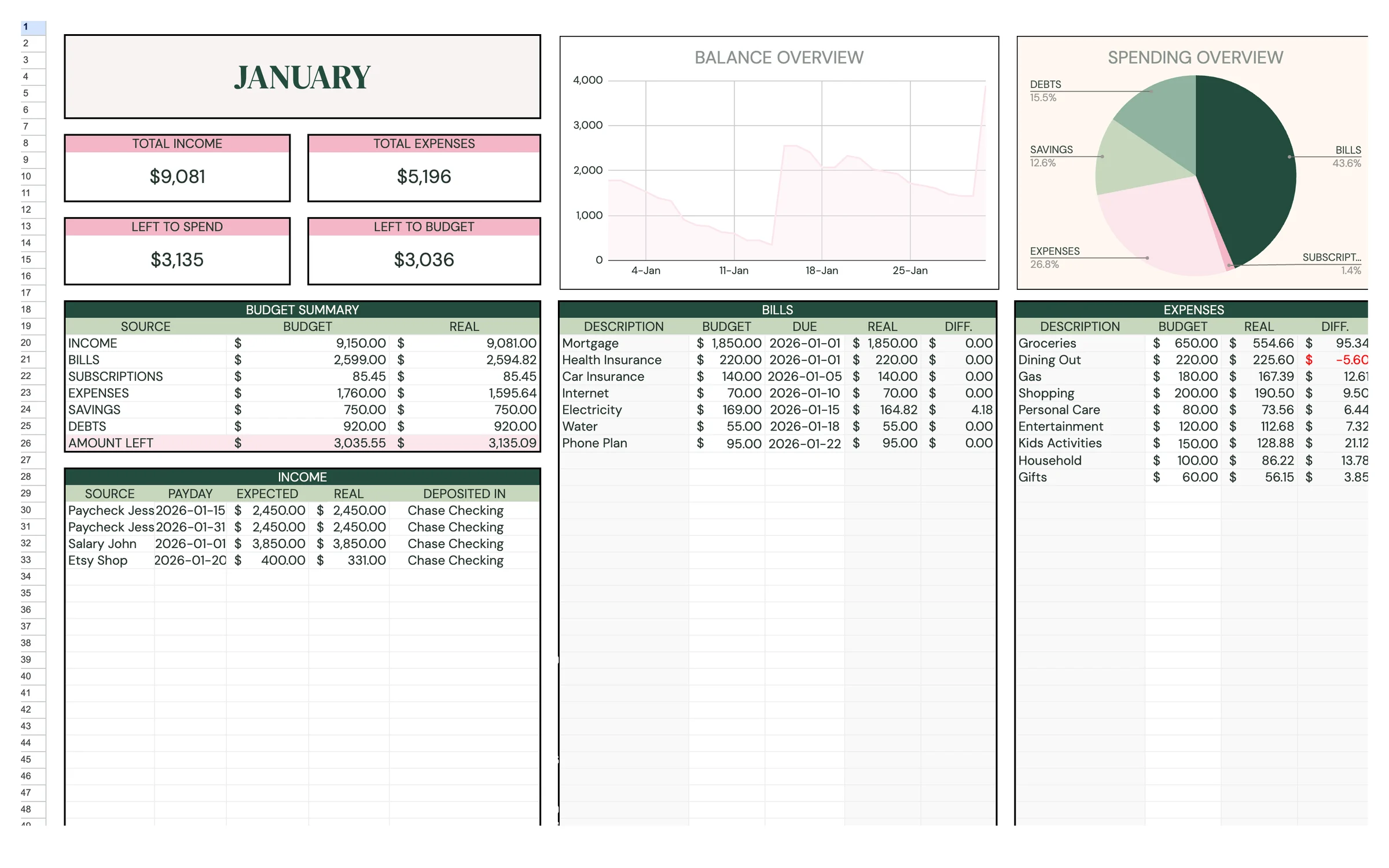
Tip: Due dates and paydays you enter here are what put your bills and income on the CALENDAR tab.
Log your transactions
The TRANSACTION TRACKER is where your plan meets real life. Log as you go, or batch it once a week.
- Scroll down to TRANSACTION TRACKER on the month tab.
- For each purchase or payment, enter the DATE and AMOUNT.
- Pick the BUDGET NAME from the dropdown and CATEGORY fills in by itself.
- If you added accounts, choose the ACCOUNT PROVENANCE (where it was paid from). Add a DESCRIPTION if you like.
- When you get paid, type the actual amount in the REAL column of the INCOME table.
- Watch REAL and DIFF. update in each section, and TOTAL EXPENSES and LEFT TO SPEND update at the top.
Heads up: Keep each month's transactions on that month's tab. The month tabs, dashboard and challenge all read them from there.
Check your 50/30/20 balance
The 50/30/20 DASHBOARD shows how your real spending splits between needs, wants and savings/debts, and how that compares to your goal.
- Open the 503020 tab and choose a month under WHICH MONTH DO YOU WANT TO IMPROVE?
- In MY GOAL BREAKDOWN, check the PERC. for NEED, WANT and SAVINGS / DEBTS. They start at the classic 50%, 30% and 20%. Change them if you want a different split, keeping the TOTAL at 100%.
- Scroll to the BILLS, EXPENSES, SAVINGS, SUBSCRIPTIONS and DEBTS lists. Next to each category, choose NEED, WANT or SAVINGS / DEBTS in the CATEGORY dropdown.
- Compare MY GOAL BREAKDOWN with MY REAL BUDGET BREAKDOWN to see where you're over or under.
- The BUDGET SUMMARY at the top shows budget vs. real for the chosen month.
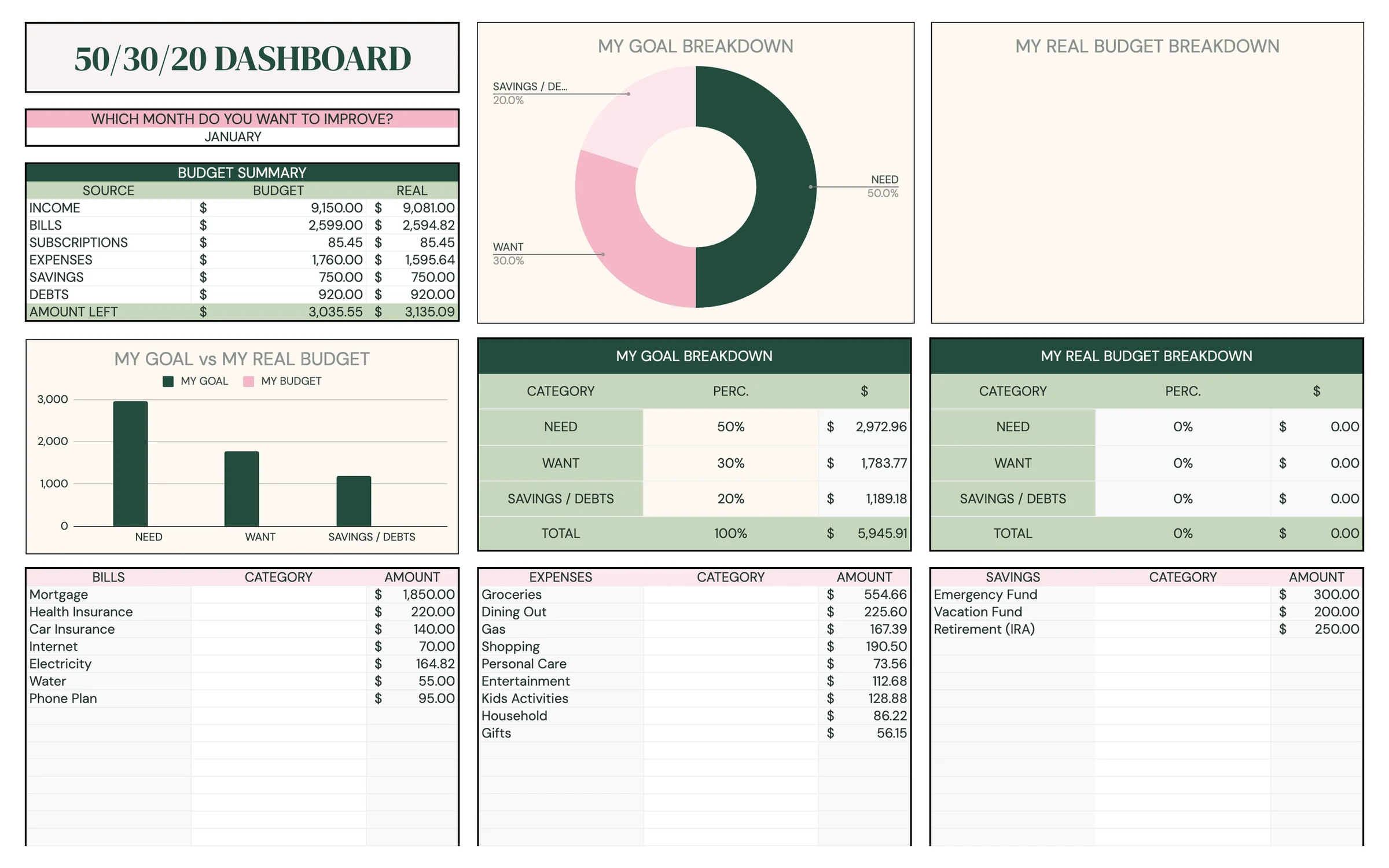
Tip: You only need to tag your categories once. Because every month uses the same SETUP categories, your tags carry over when you switch months.
Read your dashboard
Once a few transactions are in, the dashboard comes alive. You never type here. It summarizes everything.
- BUDGET SUMMARY: annual income, expenses, savings, left to spend, best saving month and biggest expense.
- SINKING FUNDS SUMMARY: global progress, saved and left across all your funds.
- DEBT CALCULATOR SUMMARY: initial balance, chosen strategy, monthly payments, current balance, total interest and your debt paid off date.
- NET WORTH SUMMARY: your worth and annual growth, pulled from the NET WORTH tab.
- NO SPENDING CHALLENGE SUMMARY: your no-spend days and challenge progress over the year.
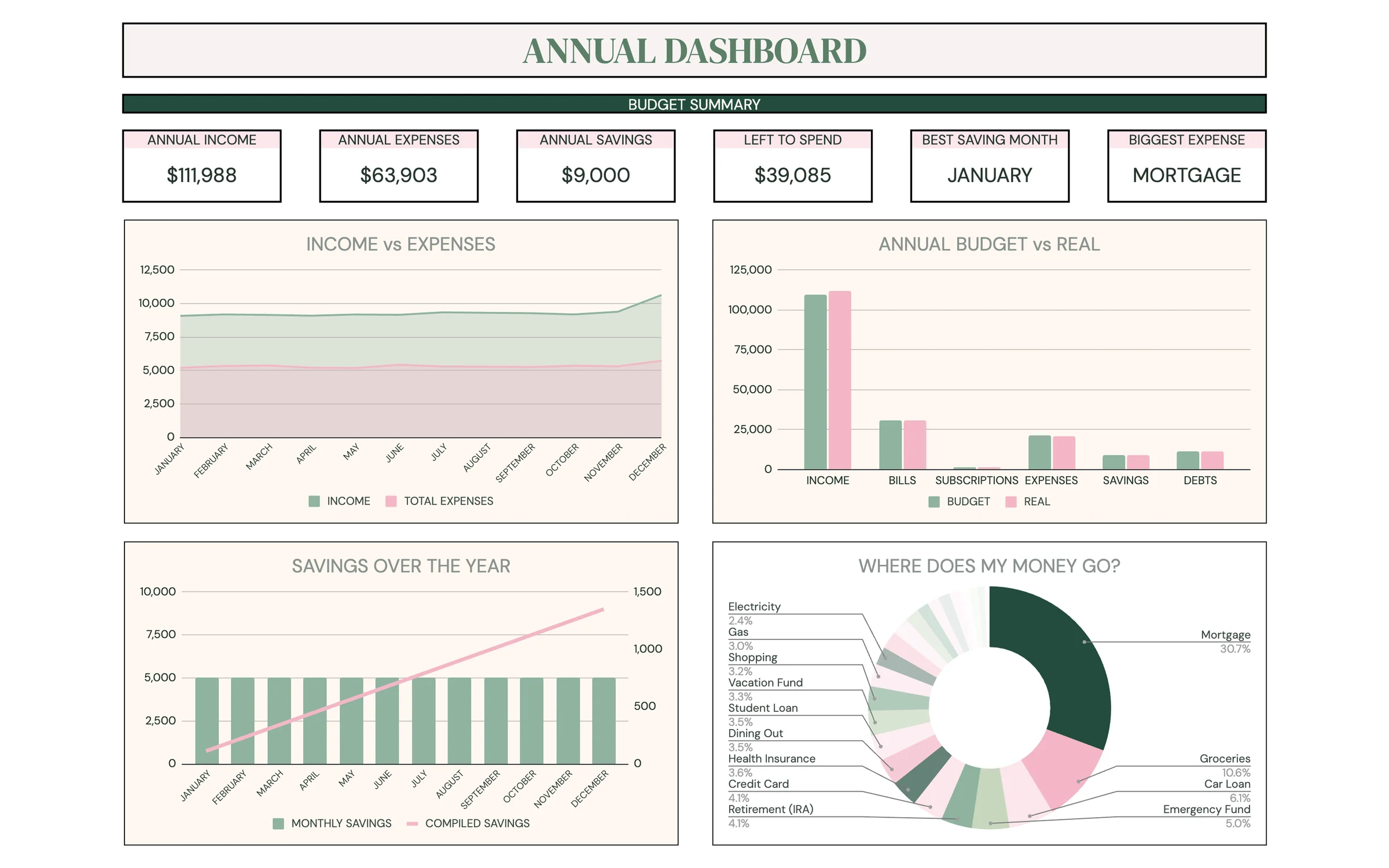
Tip: ANNUAL TOTALS shows the same numbers as a table (budget, real and difference for every month), which is handy for spotting the month a category went over.
Use the calendar
The calendar lays out every payday, bill, subscription and debt payment on its date, with no extra typing needed.
- Open CALENDAR and choose the month under DAILY CALENDAR FOR.
- Use the legend: Income, Bill, Subscription, Debt, Bill paid and Today each have their own color.
- Tick the checkbox next to a bill once you've paid it.
- Jot reminders in the NOTES area.
Set up sinking funds and your debt plan
Two tabs help you save for what's coming and pay off what you owe.
- SINKING FUNDS: in FUNDS OVERVIEW, name each SINKING FUND and enter its GOAL, MONTHLY GOAL and any amount you've already saved under START.
- Each time you save toward a fund, log it in CONTRIBUTION TRACKER: DATE, SINKING FUND and AMOUNT. SAVED, LEFT, PROG, MONTHS LEFT and ESTIMATE DATE update for you.
- DEBT CALCULATOR: set the START DATE (year and month).
- Under CHOOSE YOUR STRATEGY, pick Debt Snowball Strategy (smallest balance first), Debt Avalanche Strategy (highest interest first) or Custom Strategy (the order you list them).
- Enter your MONTHLY EXTRA PAYMENT, anything you can add on top of the minimums.
- List each debt: DEBT NAME, INITIAL BALANCE, INTEREST RATE and MIN. PAYMENT.
- Read the results: INITIAL BALANCE, MONTHLY PAYMENTS and DEBT PAID OFF ON, plus the month-by-month schedule and the SORTED DATA ACCORDING TO THE STRATEGY table.
Tip: Add your sinking fund amounts to the SAVINGS categories on SETUP too, so they're part of each month's plan.
Track net worth and try a challenge
Two more tabs help you see the bigger picture and build better habits once the basics are running.
- NET WORTH: under ASSETS (Cash & Bank Accounts, Investments, Properties, Other Assets) and LIABILITIES (Short-Term Debts, Long-Term Debts, Other Liabilities), name each item and fill the START column.
- Once a month, fill that month's column. YOUR WORTH and YOUR ANNUAL GROWTH update automatically.
- CHALLENGE: set a GOAL of no-spend days for each month in the NO SPENDING CHALLENGE. Days with no logged spending are marked for you.
- In CHALLENGE #1 to #5, describe your challenge (e.g. takeout coffee), its AVERAGE COST/UNIT and your usual consumption, then tick each day you skip it to see MONEY SAVED.
Roll into the next month
At the end of each month, set up the next one in a few minutes.
- Review the month: compare BUDGET vs. REAL in the BUDGET SUMMARY and check your split on the 503020 tab.
- Open the next month's tab. Your categories are already there.
- Copy your BUDGET amounts across (select the cells, copy, paste), then update due dates and paydays.
- Adjust anything that changes this month: holidays, birthdays, annual bills.
- Update NET WORTH and log the new month's transactions as they happen.
Tip: Need a new category mid-year? Add it on SETUP and it appears on every month tab at once.
Your routine
A few minutes a week keeps everything accurate.
- Log the week's transactions
- Record any paychecks in the INCOME table's REAL column
- Tick paid bills on the CALENDAR
- Log sinking fund contributions
- Review BUDGET vs. REAL
- Check your split on the 503020 tab
- Update NET WORTH
- Plan next month's tab
- Glance at your account totals
- Review your year on the ANNUAL DASHBOARD
- Open your download link and make a fresh copy for the new year
- Carry over account balances, categories and goals
Tips & tricks
Add categories in one place
New bills, expenses or subscriptions go on SETUP. They show up on all twelve month tabs and in the BUDGET NAME dropdown right away.
Use it on your phone
Install the free Google Sheets app and open your copy. Logging a transaction on the go takes seconds.
Share with a partner
Click Share in the top-right and add your partner's email as an Editor, so you both log in the same budget.
Pay cards with a transfer
When you pay a card bill, log it in TRANSFERRED BETWEEN ACCOUNTS from your everyday account to the card, so both balances stay correct.
Change the colors
Format → Theme lets you change fonts and accent colors across the whole template in one go.
Keep a backup
File → Make a copy any time to save a snapshot. It's handy before big changes.
Prefer dark mode?
Your order includes a Dark Mode edition with the same tabs and formulas. Open the link in your PDF and tap “Make my dark copy”. You can keep both and use whichever you like.
Troubleshooting
I don't see “Make a copy”.
Make sure you're signed in to a Google account. On a phone, open the link in your browser (not the Etsy app) or in the Google Sheets app.
A cell says it's protected when I type.
That cell holds a formula. Type only in the light input cells. That's what keeps everything calculating correctly.
My category isn't on the month tab or in the dropdown.
Categories come from SETUP. Add it to the right list there (Bills, Expenses, Savings, Subscriptions or Debts) and it appears everywhere.
The 50/30/20 breakdown is empty or looks wrong.
Check that you've tagged each category as NEED, WANT or SAVINGS / DEBTS on the 503020 tab, that the right month is selected, and that your goal percentages add up to 100%.
Dates look wrong (day and month swapped).
File → Settings → Locale controls the date format. Pick your country and the dates switch to your format.
How do I start a new year?
Open your original download link and make a fresh copy. It always delivers the newest edition. Carry over your account balances, categories and goals.
Still stuck? Message us on Etsy or email help.planly@gmail.com and a real person will help.
Don't have Planly Balance Budget yet?
Needs, wants and savings, balanced in one sheet.